Exporting Emails to Account Engagement (Pardot)

Beefree App is now RGE Studio!
The email design suite you already know and love just leveled up. We’re working hard to update our help center, but you still may see some references to the old product name.
This article applies to the Email builder in all plans.
Overview
Design your emails in RGE Studio and export them to Account Engagement (Pardot) for sending. The Account Engagement connector lets you export with one click.
There are two ways to connect your Account Engagement account:
- From the Workspace Settings section: connect your Account Engagement account before you start designing.
- From the Export options of your email.
Note that our connector is compatible with Account Engagement's Classic Builder. You will also need the following permissions in Account Engagement:
- Account Engagement User
- Account Engagement Connector User
- Account Engagement Integration User
- Account Engagement Package
- Create Account Engagement Content
Follow the steps below or watch RGE Studio Academy tutorial on how to connect Salesforce Marketing Engagement (Pardot) to RGE Studio.
1. Connect from Workspace Settings
Go to Settings > Connectors.
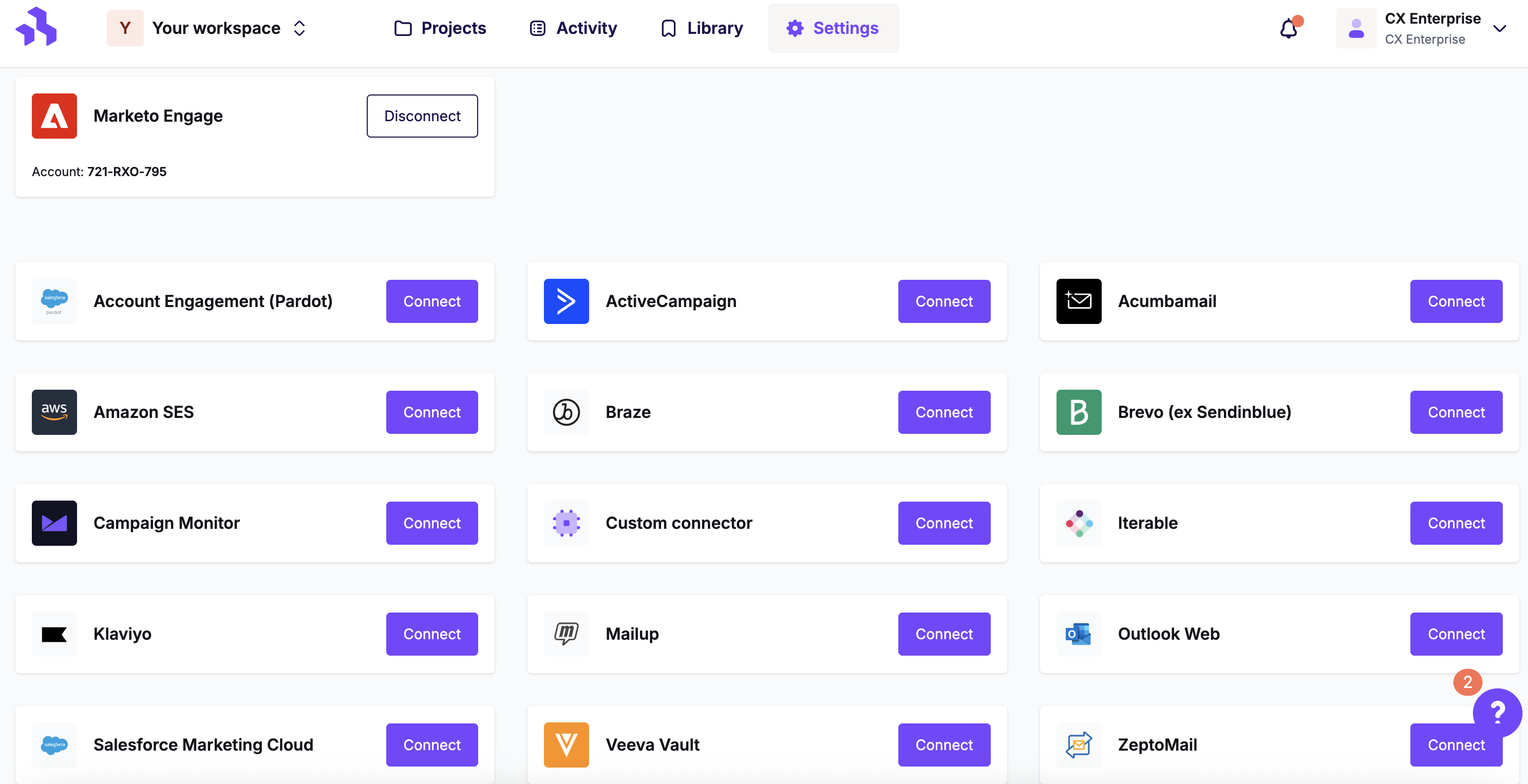
Click the Connect button for Account Engagement (Pardot).

Fill out the information in the modal to begin setting up the connector. You can find your Business Unit ID in Account Engagement. Go to Setup > Platform tools > Account Engagement > Business Unit Setup > Business Unit ID.
RGE Studio also passes the sender name and email to Account Engagement. You can edit them in Account Engagement at any time.
Click Connect to open a popup window. Sign in to your Account Engagement account to complete the setup. Your Account Engagement credentials are not stored in RGE Studio. They are used only to connect your accounts.

2. Connect from Export
When your email is ready, click Export on the Email Details page. You can also find it in the actions menu for your email.
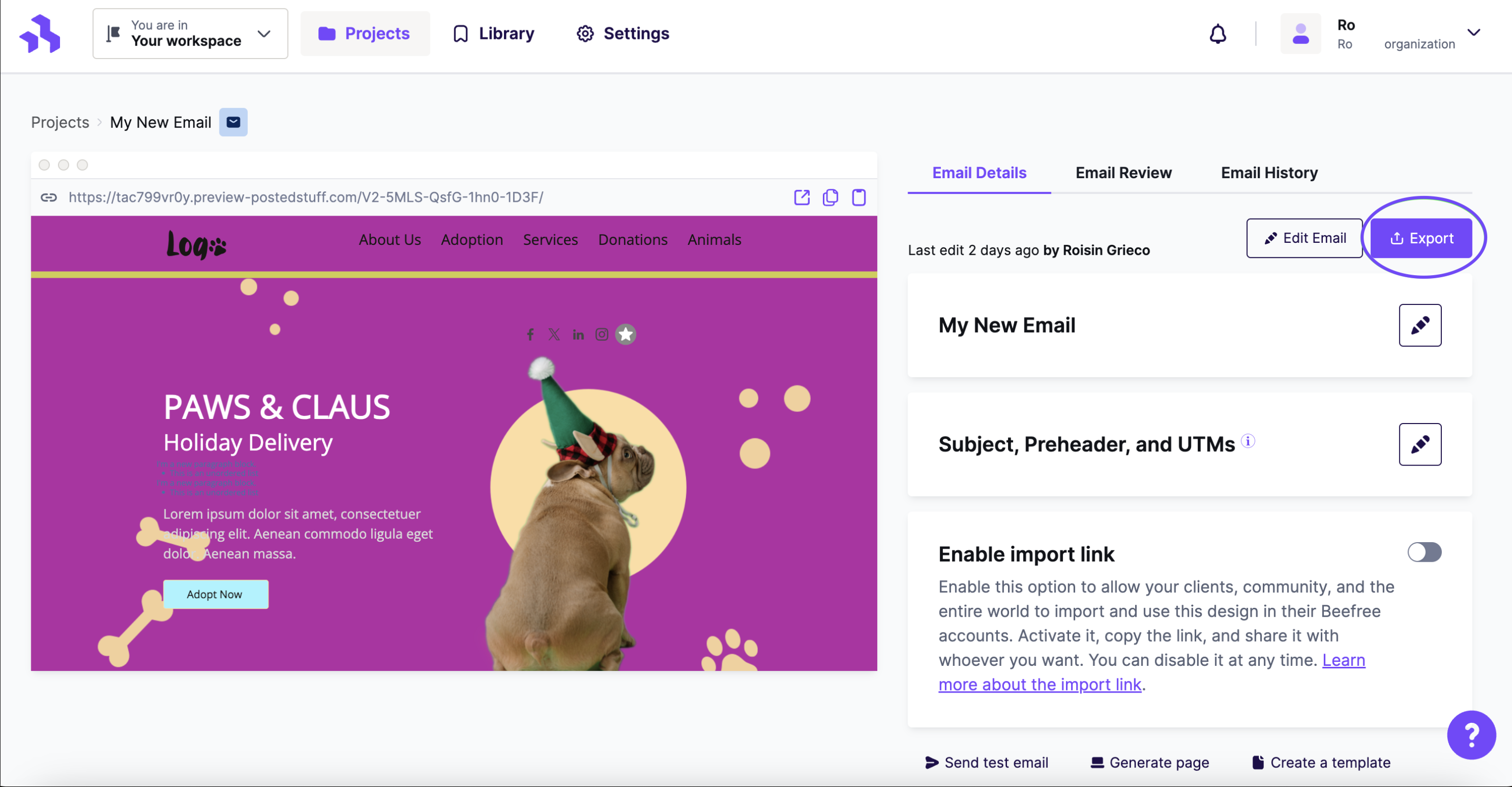
Click the Integrations icon for Account Engagement (Pardot). If you don't see it, click More to see all connectors.
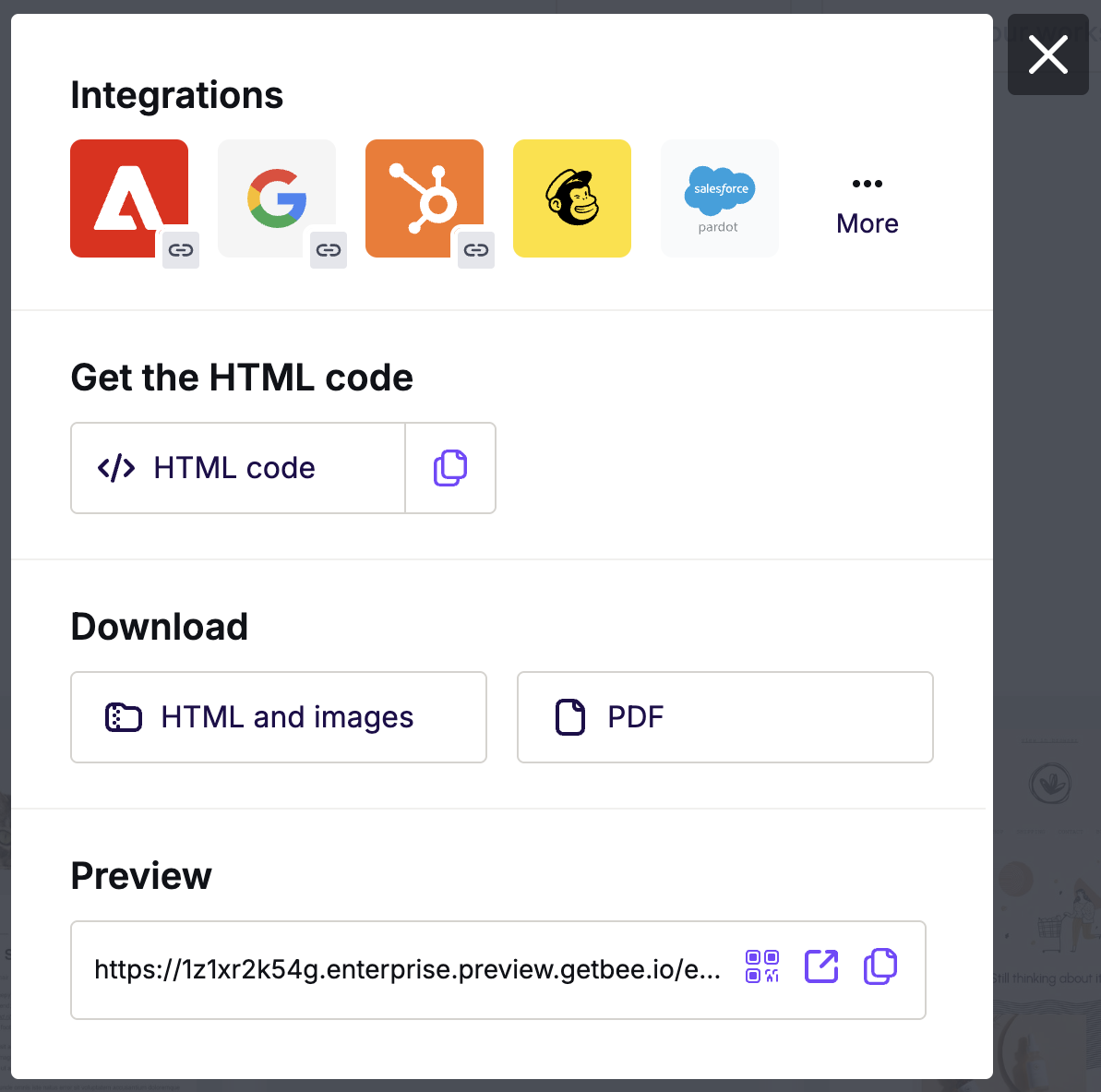
In the Integrations screen, scroll or search for Account Engagement (Pardot). Click the icon and follow the steps to connect your accounts. If you have already connected, the connection stays active.

The first time you export, RGE Studio asks for your Business Unit ID. Find it in your Account Engagement (Pardot) Setup. To see how, watch the video at the beginning of this article. After you enter it, complete the campaign information in the next section.
Complete Campaign Information to Export
Account Engagement requires some additional information to complete your export. This information determines where your design goes in Account Engagement.
- Campaign Name - Select the campaign to associate with your email. This dropdown shows all Current and Planned campaigns in your Account Engagement account.
- Folder - The folder where your design is stored. All your Account Engagement folders are available.
- Tracker domain - Use the default tracker domain (https://pi.pardot.com/) or any validated custom tracker domain.
You can also edit the sender name or sender email in this modal.

After export, find your email in the "Published email Templates" section of Account Engagement (Pardot).
Update Emails in Account Engagement
After you edit an email in RGE Studio, export it again and select the Update existing option. This pushes your changes to the existing email in Account Engagement without creating a new version.
The Update existing option updates these elements in Account Engagement (Pardot):
- HTML
- Email name
- Subject
- Preheader
- UTMs
Account Engagement Required Content
Account Engagement requires an unsubscribe link to complete the export. You can use either {{Unsubscribe}} or {{EmailPreferenceCenter}} to fulfill this requirement.
To add it:
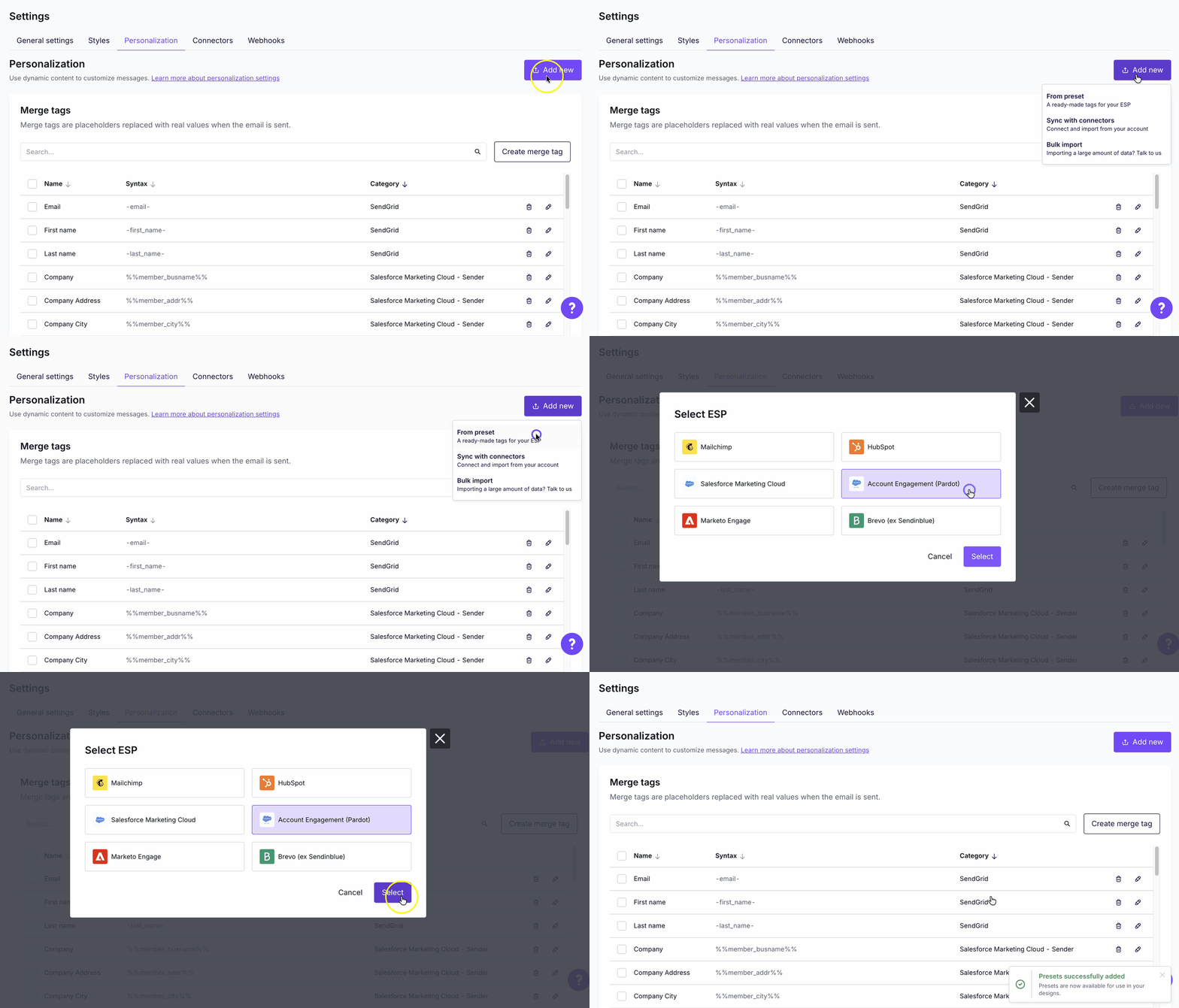
- Go to Settings > Personalization.
- Click Add new > From preset.
- Select the Account Engagement preset. It includes the merge tags and special links.
RGE Studio imports them automatically.
RGE Studio keeps the settings you have already edited in two cases:
- You have never edited your workspace settings.
- You create a new workspace (Business and Enterprise plans).

You may see an unsubscribe tag error during export. Your Account Engagement instance may use the older merge tag syntax (%%unsubscribe%%). Pardot changed this in 2020 to the HML format ({{Unsubscribe}}).
The default special link presets in RGE Studio use HML syntax only. If your instance still uses the older syntax, you have two options:
- Update your Account Engagement instance to use HML ({{Unsubscribe}}). You will need to convert your existing emails in Pardot.
- Edit the default Pardot presets in RGE Studio from {{Unsubscribe}} to %%unsubscribe%%.
Smart Check helps you confirm your merge tags and special links are set up correctly. It is available on the Business and Enterprise plans. Learn more in the Smart Check article.
Export Plain Text
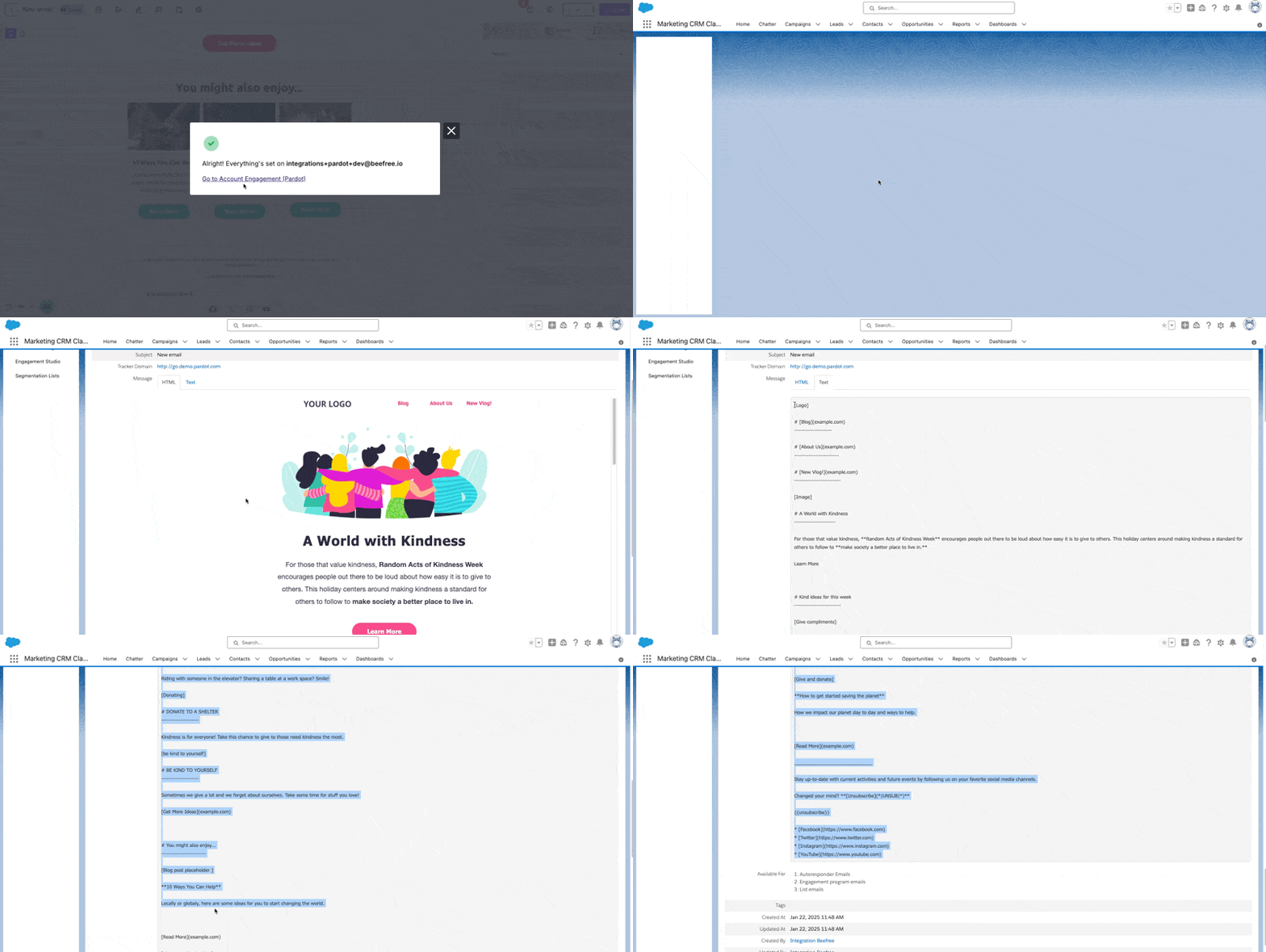
RGE Studio also exports a plain text version of your email to Account Engagement (Pardot). Find it in the Text tab of your exported email.
The GIF below shows where to find the Text tab after export.
The image below shows part of an email design. The text after it shows how that part looks as plain text in Account Engagement (Pardot).
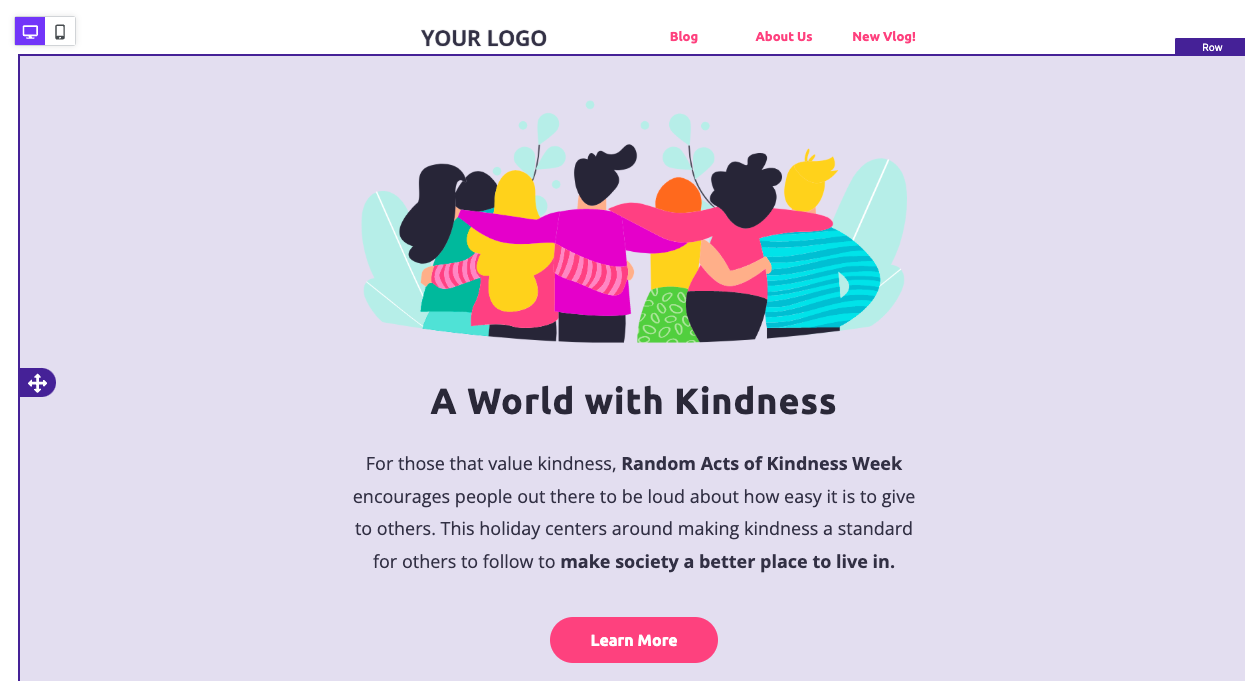
The following text displays an example of what the plain text will look like in Account Engagement (Pardot).
[Logo]

# [Blog](example.com)
---------------------

# [About Us](example.com)
-------------------------

# [New Vlog!](example.com)
--------------------------

[Image]

# A World with Kindness
-----------------------

For those that value kindness, **Random Acts of Kindness Week** encourages people out there to be loud about how easy it is to give to others. This holiday centers around making kindness a standard for others to follow to **make society a better place to live in.**

Learn More
Notes
Use the workarounds below if you run into issues with the Account Engagement (Pardot) connector.
Videos
The video content block is not compatible with Account Engagement. To use a video in your design, insert an image that links to your video URL. We are investigating a solution.
Fonts
Account Engagement counts the links to web font stylesheets as clicks. There are two workarounds:
- Use a font that does not generate a stylesheet and does not count toward your click-through rate. We recommend these fonts:
- Arial
- Courier
- Georgia
- Helvetica
- Lucida Sans
- Tahoma
- Times New Roman
- Trebuchet MS
- Verdana
- ヒラギノ角ゴ Pro W3
- メイリオ
- To use a web font, manually edit the HTML of your exported design. See Font links are counted as clicks in Pardot! for instructions.
Outlook Buttons
The builder creates two HTML outputs, so each button has two versions. One is for Outlook.
Buttons in Outlook can break when you send emails through Account Engagement. Account Engagement modifies the button HTML to force a line break in the source code. This usually causes no issues. Very long links can cause problems.
You may see empty button containers, or button text in the margins of the design. Our tests show this happens with links of about 500+ characters. Some customers report it with 100+ characters.
Shorten the URL to resolve this problem, for example with TinyURL. Our developers are investigating further. You can also report the issue to Account Engagement.
Edit the button in the RGE Studio builder and export it again. Changes made to a button inside Account Engagement do not update the Outlook-specific version.
If you have already created a campaign in Account Engagement, use the Update existing option to update only your changes.
Multiple Workspaces / Customers
Business and Enterprise plans let you create multiple workspaces. Each workspace can connect to its own Account Engagement account. You can then export without switching accounts.
For example, say you are an agency with 10 clients that use Account Engagement. You can create 10 workspaces in RGE Studio. Connect each workspace to a client's Account Engagement account.
Looking for a different sending platform? You can check our complete list of connectors — or request a new one!
If you have any questions, feel free to contact us.
Comments
1 comment
This is great news, thanks!
Please sign in to leave a comment.