How to wrap text around images

Beefree App is now RGE Studio!
The email design suite you already know and love just leveled up. We’re working hard to update our help center, but you still may see some references to the old product name.
Overview
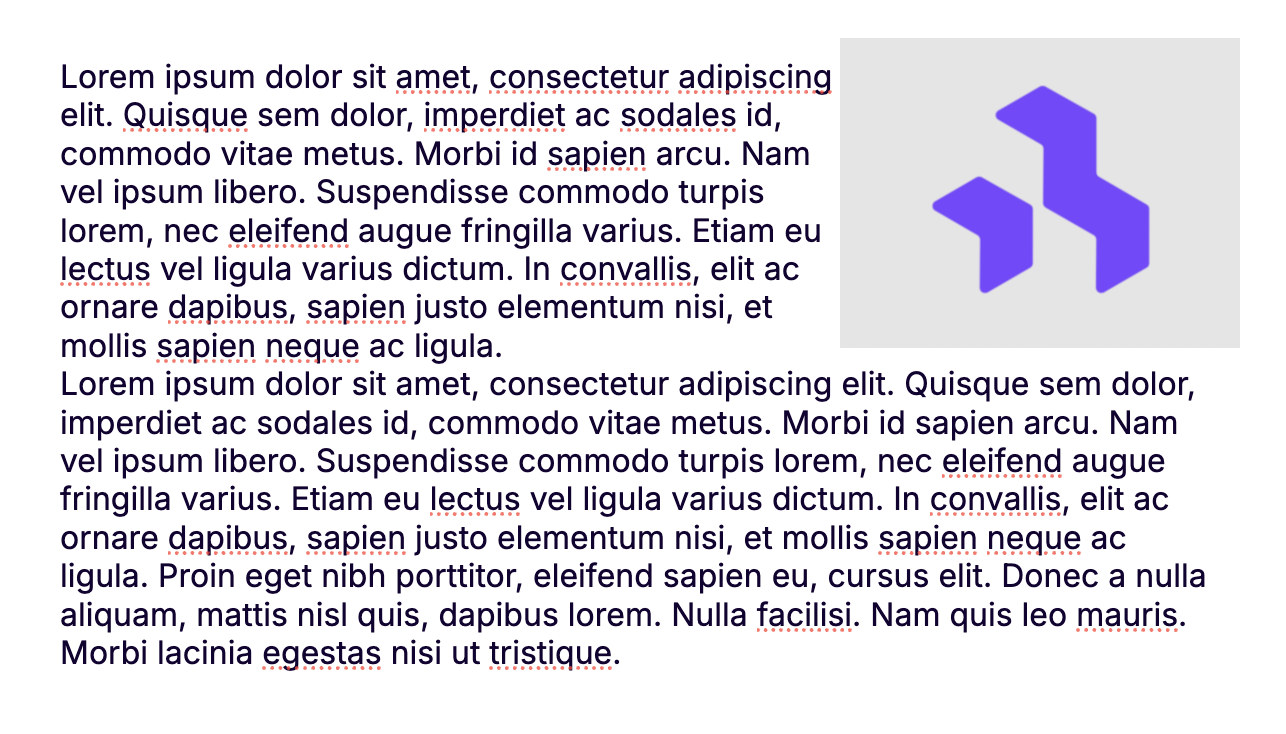
RGE Studio does not have a native text wrap feature. The two methods in this article are workarounds that create a similar effect. Use the Background Image method for large, full-width designs. Use the two-column layout for smaller images, like a profile photo or product shot.
Method 1: Background image
Use this method for large, full-width designs. The text sits over a background image, creating the appearance of text wrap.
How to do it
- Go to the Row or Settings tab. Set your image as the Background Image for a row or the whole design. For details, see Adding a background image to your designs.
- Add a content block from the right-hand panel. Choose a Paragraph, List, or Title block.
- Place your text so it avoids covering the main focus of the background image. Use one of these options to adjust placement:
- Spacer block: Add a Spacer block above your text. This pushes the text down, away from the top of the image.
- Column layout: Add a two-column row inside the background image section. Place your text in one column. Leave the other column empty.
- Padding: Increase the padding in your Paragraph block settings. This moves the text away from the edges of the image.
This video shows an example of a background image in a more complex design.
Background images do not display in all email clients, including Outlook. Test your email before sending. For guaranteed image display, use Method 2 instead.
Method 2: Two-column layout
Use this method for smaller images, such as a profile photo or a product shot. It uses a two-column row to place the image and text side by side.
How to do it
- Add a two-column row to your design.
- Place your Image block in one column. Place a Paragraph block in the other column.
- Continue your text below the image:
- Add a single-column row below the two-column row.
- Add a Paragraph block in the new row. This text sits below both the image and the initial text.
- Reduce the padding in the Row settings and your Paragraph block settings. This brings the elements closer together.
Additional considerations
Keep these tips in mind to make your text wrap look as intended.
- Font choice: Use web-safe fonts. If a web font fails to load, a fallback font replaces it. The fallback may have different size or spacing, which can break your layout.
- Mobile layout: A text wrap that looks good on desktop may look awkward on mobile. Build two separate layouts: one for desktop and a stacked version for mobile.
If you have any questions, feel free to contact us.
Comments
0 comments
Article is closed for comments.