How do I select a row vs. content?

Beefree App is now RGE Studio!
The email design suite you already know and love just leveled up. We’re working hard to update our help center, but you still may see some references to the old product name.
This article applies to the Email and Pages builder in all plans.
Overview
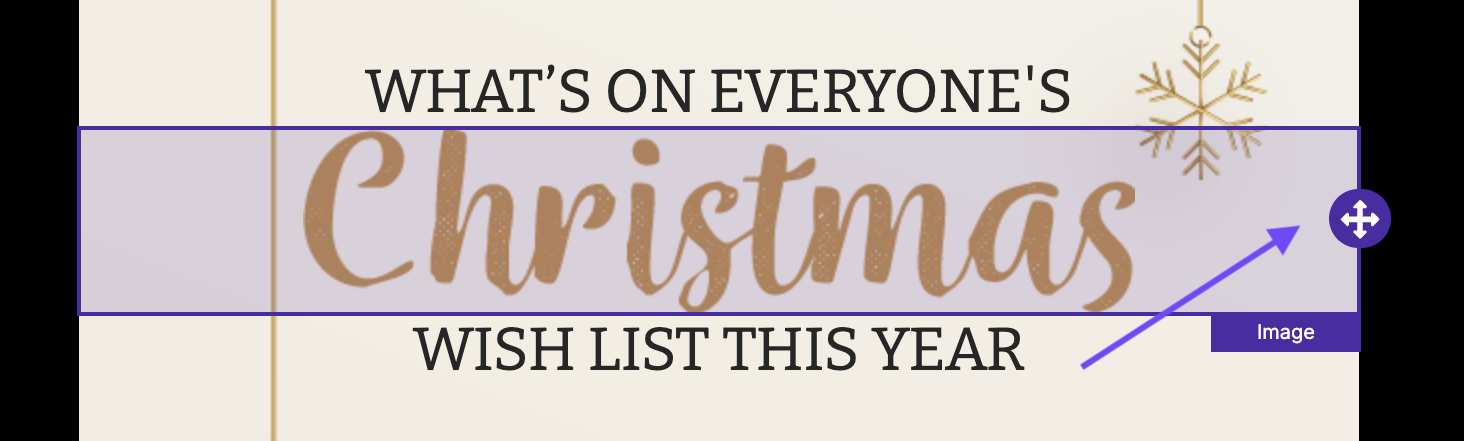
When you hover over a block of content, RGE Studio shows an icon. Use this icon to drag the content to a new location.
Selecting a block of content
Once you click on a block of content, RGE Studio shows you:
- Three icons on the stage. Use them to remove, clone, or comment on the content.
- Properties for that content block on the right side of the builder. You can edit these properties directly.
Selecting a row
You can also select an entire row instead of a single block of content. Mouse over an area free of content, such as the row itself.
RGE Studio highlights the row and shows an icon. Use this icon to drag the row to a new location.
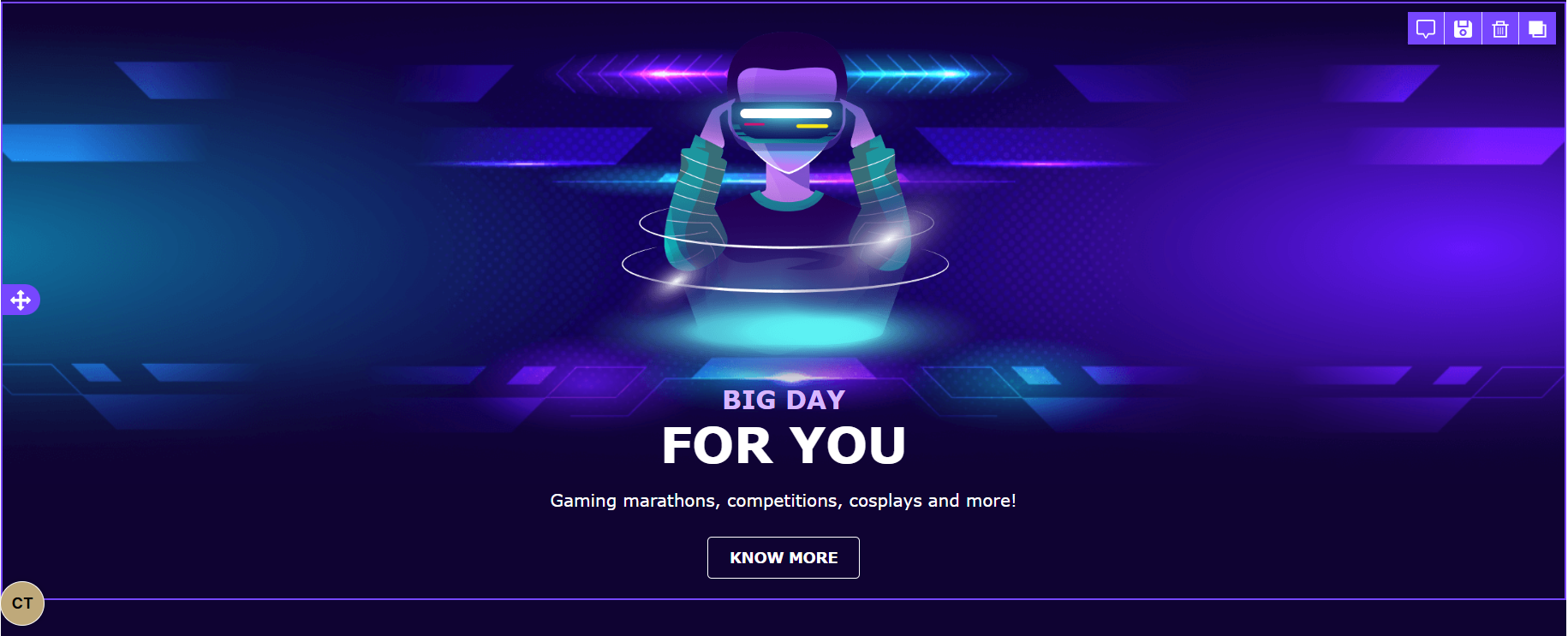
When you click on a row, RGE Studio shows you:
- Deselect any block of content that was previously selected.
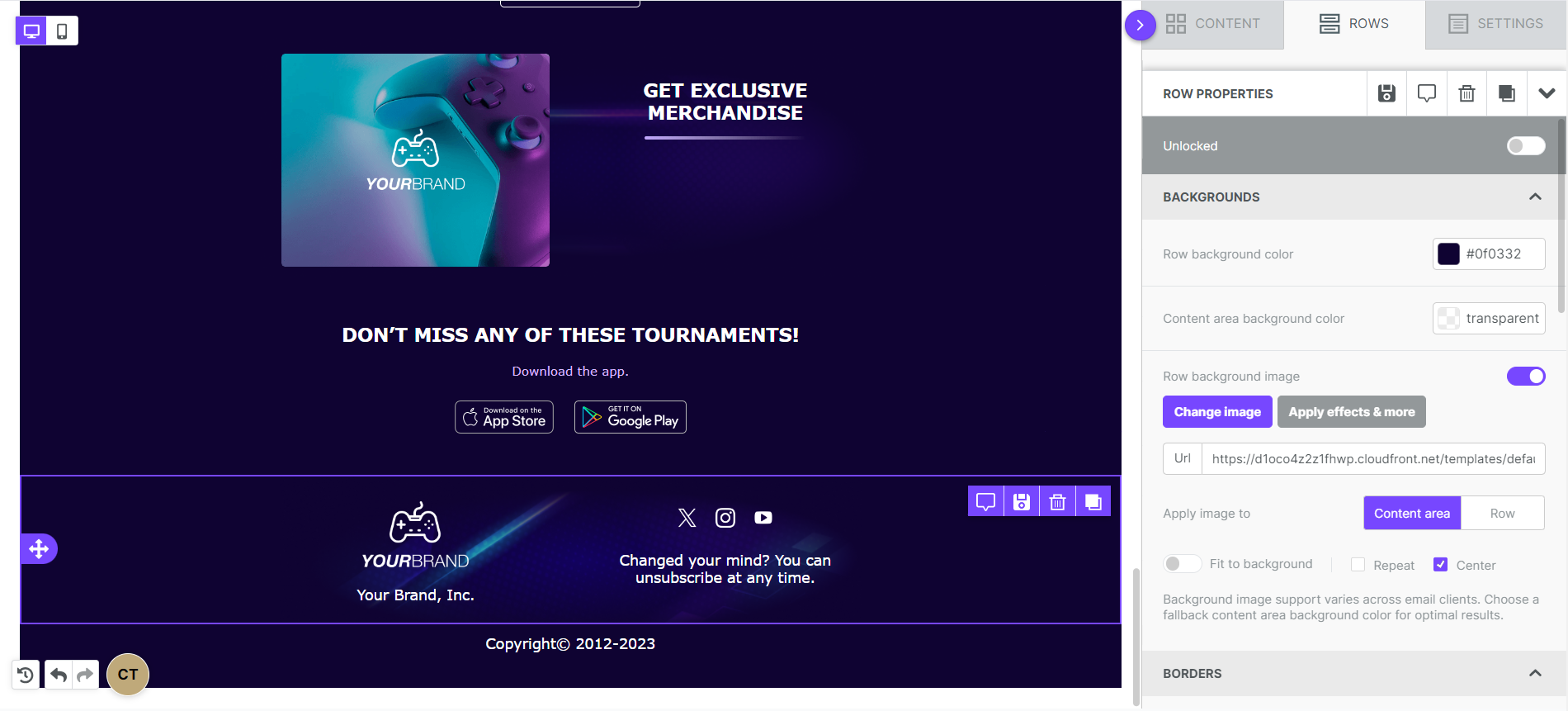
- Select the row and show four icons. Use them to comment, save, remove, or clone the entire row and its content.
- Properties for that row on the right side of the builder. You can edit these properties directly.
- A row can contain more than one column.
If you have any questions, feel free to contact us.
Comments
0 comments
Please sign in to leave a comment.