Updating your email address, password, and profile

Beefree App is now RGE Studio!
The email design suite you already know and love just leveled up. We’re working hard to update our help center, but you still may see some references to the old product name.
This article applies to all plans.
Overview
You can log in to RGE Studio (formerly known as Beefree) in two ways:
- With your email address and password
- With single sign-on (SSO)
The way you update your email address or password depends on how you log in.
You manage these details on the Profile settings page. To open it, click your name in the upper-right corner. Then click Profile settings. The page opens in a new tab. In the Inspiration Gallery, click your profile icon in the upper-right corner instead.
This page also controls your public profile. Your public profile lists your collections in the Inspiration Gallery. It's private until you turn it on.
Email and password login
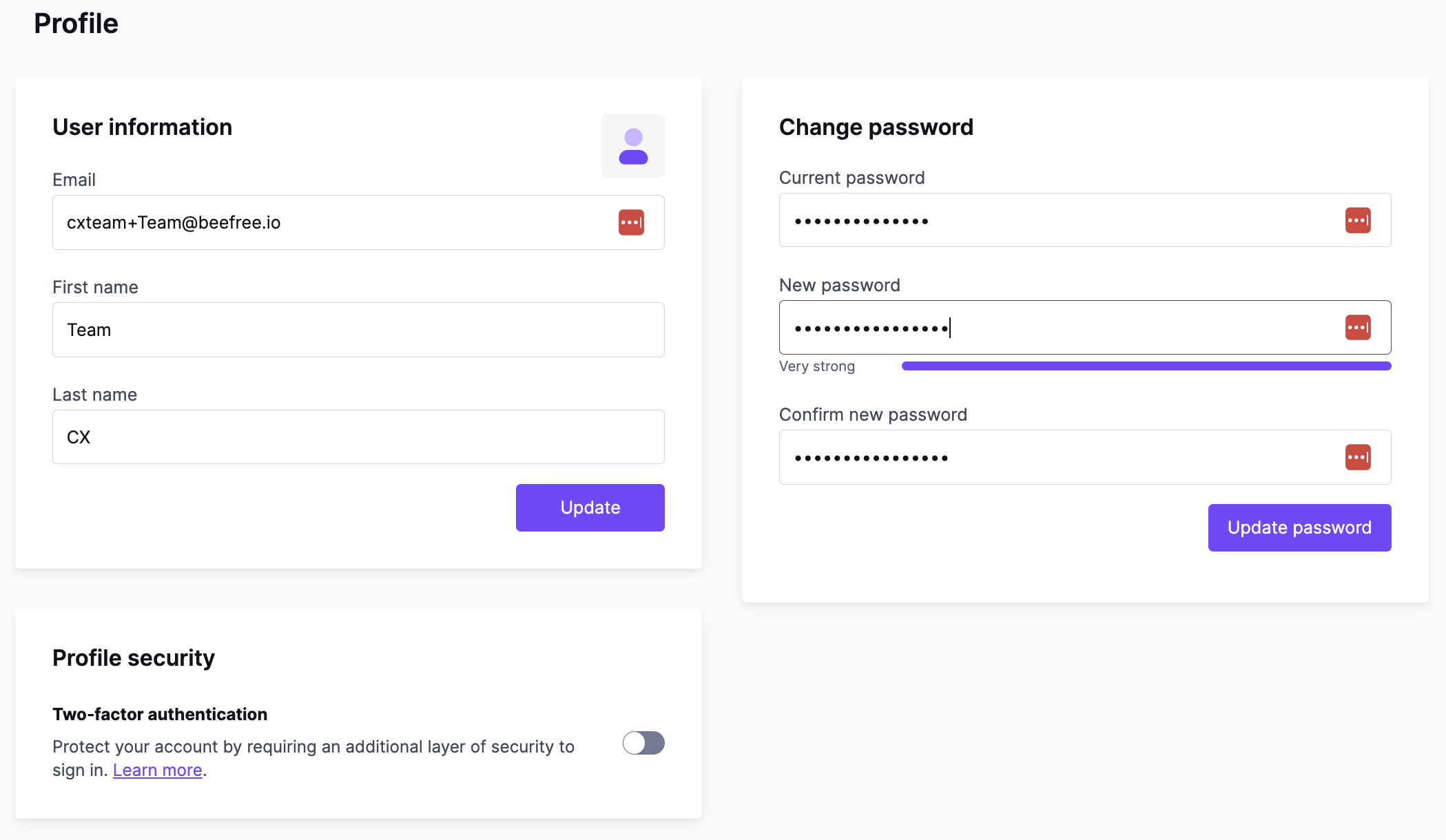
Use this section if you log in with your email address and password. You can update your email address and password here. You can also turn on two-factor authentication (2FA).
Email address
You can update your login email at any time. Go to the Account information section. Enter your new address in the Email field. Then click Update.
When you do, the following happens:
- Your current email address receives a notification about the change.
- Your new email address receives a request to confirm the change.
- The new address becomes active only after you confirm it.
Note for Account Owners
Each email address can own only one RGE Studio account. Account owners sometimes change their email address to transfer ownership. This may cause issues if the new email address:
- Already owns an RGE Studio account
- Is already a member of the account
In either case, open a support ticket. Our team is happy to help!
Password
To change your password, go to the Change password section. Enter your current password. Then enter your new password and confirm it. Click Update password to save.
The bar below the New password field shows your password strength. Your new password must meet these requirements:
- At least 10 characters
- Different from your email address
- A mix of letters and numbers
- Not too similar to your personal information
- Not a commonly used password
- No repeated words or characters
Two-Factor Authentication (2FA)
This section applies to paid plans only.
You can turn on two-factor authentication (2FA) in the Profile security section. 2FA is off by default. Click the Two-factor authentication toggle to start setup.
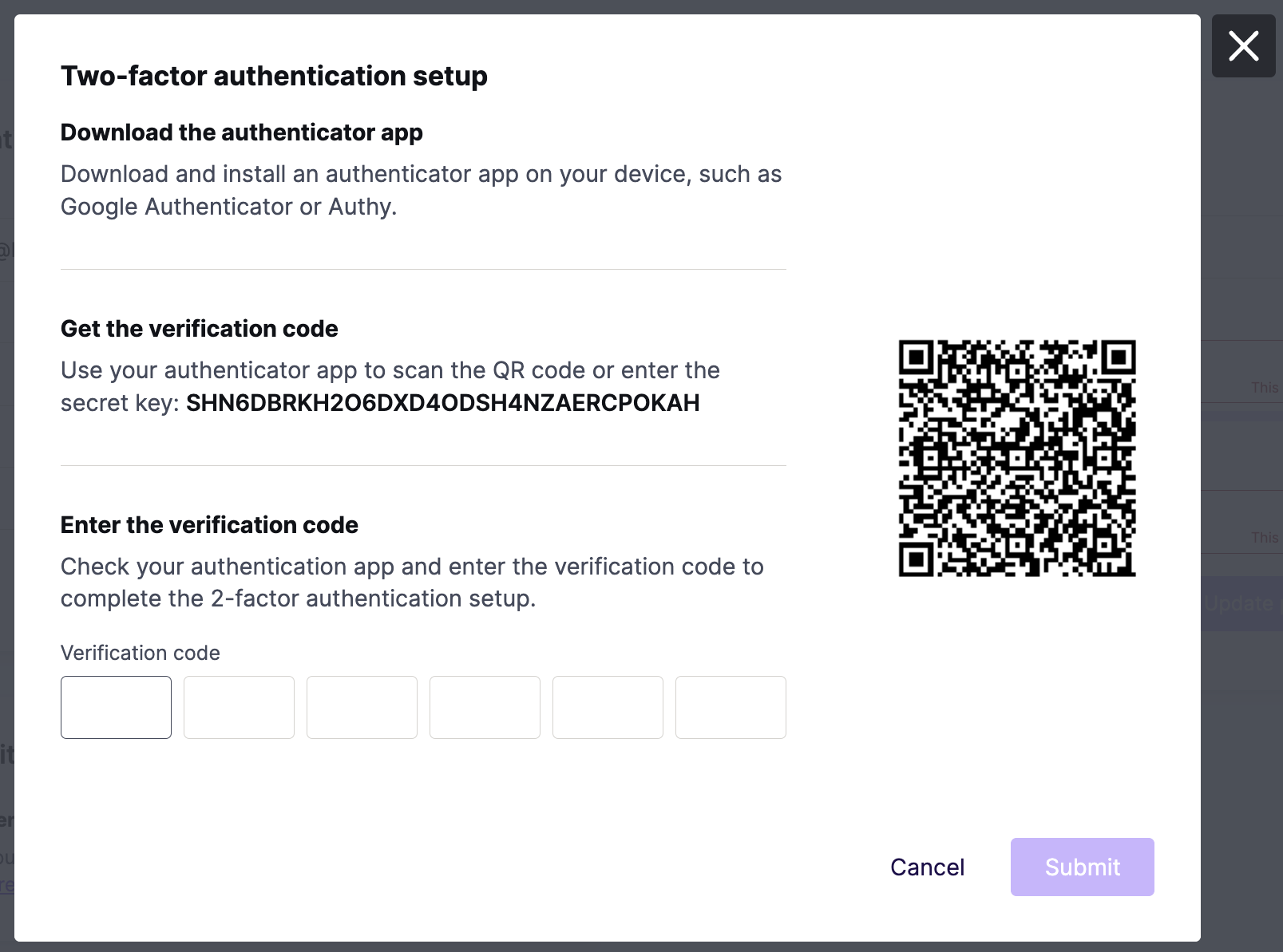
Open your authenticator app. Scan the QR code or enter the secret key. The app creates a verification code. Enter the code and click Continue. After setup, RGE Studio asks for a verification code each time you log in.
You can turn off 2FA at any time with the same toggle. You'll need to enter a verification code to do this, too.
If you downgrade to the Starter plan, RGE Studio turns off 2FA automatically. If you have access to both paid and Starter accounts, you can still use 2FA.
If you log in with SSO, your SSO provider manages your password and 2FA.
SSO login
You can log in to RGE Studio with your Google or Microsoft account. On Enterprise plans, your organization can also set up SAML SSO or Okta SSO.
When you log in with SSO, RGE Studio doesn't store a password for your account. If you use Google or Microsoft, the Account information section shows that your account is connected. To change your email address or set a password, disconnect your account from SSO first.
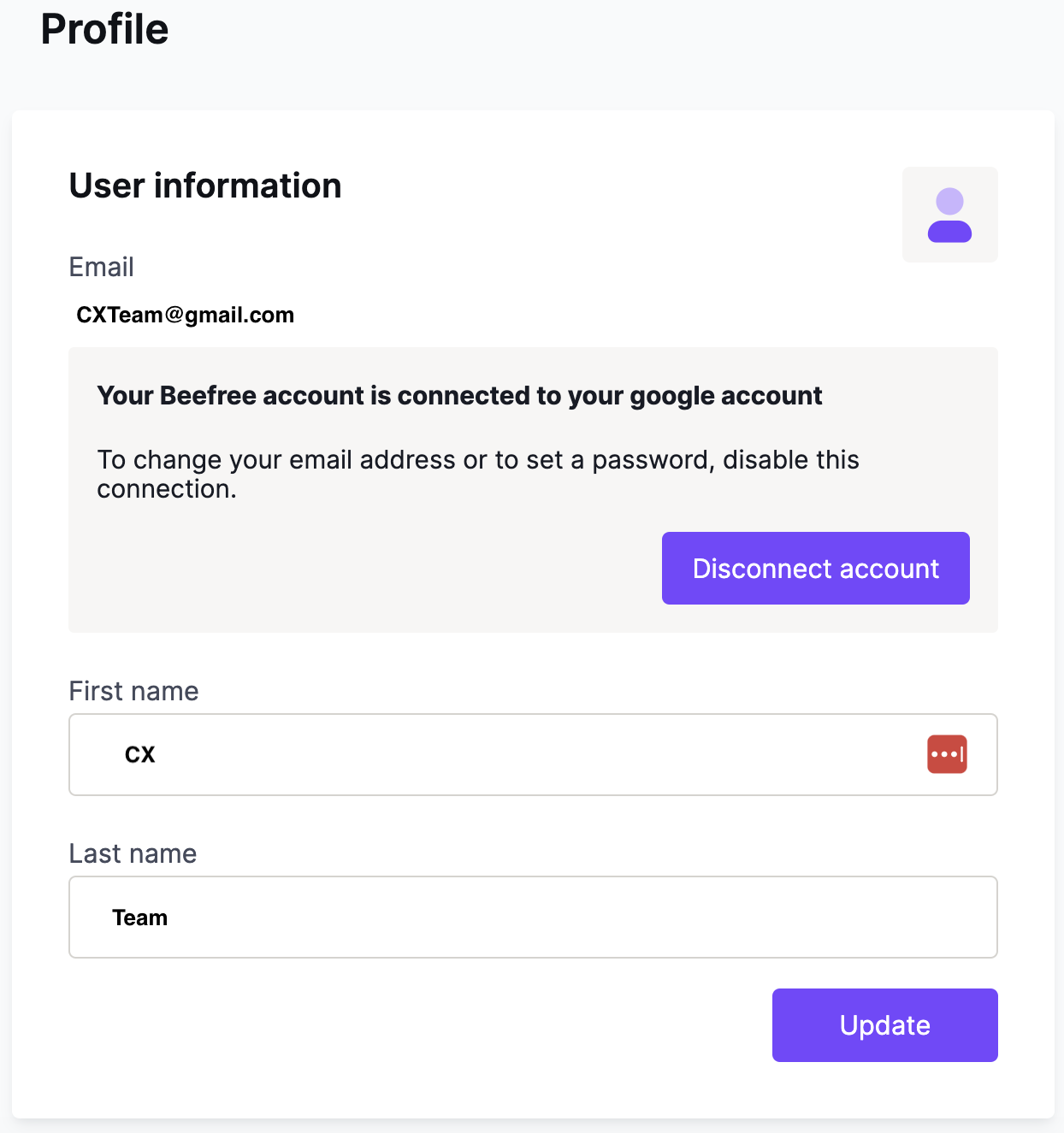
Disconnecting is permanent. You can't reconnect your account to SSO later. From then on, you'll log in with your email and password.
To disconnect, click Disconnect account. A modal opens and asks you to set a password.
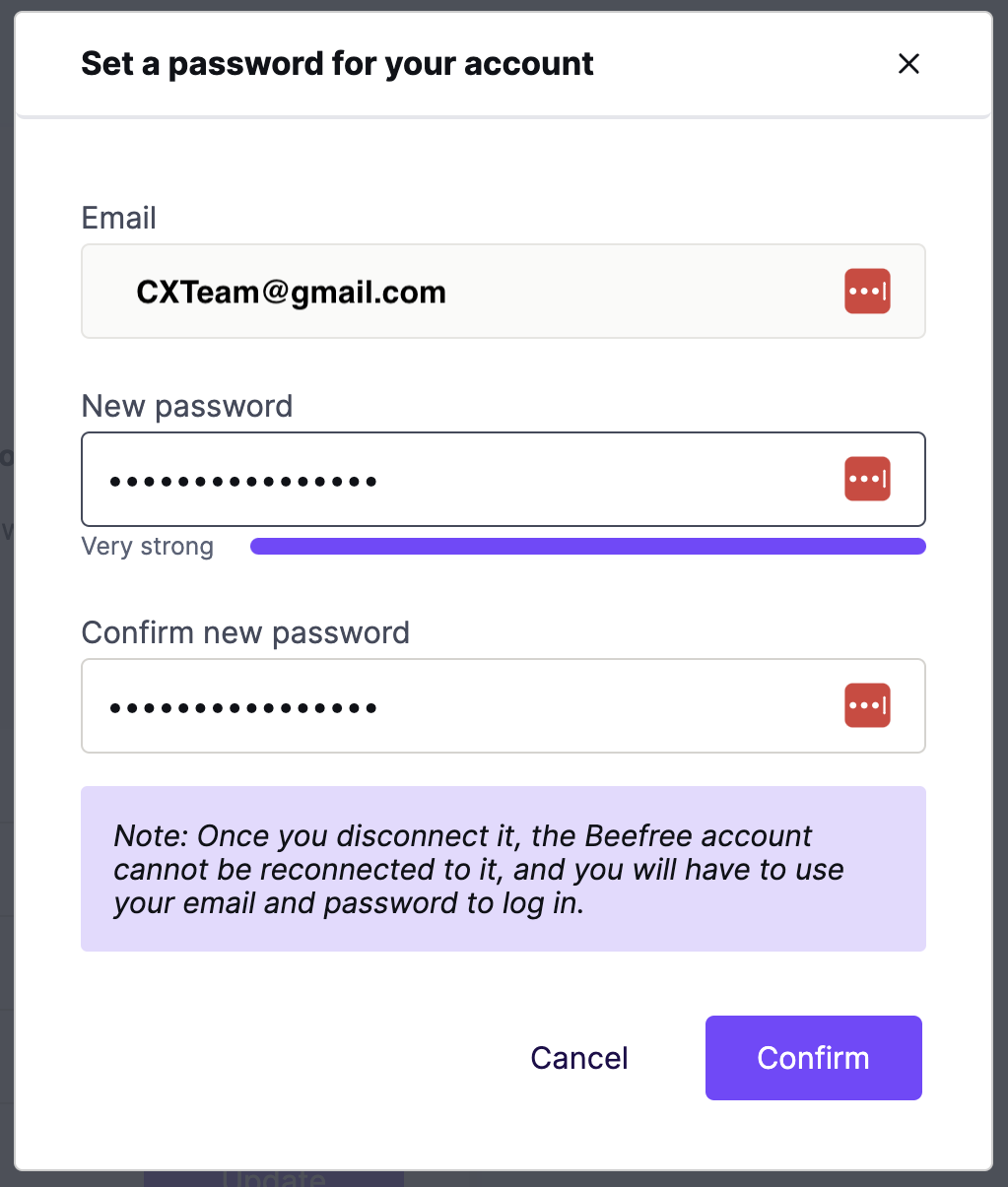
Enter your new password and confirm it. Then click Confirm. RGE Studio shows a confirmation message. You'll also receive an email confirming that your account is disconnected from SSO.
Once you disconnect, you can change your login email. Follow the steps in Email address.
Name and profile image
You can update your first and last name at any time, however you log in. Go to the Account information section and edit the First name and Last name fields. Then click Update.
To add or change your profile image, click the image in the upper-right corner of Account information. Then choose a file from your computer.
Public profile
Your public profile lists your collections for the Really Good Emails community. Its address is reallygoodemails.com/u/your-username. You manage it in the Public profile section.
Your profile is private when you first sign up. RGE Studio also assigns you a username based on your email address.
To set up your public profile:
- Turn on the Make your public profile visible toggle.
- Review your username and change it if you want.
- Add any other details you want to share.
- Click Update.
You can change your assigned username once. After that, it's permanent.
You can add these optional details to your profile:
- Display name
- Bio
- Website URL
- X
To hide your profile again, turn off Make your public profile visible. Other people can no longer open your profile page. Your collections stay public, and their links still work.
You can also reach these settings from your profile page in the Inspiration Gallery. Click Edit Profile to open Profile settings.
Billing email address
This section applies to paid plans only.
Paid accounts have a billing email address. It can be different from the account's login email addresses. The billing contact doesn't need to be an RGE Studio user. We send invoices and billing notifications to this address.
Do you receive RGE Studio invoices but can't log in? You may be the billing contact, not a user. Contact the account owner. They can give you access or make billing changes. Not sure who the owner is? Our support team can help you find out.
The account owner can update the billing email address. Learn how in Managing your RGE Studio subscription. Need more than one billing email address? Our support team can help.
If you have any questions, feel free to contact us.
Comments
0 comments
Please sign in to leave a comment.