Exporting to Mailchimp

Beefree App is now RGE Studio!
The email design suite you already know and love just leveled up. We’re working hard to update our help center, but you still may see some references to the old product name.
This article applies to the Email builder in all plans.
Overview
Design your emails in RGE Studio and export them to Mailchimp for sending. The Mailchimp connector lets you export with one click.
There are two ways to connect your Mailchimp account:
- From Workspace Settings: connect before you start designing.
- From the Export options of your email.
Follow the steps below or watch our RGE Studio Academy tutorial.
1. Connect from Workspace Settings
Go to Settings > Connectors.
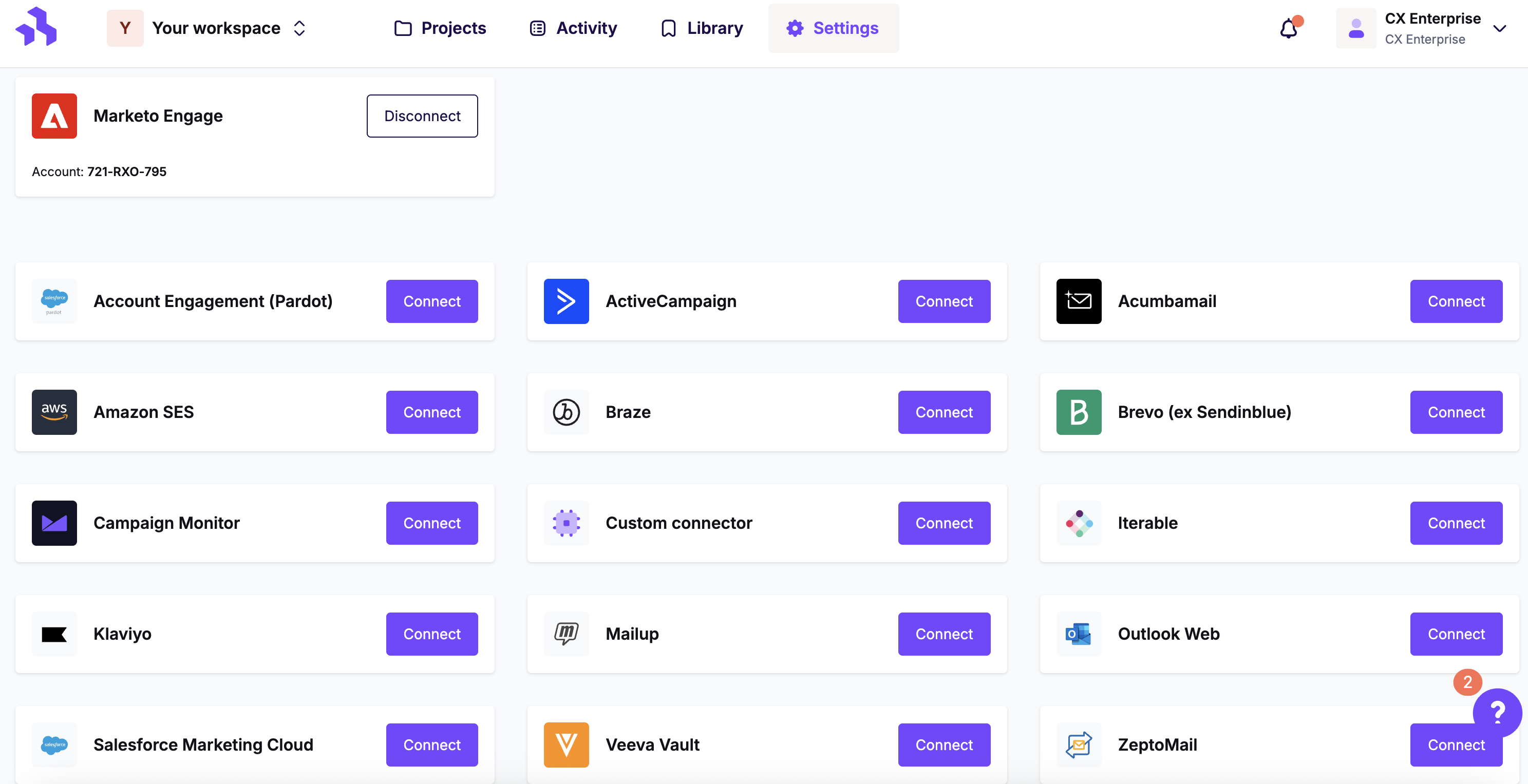
Click the Connect button for Mailchimp.
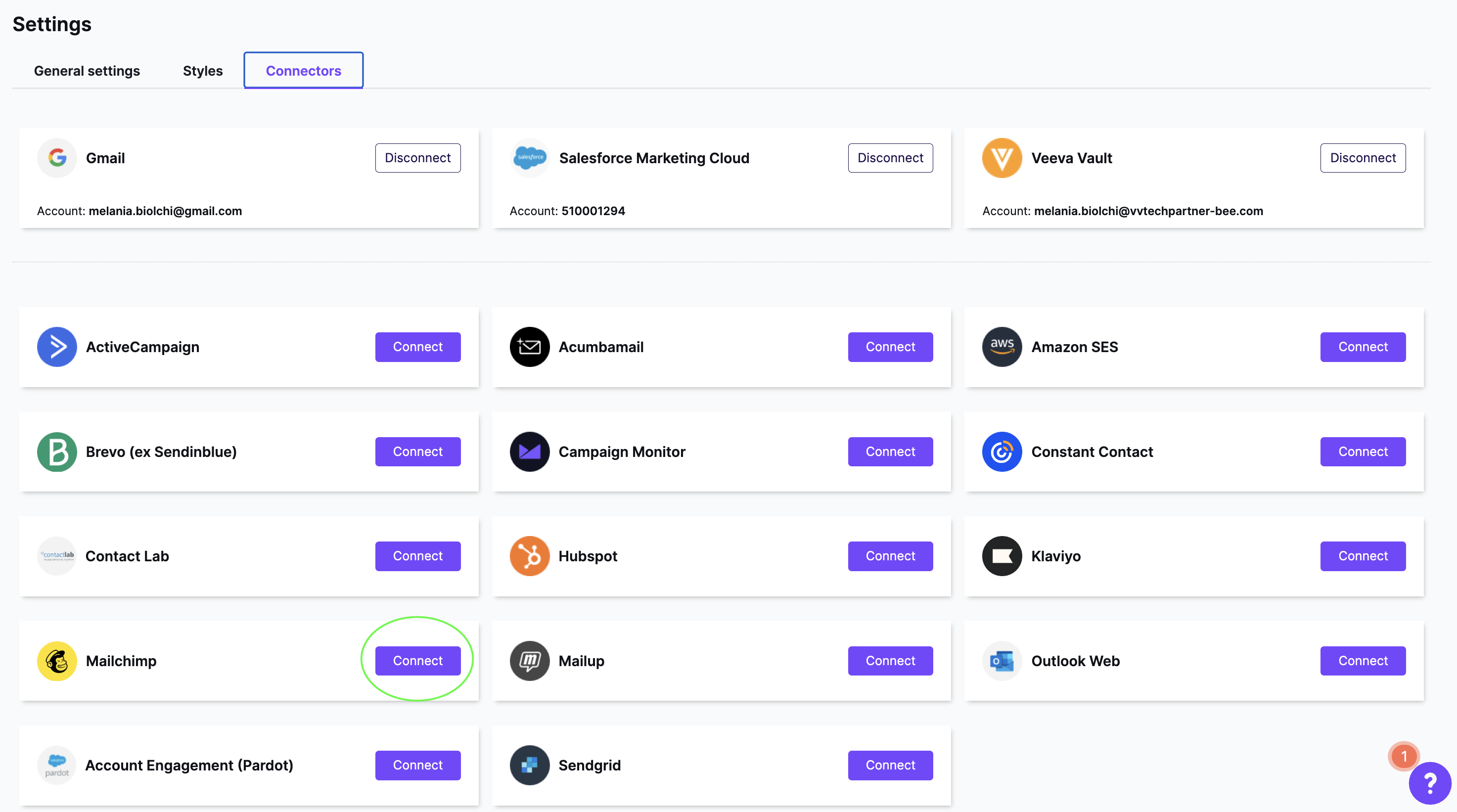
A popup window will open. Sign into your Mailchimp account to connect. Your Mailchimp credentials are not stored in RGE Studio. They are only used to link your accounts.
2. Connect from Export
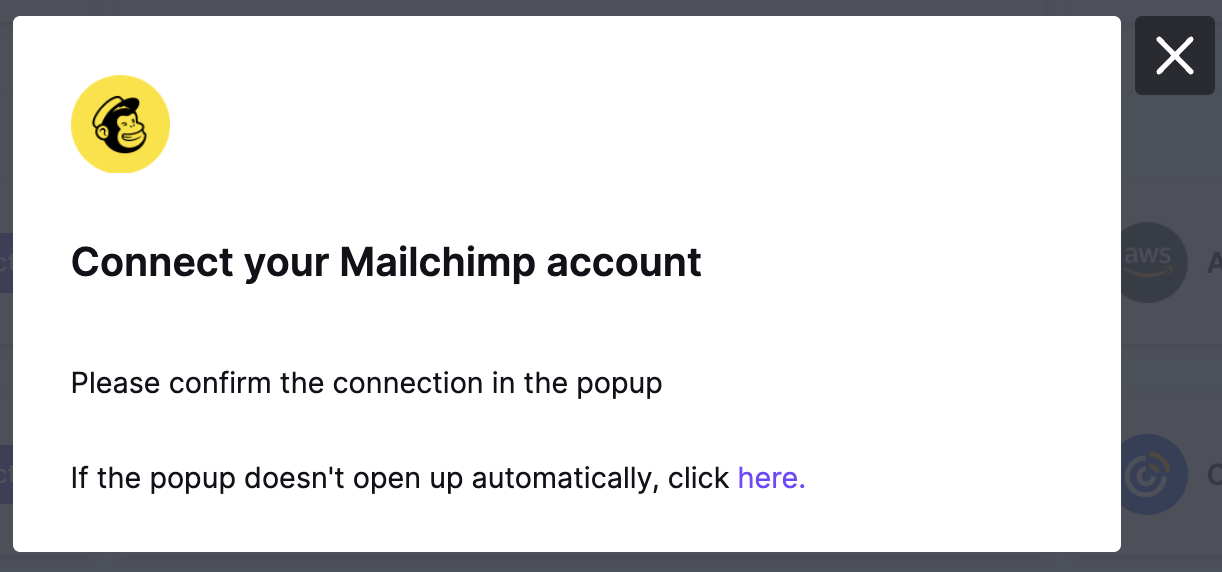
When your email is ready, click the Export button on the Email Details page. You can also access this from the actions menu.
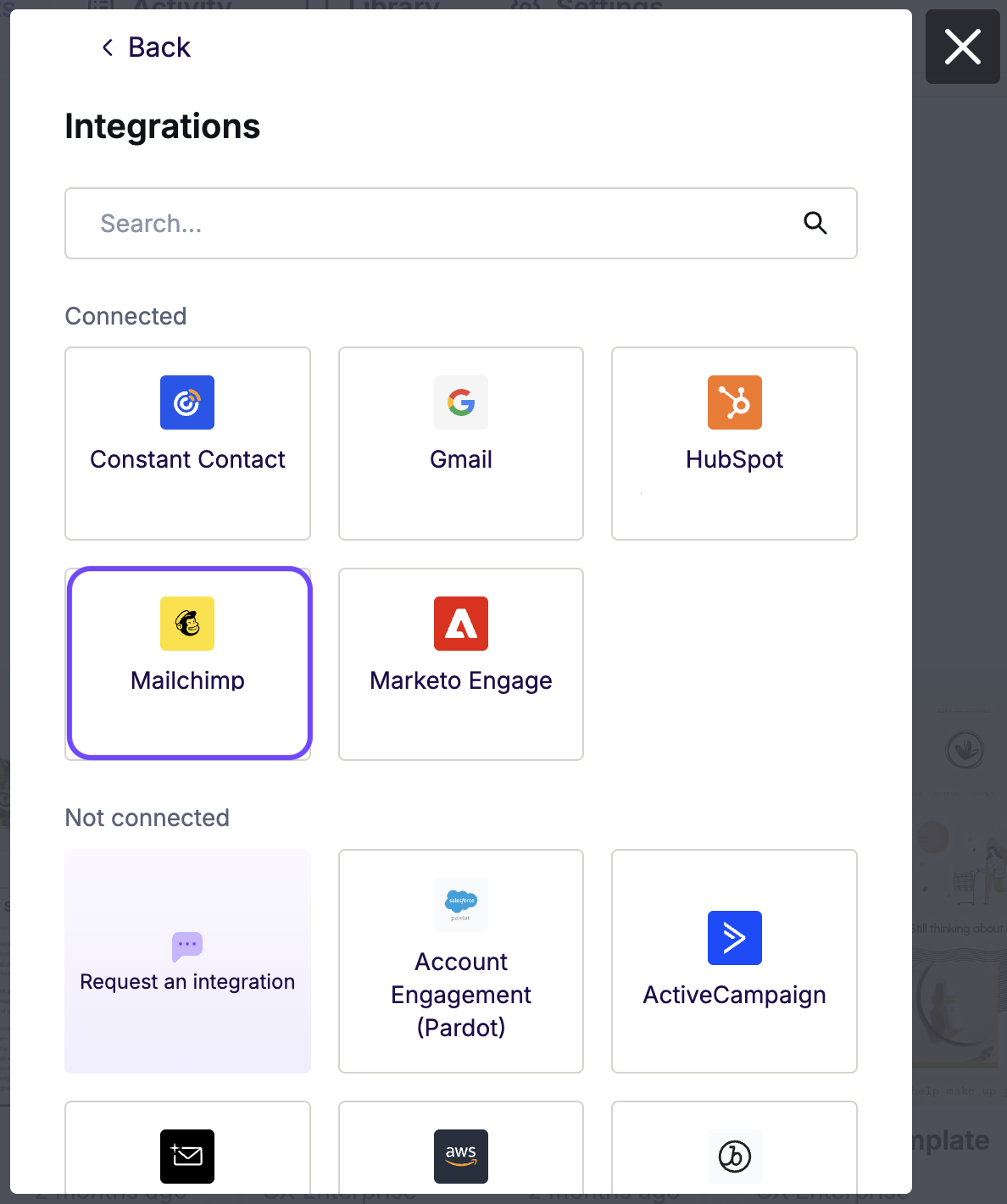
Find Mailchimp under Integrations on the export panel. If you don't see it, click More to open the full connector list. Click the Mailchimp icon and follow the steps to connect your account. If you have already connected, you will not be asked again.
The export modal will open. You can configure these options before clicking Create:
- Mailchimp template folder: Select a folder from the drop-down to organize the email in Mailchimp. If your folder doesn't exist yet, see Mailchimp's guide on organizing campaigns into folders to create one.
- Create a campaign along with the template: Turn on this toggle to also create a Mailchimp campaign. Select a campaign folder from the drop-down. Selecting the default option sends your email to Unfiled Campaigns. Your preheader is exported when you export as a campaign.
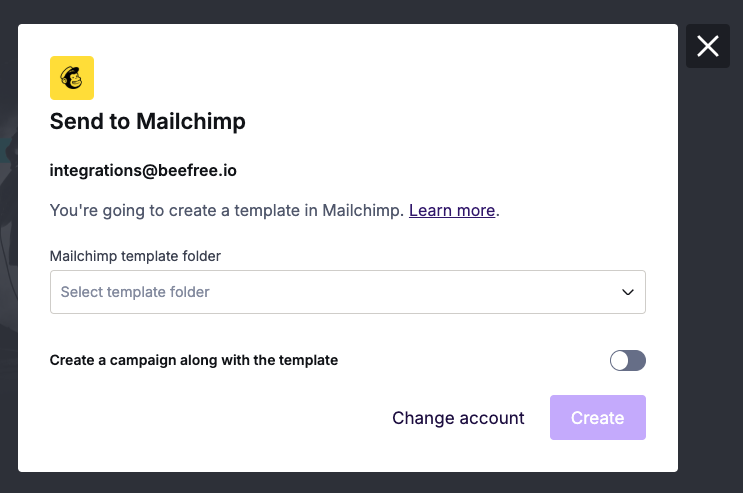
Click Create to export. RGE Studio will confirm when the export is complete.
Exporting Existing Designs
RGE Studio will recognize if you are exporting an email that you've already pushed to Mailchimp. You can update the existing version in Mailchimp using the Update existing option. This export option will overwrite the existing version. If you want to export a new version of your email instead, use Create as new.
Multiple Workspaces
If you work with multiple brands or clients, the Enterprise plan lets you create separate workspaces. Each workspace can have its own Mailchimp connector.
For example, if you have 10 clients who all use Mailchimp, you can create 10 workspaces. Each workspace connects to its own Mailchimp account.
Looking for a different sending platform? You can check our complete list of connectors — or request a new one!
If you have any questions, feel free to contact us.
Comments
15 comments
Will I be able to do the opposite? Import HTML email template to BEE plugin?
At the moment that is not possible. The good thing is... it's really easy and fast to use the BEE editor, so you should be able to recreate whatever HTML message in BEE rather quickly.
Pushing a message to Mailchimp would be great in the plugin version
I am a novice at this so please forgive my ignorance. I am using Reachmail as an email service provider. Their editor isn't user friendly so I have created a test newsletter in Bee and want to import the HTML code into Reachmail. I downloaded the zip file with images but Reachmail only accept these file extensions: html, shtml, shtm. Is there any way to do this with Bee please?
Hi Lia, you can either upload the HTML that's included in the ZIP file, and then readd the images (if your application does not allow you to import a ZIP file) or you can move to BEE Pro, which allows you to download an HTML file and keep the images hosted with us. See: https://support.beefree.io/hc/en-us/articles/360004496012-Saving-testing-and-exporting-your-emails
Can you add more than one Mailchimp account to a Bee Pro account?
Hi Ryan, you can do so in the Business plan as you can manage ESP connectors at the Brand level (e.g. one Client / Brand may be using one MailChimp account vs. another Client / Brand that is using another MailChimp account).
I am uploading a zip file to MailChimp but the images aren't going through, how can this be corrected? Thank you
Hi Rose: is there a reason why you are not using the free MailChimp connector? It's super easy to use. See: how to use the MailChimp connector: https://emaildesign.beefree.io/2017/12/tutorial-bee-mailchimp-connector/
Hi, great feature.
I understand that due to the responsive you can't edit the images but it would be useful if the beefree editor had an option to sections, texts, and image elements to add custom html attributes. In that way we could add our own editable elements or repeatable content area by our own risk. (By adding
mc:edit or mc:repeatable macros)
Hi Aris! Thanks so much for your feedback. Please know that I'm forwarding this to our Product team for review. We're happy to see what we can do moving forward.
How do I post it as a page??
Hi Meli. After you save a page, you can publish it and share it with social media like LinkedIn or Facebook. Or you can download the HTML and put it on your website. You can find all the information also in this Help Center article. Hope this can help.
I have been using the Bee Pro builder to mailchimp connector but I have had a lot of bugs with padding of buttons and text. It seems its random because if I resend the same template and the issues are gone. I have been making the code fixes in Mailchimp editor in <> but then another section of the template will show a new bug.
Is there a set padding structure that needs to be applied for Mail chimp? how can I remove these random bugs? It is for a client that I have setup that has no html skill set and hates using the mail chimp builder. I have set them up on Beepro but they're not going to be able to deal with bugs all the time.
Hello Mark, I'm sorry for the issues you have encountered. I will post a ticket on your behalf, as we need more details to troubleshoot the case. You can keep track of the ticket thru your email where you will receive our answers.
Please sign in to leave a comment.