Using the File Manager and Media Library

Beefree App is now RGE Studio!
The email design suite you already know and love just leveled up. We’re working hard to update our help center, but you still may see some references to the old product name.
This article applies to all plans.
Overview
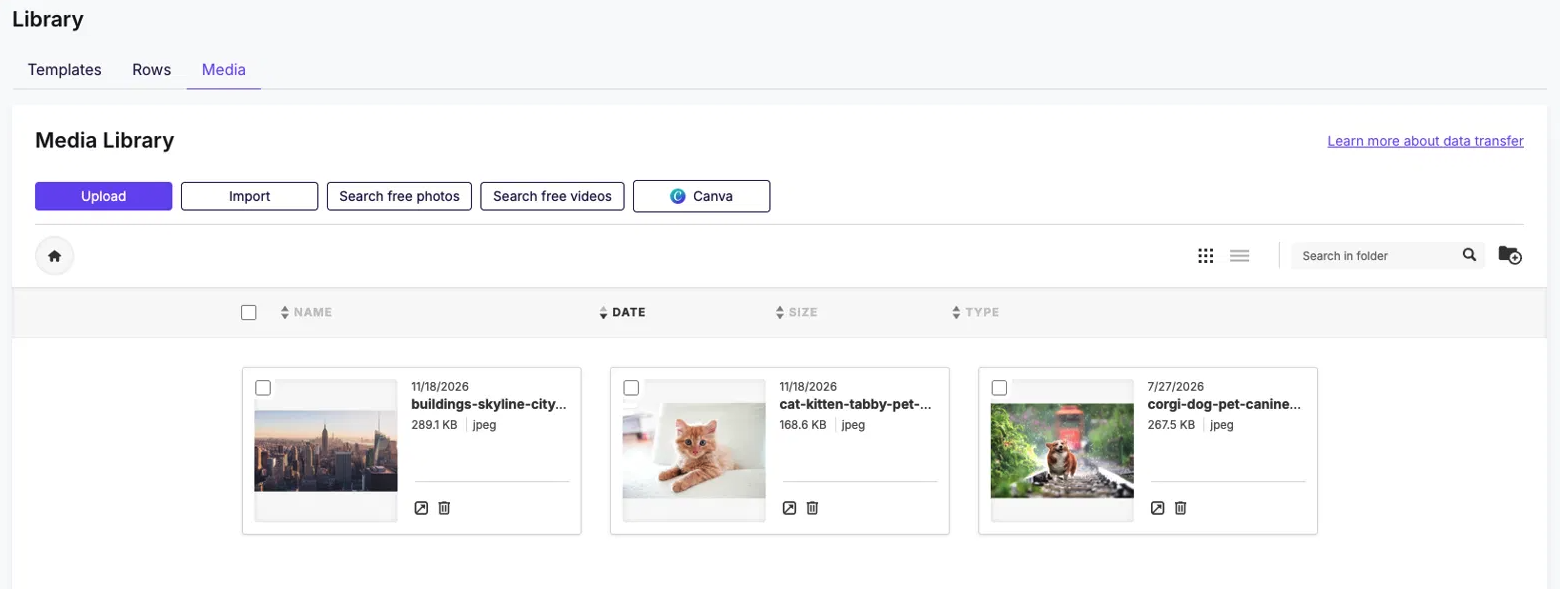
The file manager holds the images and files you use in your designs. You can open it in two places: the Media Library and the builder.
Uploading files to RGE Studio is free. Some hosted files can count toward your monthly data transfer. Learn more about hosted image delivery (CDN).
Accessing the File Manager
Open the Media Library to manage files without opening a design. Open the file manager from the builder to add a file to a design.
The options you see depend on where you open the file manager. The Media Library shows every option and file type. In the builder, you can only use files that work with your content block.
All user roles except Viewer can use the file manager.
To open the Media Library:
- Log in to your RGE Studio account.
- If you have more than one workspace, select it from the Workspace menu.
- Click Library in the navigation menu.
- Select the Media tab.
To open the file manager from the builder, do one of the following:
- Drag an image content block into your design. Click Browse on the image placeholder.
- Select an image content block or a row background image. In the properties panel, click Add image. If an image is already applied, click Replace.
- Select an icon content block. In the properties panel, click Replace.
- Select an image or button. Click Link file in the Action section of the properties panel. Use this option for PDFs and other documents.
- In the Pages builder, add a video background. Learn more about adding video to your page.
Uploading Files
To upload files, drag them from your computer into the file manager. You can upload several files at once.
You can also click Upload to choose files from your computer. This helps when you can't drag files, such as in full-screen mode. If you leave the Media tab during an upload, the upload continues.
You can also add files with these options:
- Import: Add a file from a link or from a service such as Google Drive.
- Search free photos: Find free stock photos.
- Search free videos: Find free stock videos.
- Canva: Add designs from your Canva account. Learn more about the Canva integration.
Some of these options are only available in the Media Library.
Browsing and Searching Files
You can view your files as a grid or a list. Use the view icons next to the search bar to switch.
To sort your files, click a column label at the top of the list. An arrow next to the label shows the current sort. The arrow points up or down to show the order.
To find a file or folder, type its name in the search bar. The search covers the folder you have open.
Managing Files
Each file shows icons for the actions you can take. You can:
- Preview a file and see its URL.
- Insert a file into your design. Insert appears when you open the file manager from the builder.
- Move a file to another folder.
- Delete a file or folder.
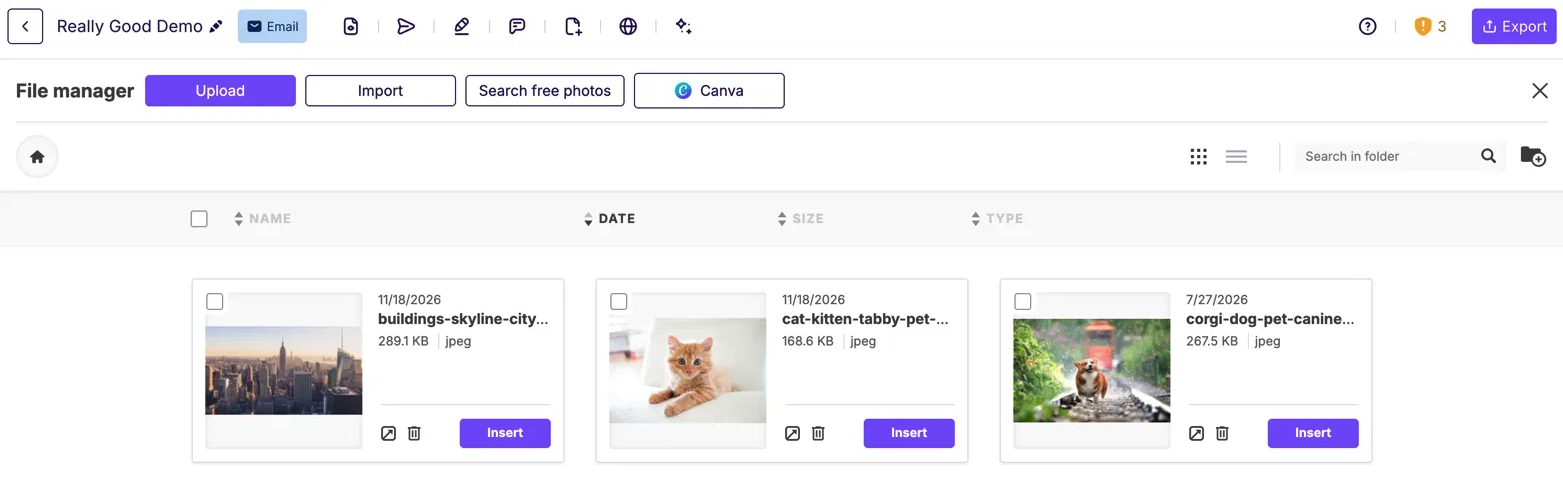
If an action is unavailable, hover over its icon. The tooltip explains why. For example, you can only delete empty folders.
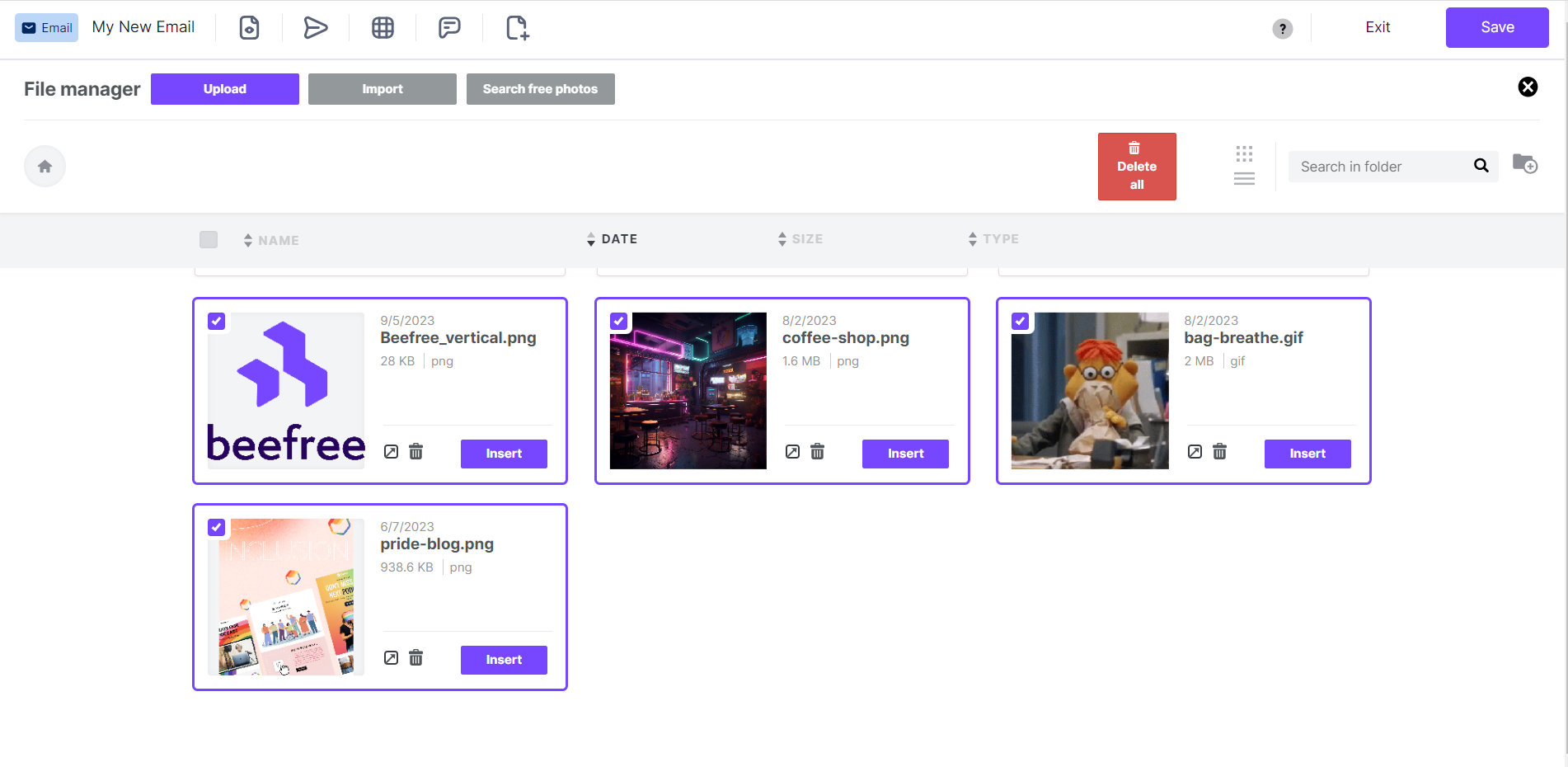
To delete several items at once, select their checkboxes. Then click Delete all at the top of the list. Only items you can delete have a checkbox. Deleting a file is permanent. Make sure you no longer need it first.
Moving Files
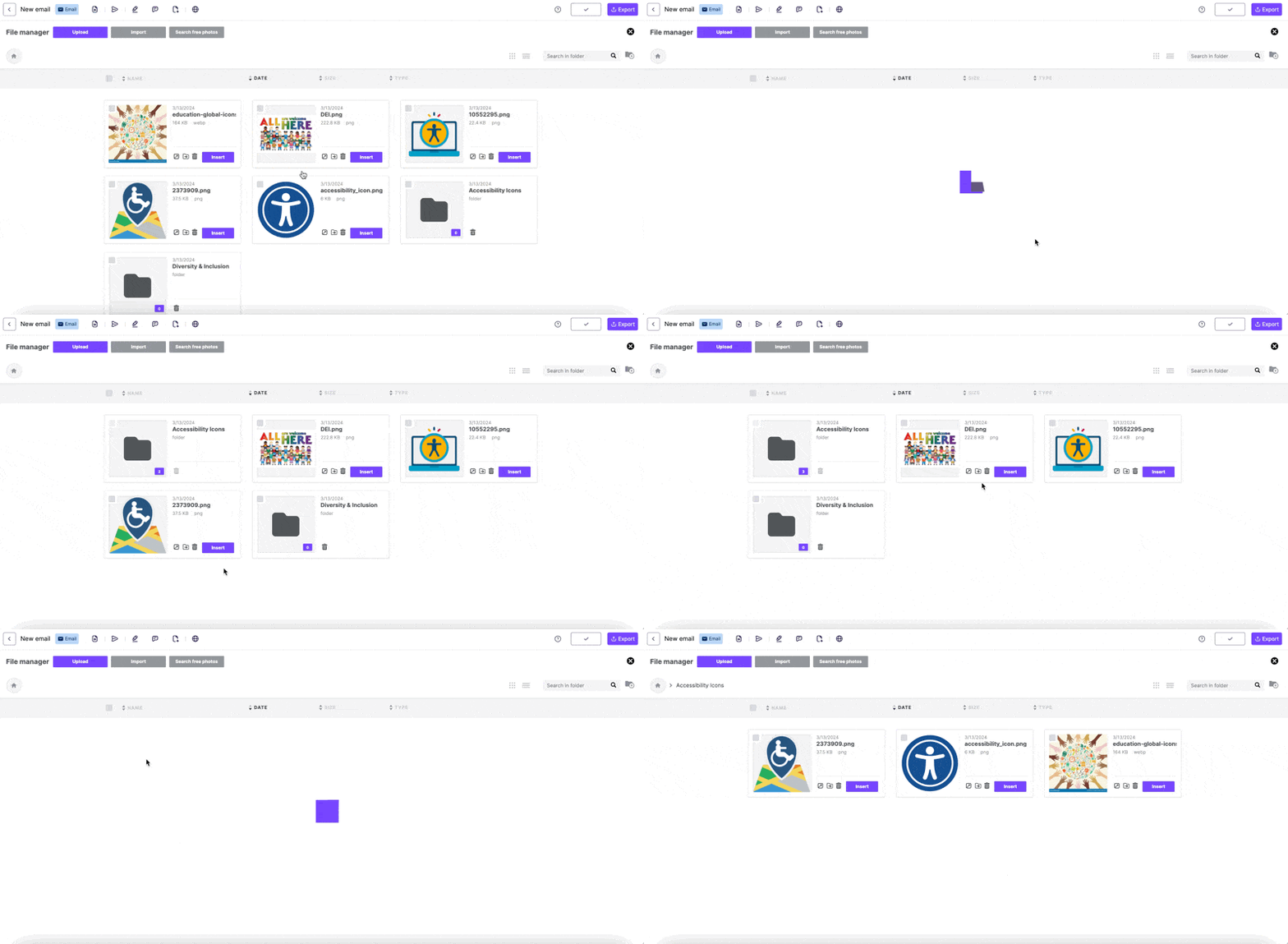
You can move one file at a time. The move icon looks like a folder with an arrow inside it. It appears when you have at least one folder.
- Open the file manager.
- Find the file you want to move.
- Click the move icon. A list of folders appears.
- Select the new folder.
- Click Move.
A file keeps the same URL when you move it.
Replacing Files
You can replace a file with an updated version. For example, you can update an image in an email you already sent. This works for images and other files, such as PDFs and videos.
Both files must be in the same workspace. The new file must have the same name and file extension as the original.
- Open the file manager.
- Open the folder that holds the original file.
- Click Upload.
- Choose the new file from your computer.
- A window asks if you want to replace the file or keep both. Click Replace.
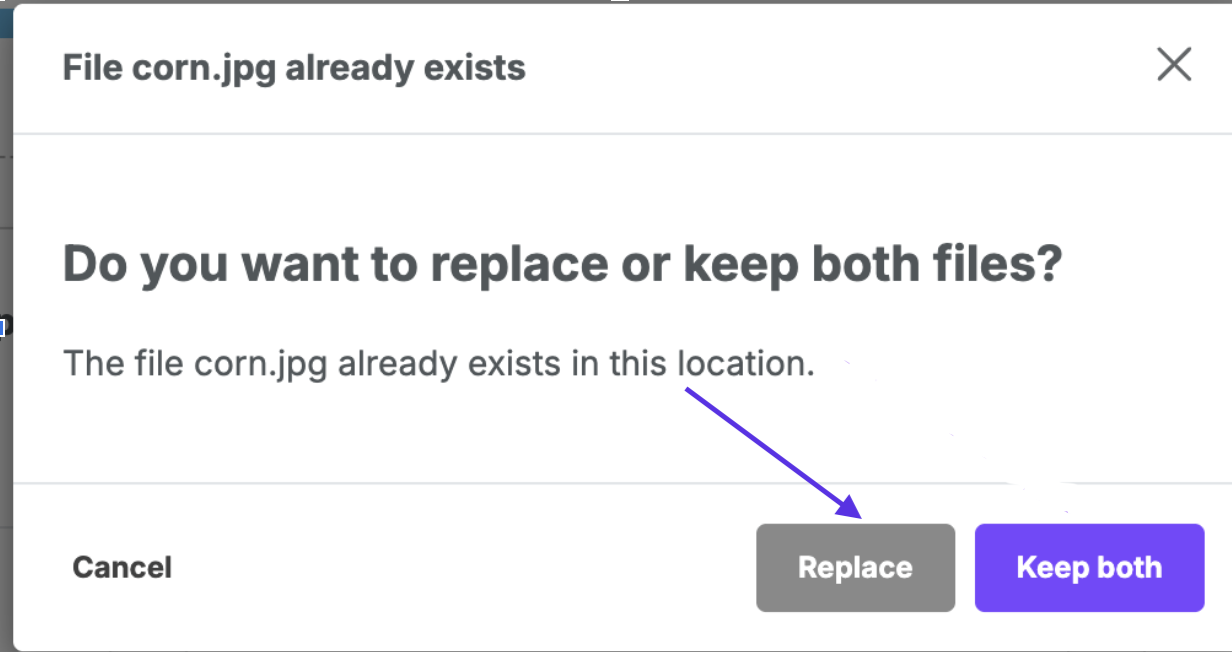
The new file can take up to 2 hours to appear. Until then, you will see the original file. This delay is caused by caching.
To keep both files, click Keep both. RGE Studio adds a number, such as _1, to the new file's name.
Organizing Folders
Create folders to organize your files. To add a folder, click the add folder icon next to the search bar.
Folder names can include:
- Uppercase and lowercase letters
- Numbers
- Spaces
- Periods (.)
- Hyphens (-)
- Underscores (_)
To go back to a parent folder, use the breadcrumb at the top. To return to your top-level folder, click the home icon.
Additional Considerations
Data Transfer
Uploading files to RGE Studio is free. Hosted images count toward data transfer only when all three of these are true:
- The image is used in an email or page designed in RGE Studio.
- You export the design with the HTML Code or Integrations option. For pages, this also applies if the page stays hosted in RGE Studio.
- The email or page is opened.
Each plan has a monthly data transfer limit. Overage fees apply if you go over it. Learn more about hosted image delivery (CDN).
File Limits
You can upload most file types. Keep these limits in mind:
- Each file can be up to 20 MB.
- Images wider than 1920 pixels are resized to 1920 pixels wide. Large images may change in other ways too. Colors may shift. GIFs may lose frames. For best results, upload images 1920 pixels wide or smaller.
- These file types are blocked: .js, .cjs, .mjs, .php, .phtml, .php3, .php4, .php5, .php7, .phps, .php-s, .pht, .phar, .HTML, .zip, .rar, and other archive formats.
Workspaces
Some plans include more than one workspace. Each workspace has its own file manager. Files stay in the workspace where you upload them. To use a file in another workspace, upload it there too. Learn more about using multiple workspaces.
Tip: To copy a design's files to another workspace, use an import link. This works between workspaces in your account. It also works between accounts. Importing the design copies its hosted files to that workspace.
If you have any questions, feel free to contact us.
Comments
41 comments
Hi,
Default behaviour of file manager is to sort based on type, can i configure it to sort based on date in descending order, i.e. last modified should come on top.
Hi Nitish, thanks for the feedback. We will change this default behavior as the most requested is to sort by date as you described.
There is one more issue with the file browser. In windows the file name supports the use of '&' , '%' and '+', but in bee editor it throws an error while uploading any file with these characters in file name.
Hi Nitish, it depends on the system that store the images. If you try it on beefree.io, the file will upload correctly, while in pro.beefree.io the images with this characters will be rejected by the API that manages the storage.
What is the overall capacity for files per user?
Hi Meg, if you're using our file system storage from the BEE Plugin Startup plan the maximum storage is 100 GB for all users. There is no per user limit. Otherwise, if you've connected your file storage system, it's up to you how to manage it. Hope this helps!
How can I move files into newly created folders?
Hi David, you need to upload them again. Mind that changing the position of an image may break the path applied on your messages.
Hey Guille, thanks for the quick reply. The ability to move files into folders instead of re-uploading would be nice to have!
Hi David, thanks for the feedback. The ability to organize uploaded files is in our list of improvements for the file manager :)
hi, i have an issue with upload in the file manager. It's always "oops something went wrong" and i can't access to my library. How can i do ?
Hi Francois, can you clarify if it's in BeeFree, BEE Pro, or BEE Plugin? Are you having issues uploading a file and/or opening a folder? Please note that some folders are "read-only" and aren't editable.
Hi Sergio, this is the BeeFree version. I can't access the myfiles folder. There are about 15 or 20 images in this folder but since yesterday, it's always the same error while opening this folder
Any answer to my issue ? I got to suscribe for the free trial version of BeeFree Pro to skip this issue. But if i want to go back to the free version, i will be stuck.
Thanx
Hi François, the free version is anonymous (no registration or login process) so we're unable to troubleshoot individual issues.
If you clear your browser's cache, the problem will probably be solved, but you will start as a new user with an empty images storage.
-
Hello, is it possible to disable the file manager for some specific user or by configuration in the call of the BeeFree ? Thanks
I am unable to see the image in my email.I uploaded the image in the editor_image folder.How to fix this issue
Hi Csravan, this depends on the exporting method that you're using. Please, check:
https://support.beefree.io/hc/en-us/articles/360004495612-How-do-I-transfer-a-message-to-another-app-
https://support.beefree.io/hc/en-us/articles/360004496232-How-to-use-external-images-in-your-message
Hi there, are there any updates on the ability to move images into folders instead of re-uploading them?
Also, what is the behaviour/policy if an image, which is being used in a template, is deleted (from the file browser - not in the template itself)? The template's path to the image in the file manager surely breaks, but it seems that the image is still being rendered when sending emails. Do you keep copies of such deleted images and wipe them later? Or how is this case being handled?
Hi Karsten, at the moment you should re-update them.
With regards to your second question, if you remove an image from the file browser and you send out the email, the image won't be shown. Images are hosted on aws, if you delete them, you can't restore them.
It'd be much more convenient if we can access the file manager in the drop down menu like many other email builders.
Do you all have plans to allow access to the file manager outside of the editor?
Can we rename the folders?
Hi Charlie & Emre, with regards to your questions:
1) It's not possible to access the file manager outside the editor.
2) Our file manager doesn't allow you to change the name of a folder.
I'll log your feedback to our product team. Thanks for posting your comments.
One question about Search Files functionality. I see that currently "... search is performed only in the current folder, and not in your entire repository." Do you plan to upgrade this and allow user to search for a file located in a nested folder?
Hi Pawel, thanks for your comment. With regard to your concern, it's not possible to perform a global search within our file manager. We pushed your feedback to our Product Team. Looking forward to improving the file manager.
Hi Guillermo, for me delete and checkbox icon is disable.Please explain how to enable delete icon and checkbox for upload images.
Hi Amit, thanks for your comment. Can you please share with us a screenshot of your BEE Pro account? Please send it to support@beefree.io, thanks.
When a folder is created, I cannot figure out how to then move my files into the folder
Please sign in to leave a comment.