Saving your designs in RGE Studio

Beefree App is now RGE Studio!
The email design suite you already know and love just leveled up. We’re working hard to update our help center, but you still may see some references to the old product name.
This article applies to both builders in the Starter and Professional plans.
If you are using a Business or Enterprise account, please refer to Co-editing.
Overview
RGE Studio saves your work automatically as you design. This article explains how autosave works. It also covers what to do if you see a Save button instead.
Autosave
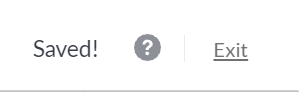
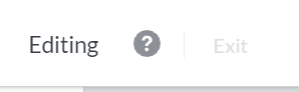
When you start designing, you'll see the following in the upper right corner of the screen.
As you make changes, the status updates to show you are actively editing.
Once you stop making changes, the status updates again.

This shows you whether your progress is saved. To leave the builder, select the Exit link.
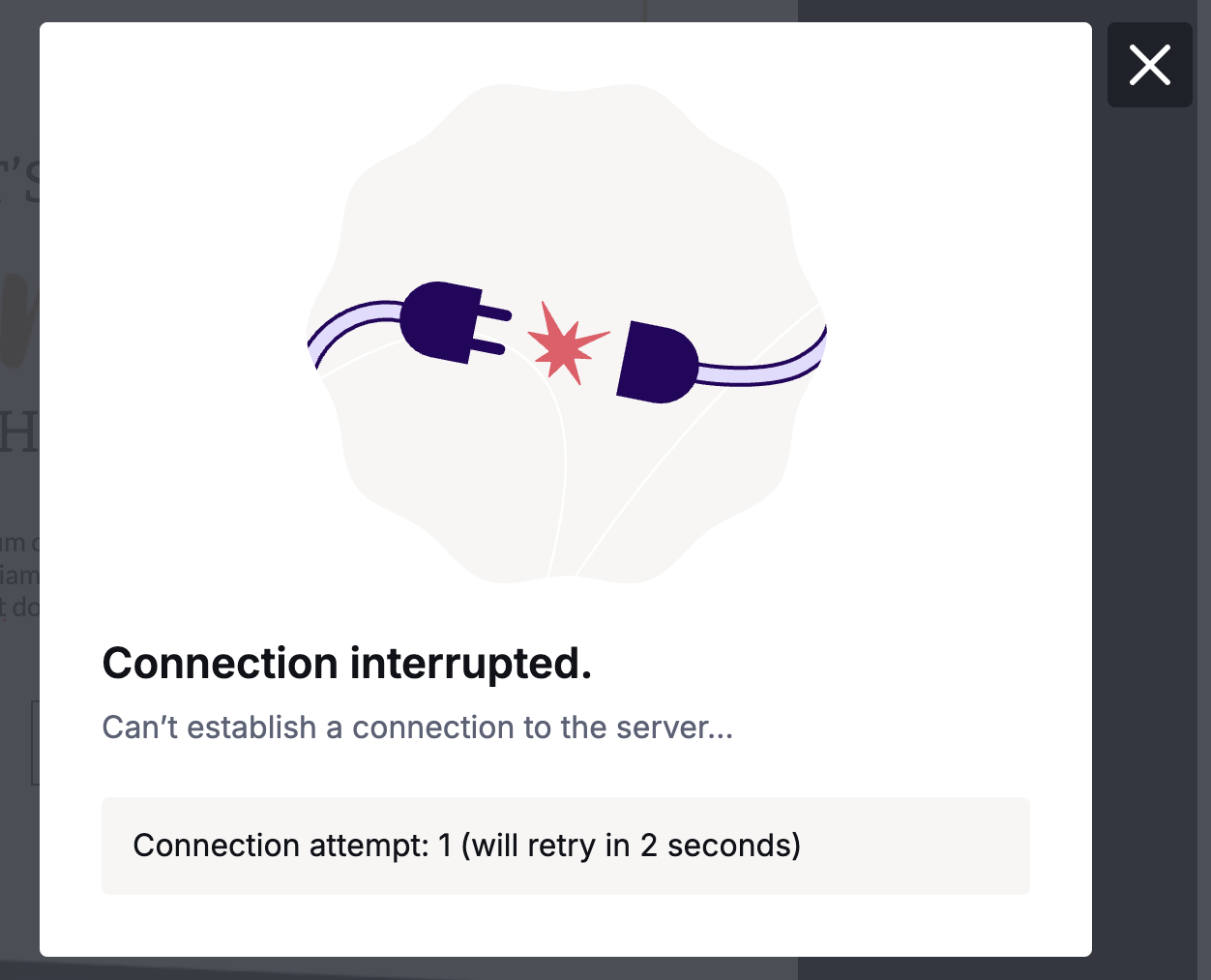
If your connection is interrupted, you'll see an error message. You can resume editing once your connection is restored. This protects your work.
Don't see autosave?
If you see a Save button, your account has co-editing enabled. Co-editing requires manual saving. Read the Co-editing article for details.
If you have any questions, feel free to contact us.
Comments
2 comments
Is there a way to have autosave enabled when working in an enterprise account? Recognizing that the co-authoring requires a user to save to publish their work, if only a single user is editing, can it revert to autosave?
Hi Michael! Co-editing is the default behavior for Enterprise plans, and it cannot be disabled for autosave. That said, I know our Product team has looked into this possibility, so I'm happy to share your feedback with them. We'll keep this in mind for future improvements!
Please sign in to leave a comment.