Exporting to Salesforce Marketing Cloud

Beefree App is now RGE Studio!
The email design suite you already know and love just leveled up. We’re working hard to update our help center, but you still may see some references to the old product name.
This article applies to the Email builder in all plans.
Overview
Design your emails in RGE Studio and export them to Salesforce Marketing Cloud (SFMC) for sending. The SFMC connector lets you export with one click.
There are two ways to connect your Salesforce Marketing Cloud account:
- From Workspace Settings: connect before you start designing.
- From the Export options of your email.
Setting up a connector does not sync your designs with external services. If you update a design after exporting it, you must re-export to see the updates.
For common questions about how RGE Studio works alongside Salesforce, see our RGE Studio and Salesforce - Frequently Asked Questions article.
Required SFMC Permissions
Different tasks in SFMC require different roles.
To set up the connector, you need an Administrator role in SFMC. This gives you access to the information needed in the steps below.
To see exported emails in SFMC, you need the Marketing Cloud Content Editor/Publisher role. You also need the Email Content permission.
Follow the steps below or watch our RGE Studio Academy tutorial.
1. Connect from Workspace Settings
Go to Settings > Connectors.
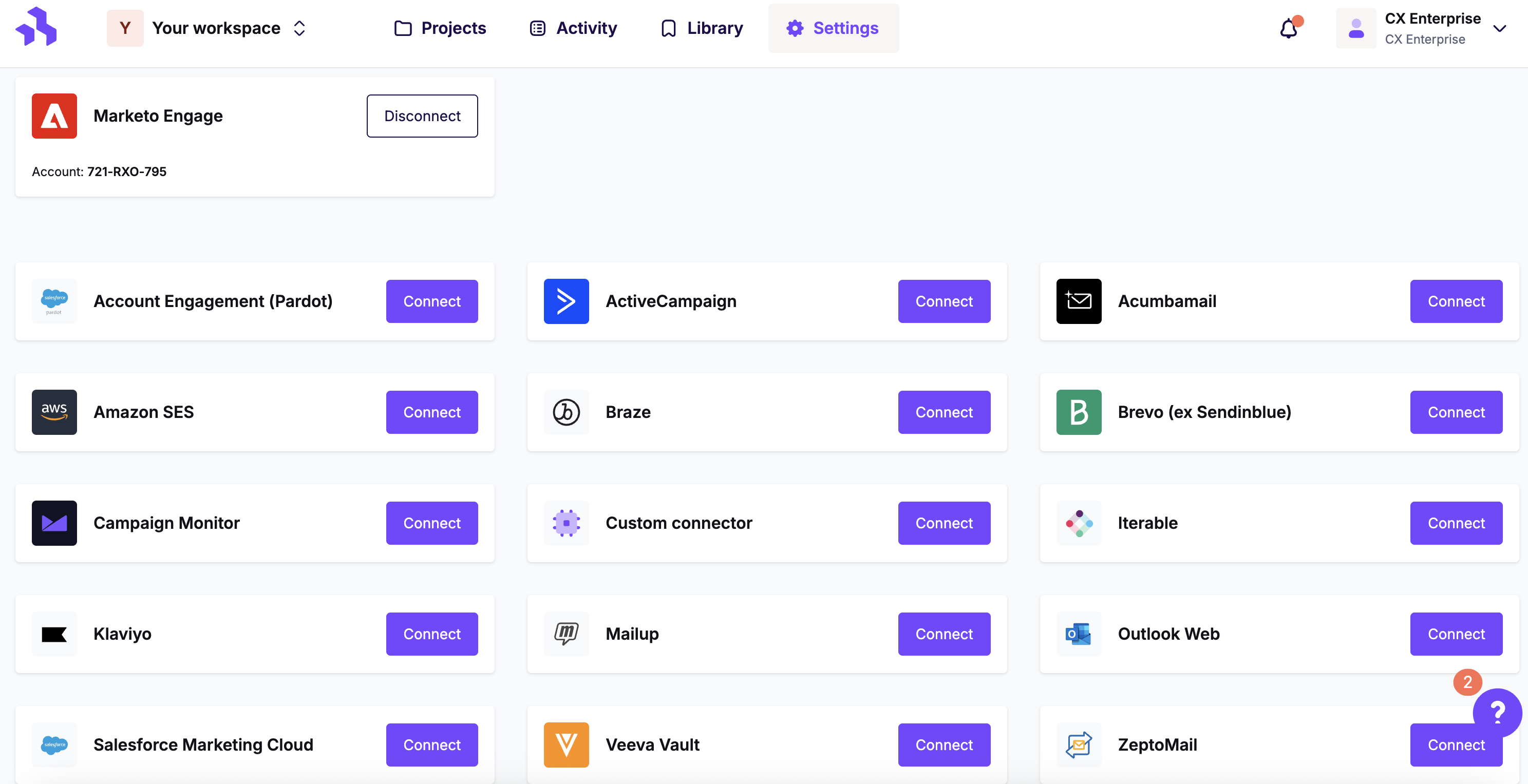
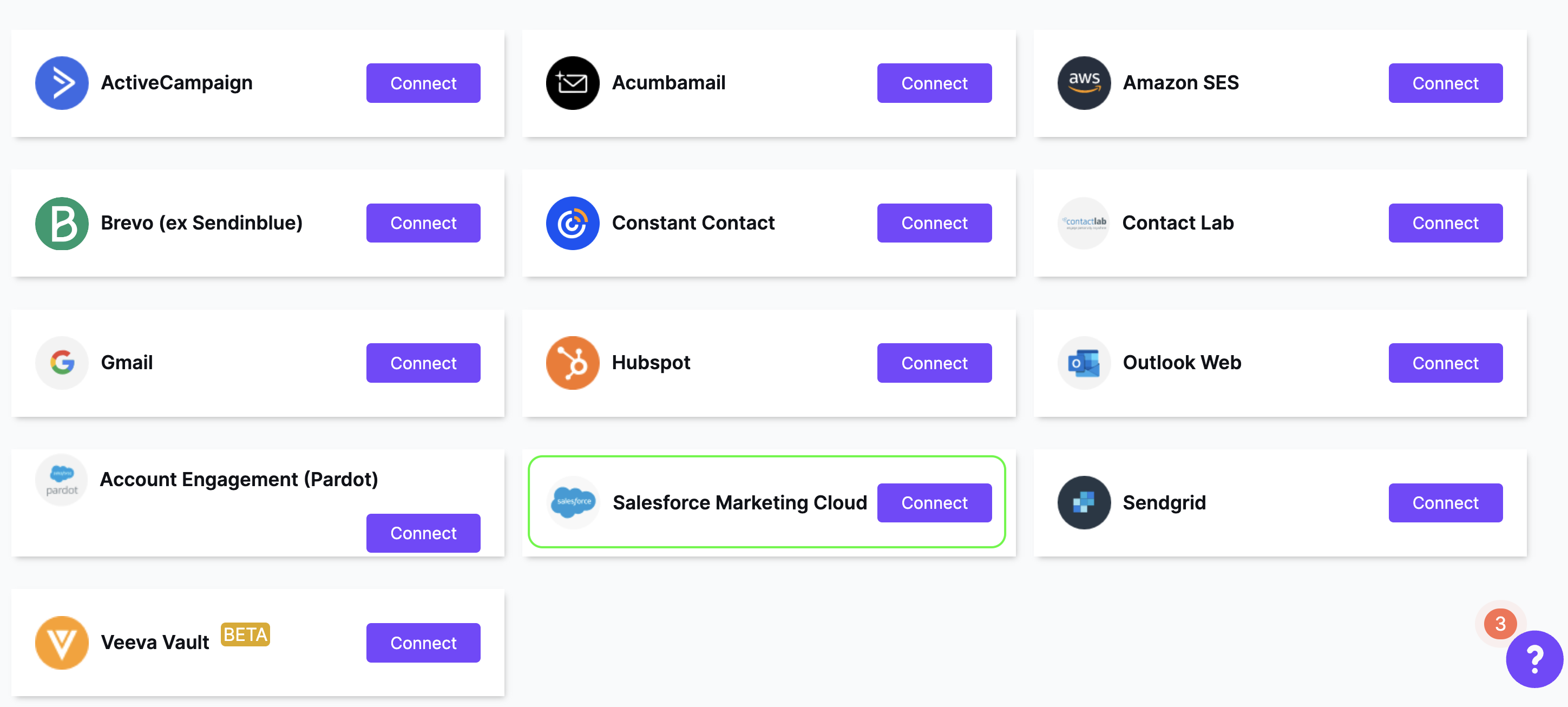
Click the Connect button for Salesforce.
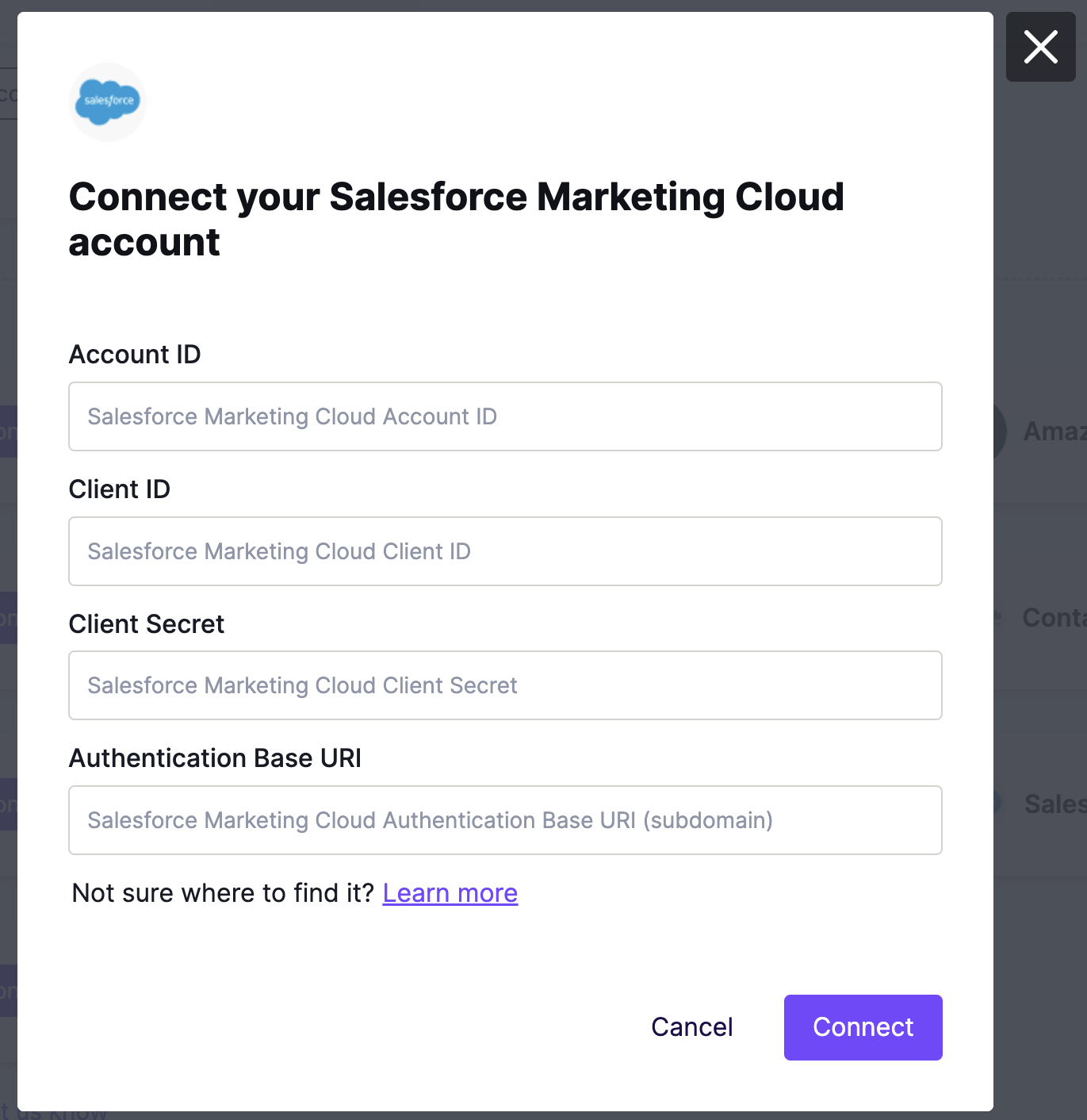
Fill out the information in the modal to begin setting up the connector.
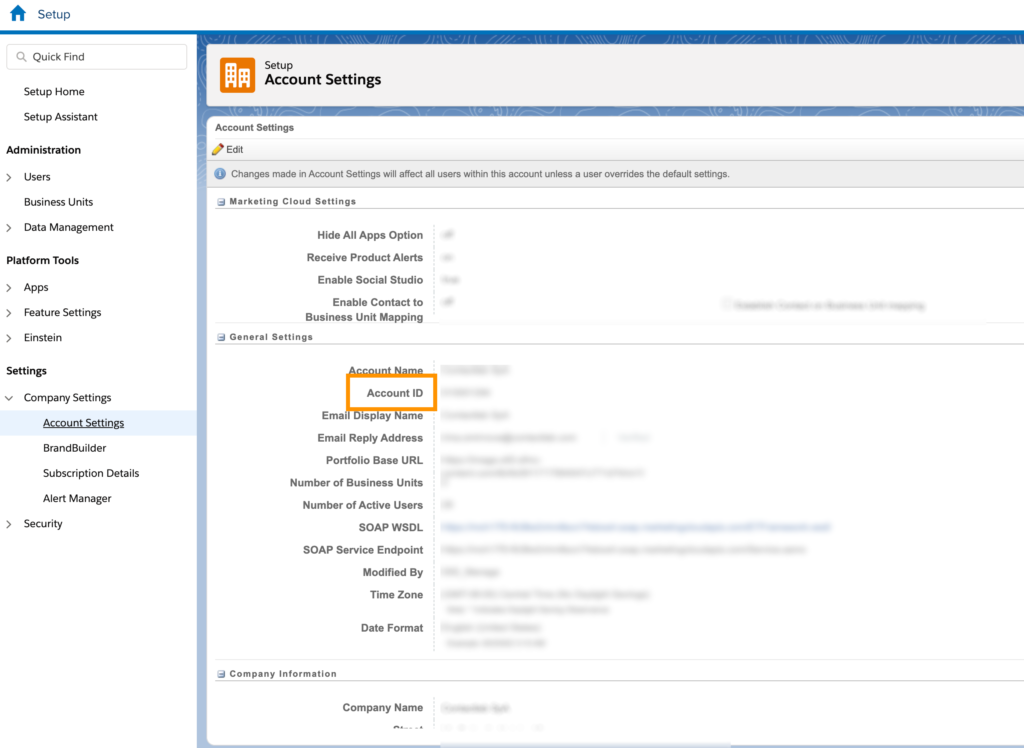
In Salesforce, go to Profile > Setup > Company settings > Account settings to find your Salesforce Account ID.
To find the other three parameters, in Salesforce, go to Apps > Installed Packages > Create a new Package. This new package is specific to the RGE Studio connector. Once you've created the package, select Add Component > API Integration > Server-to-Server. In the final step, set the scope settings. Your package must include both read and write permissions for the following:
- CHANNELS
- ASSETS
- Documents and Images
- Saved Content
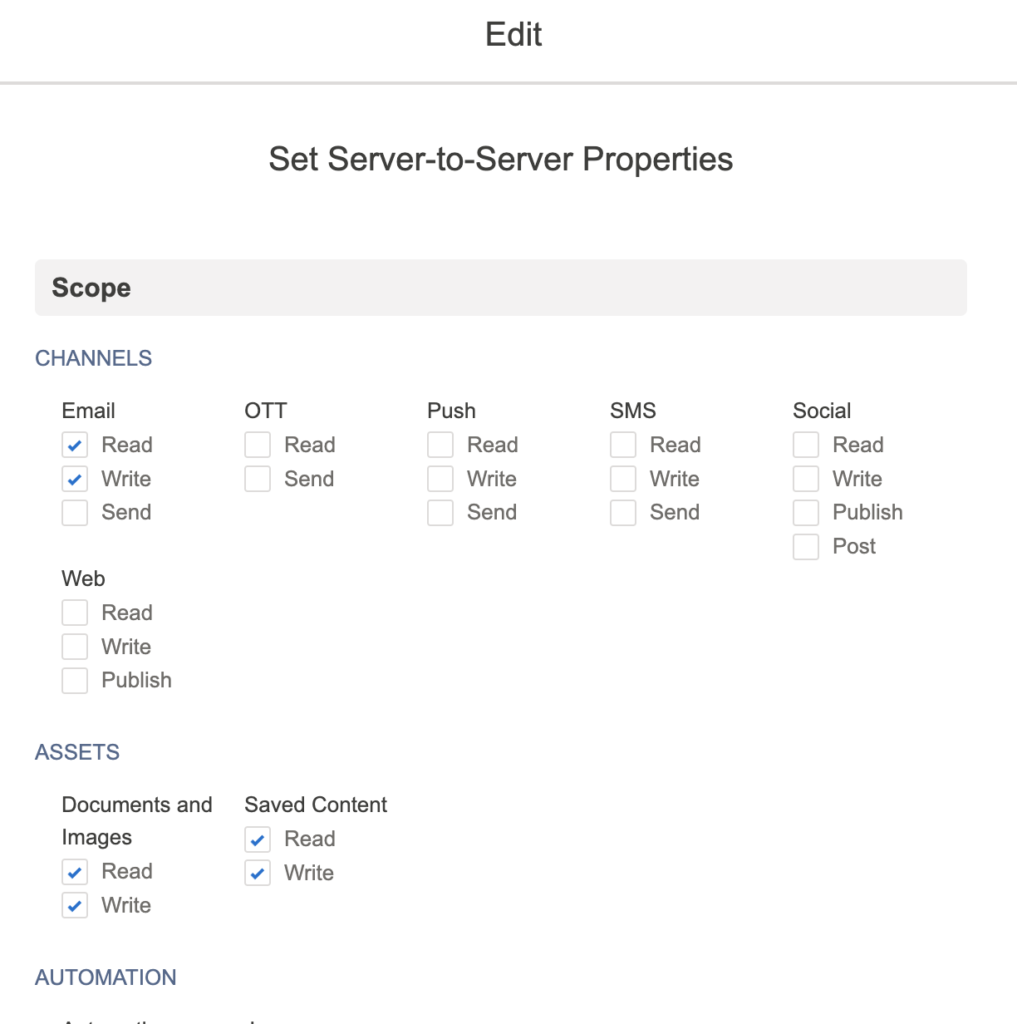
None of your Salesforce Marketing Cloud data is stored inside RGE Studio. The connector uses OAuth to securely push your exported emails to Salesforce Marketing Cloud.
For more help setting up in Salesforce Marketing Cloud, watch our connector tutorial.
2. Connect from Export
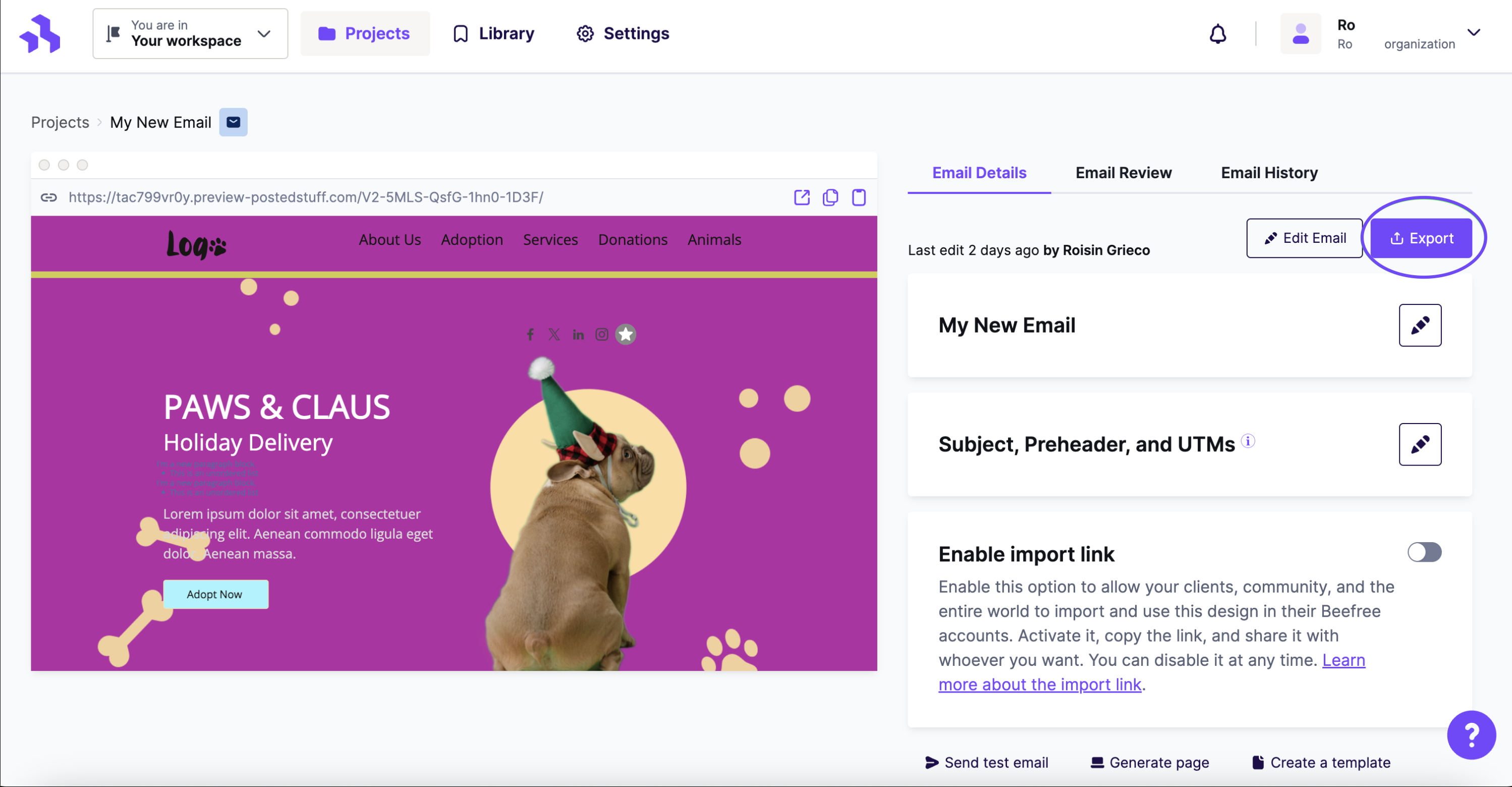
When your email is ready, click the Export button on the Email Details page. You can also access this from the actions menu.
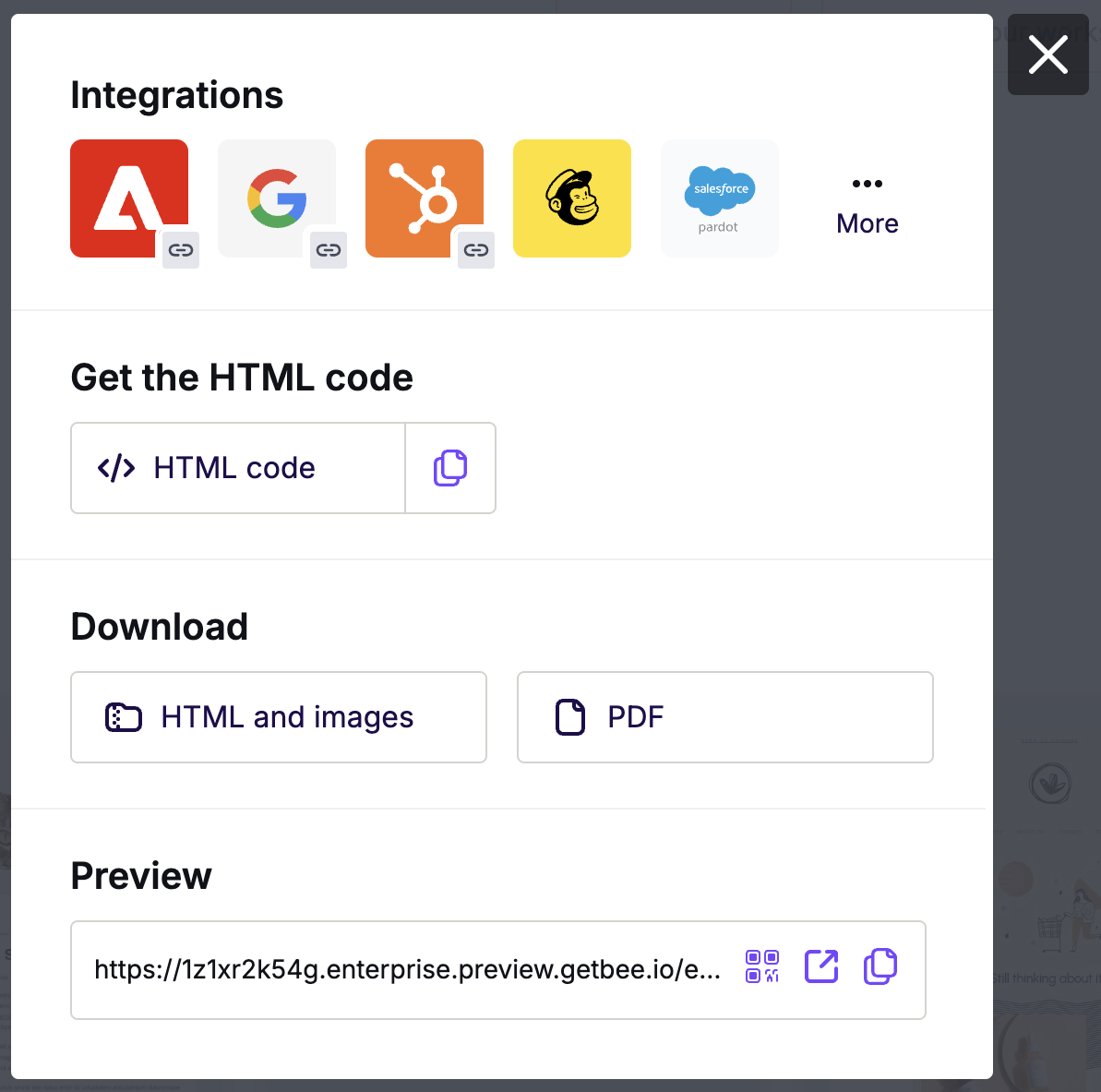
Click the Integrations icon for Salesforce Marketing Cloud. If you don't see it, click More to see all the connectors.
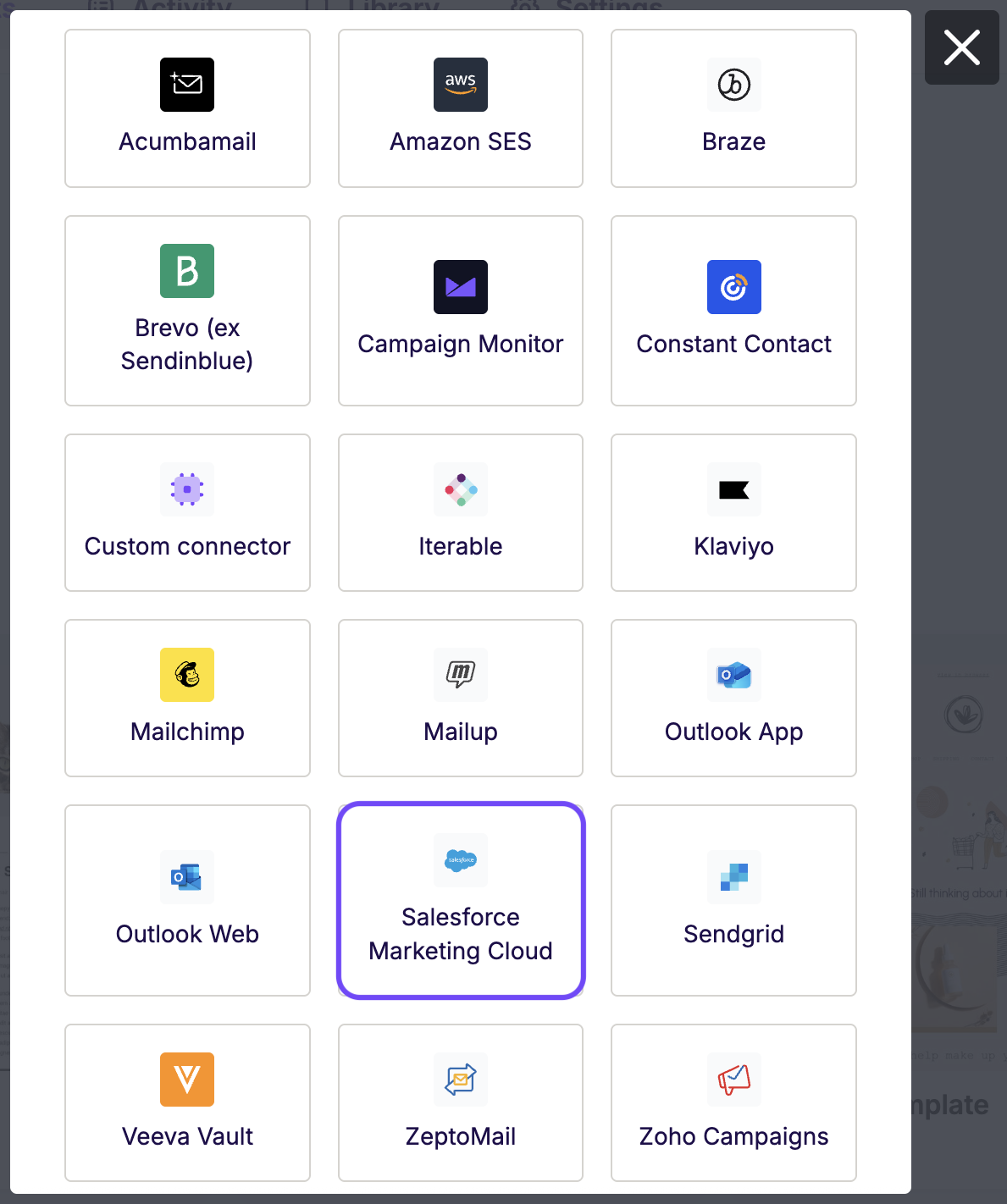
In the Integrations screen, scroll or search for Salesforce Marketing Cloud. Click the icon and follow the steps to connect your account. If you have already connected, you will not be asked to do so again.
RGE Studio will confirm when the export is complete. You will see it in your Salesforce Marketing Cloud account.
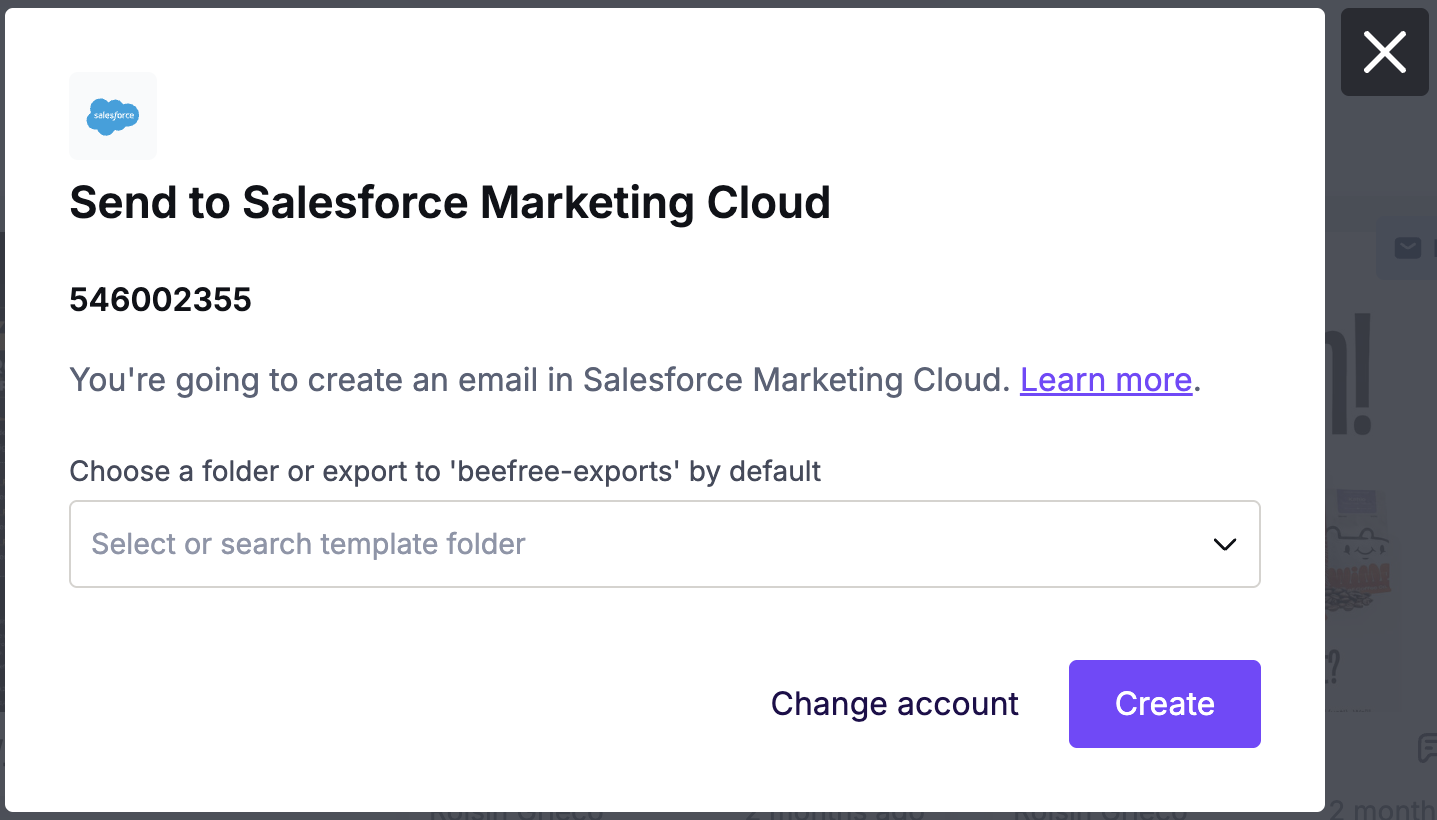
Salesforce Marketing Cloud stores your exported email in the folder you select during export. If you don't select one, RGE Studio uses the default beefree-exports* folder. You can rename this folder anytime. If you disconnect and reconnect the connector, RGE Studio creates another beefree-exports folder.
*If you connected your accounts before October 4, 2023, look for your emails in the beepro-exports folder instead.
Exporting Existing Designs
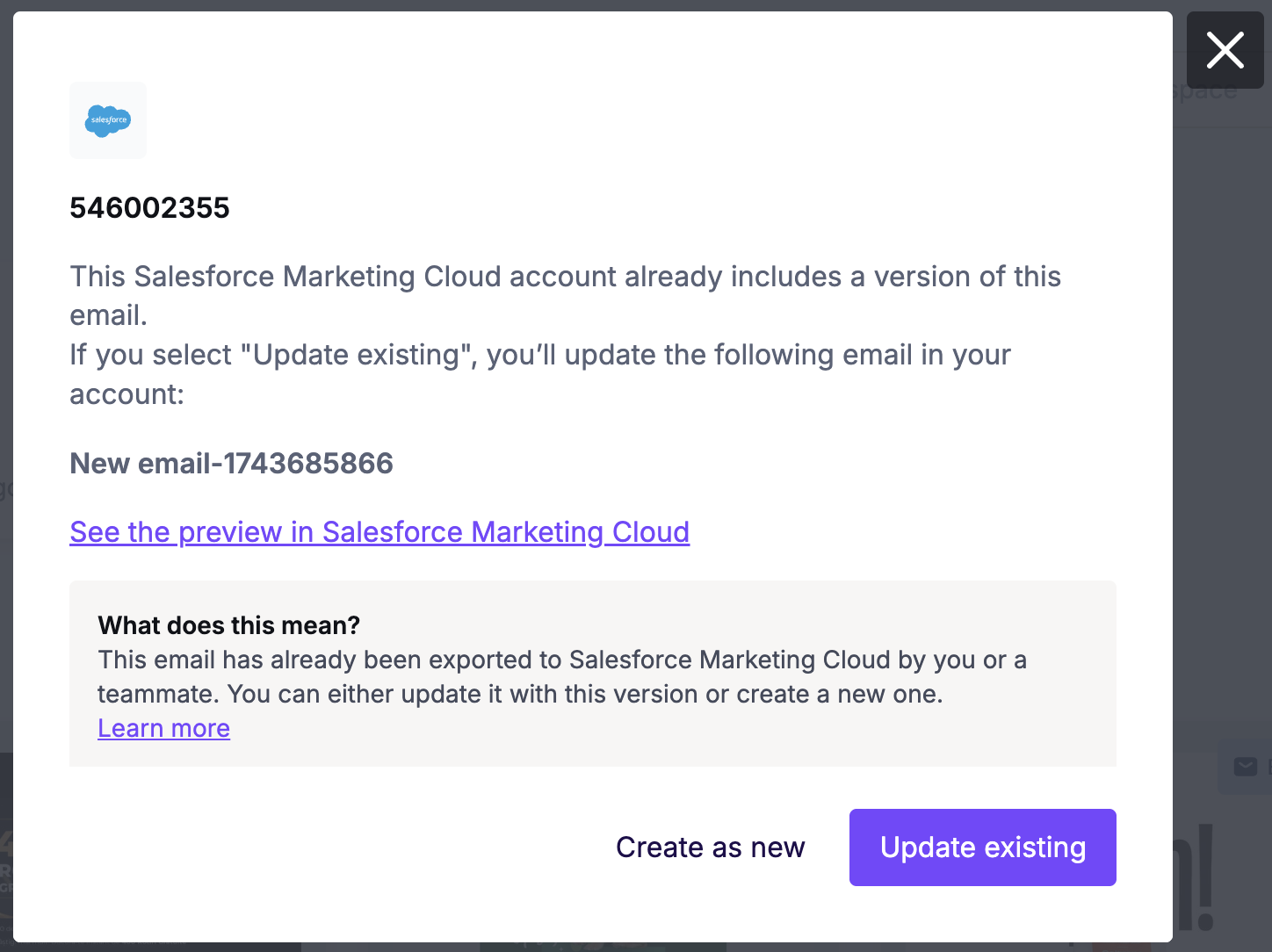
RGE Studio will recognize if you are exporting an email that you've already pushed to Salesforce Marketing Cloud. You can update the existing version, including the Subject and Preheader fields, using the Update existing option. This overwrites the existing version. To export a new version instead, use Create as new.
SFMC Required Content
This content is not required to use the connector. Salesforce Marketing Cloud requires it before you can send the exported email. We recommend adding it in RGE Studio before you export. That way, you won't need to add it manually in Salesforce Marketing Cloud later.
Salesforce Marketing Cloud requires the following content in every email you send:
-
A profile center link
<a href="%%profile_center_url%%" alias="Update Profile">Update Profile</a>
-
A valid physical mailing address*
This email was sent by: %%Member_Busname%%
%%Member_Addr%%
%%Member_City%%, %%Member_State%% %%Member_PostalCode%%
%%Member_Country%%
-
Code for tracking opens
<custom name="opencounter" type="tracking" />
*If you use Salesforce Marketing Cloud's default headers and footers, the mailing address is included automatically.
Add this content using merge tags and special links, or Salesforce Marketing Cloud will return an error when you send the email.
You can see here a video on how to do so:
Plain Text Emails
The SFMC connector also exports a plain text version of your email. It exports alongside the HTML version automatically. This version has no images, links, or formatting.
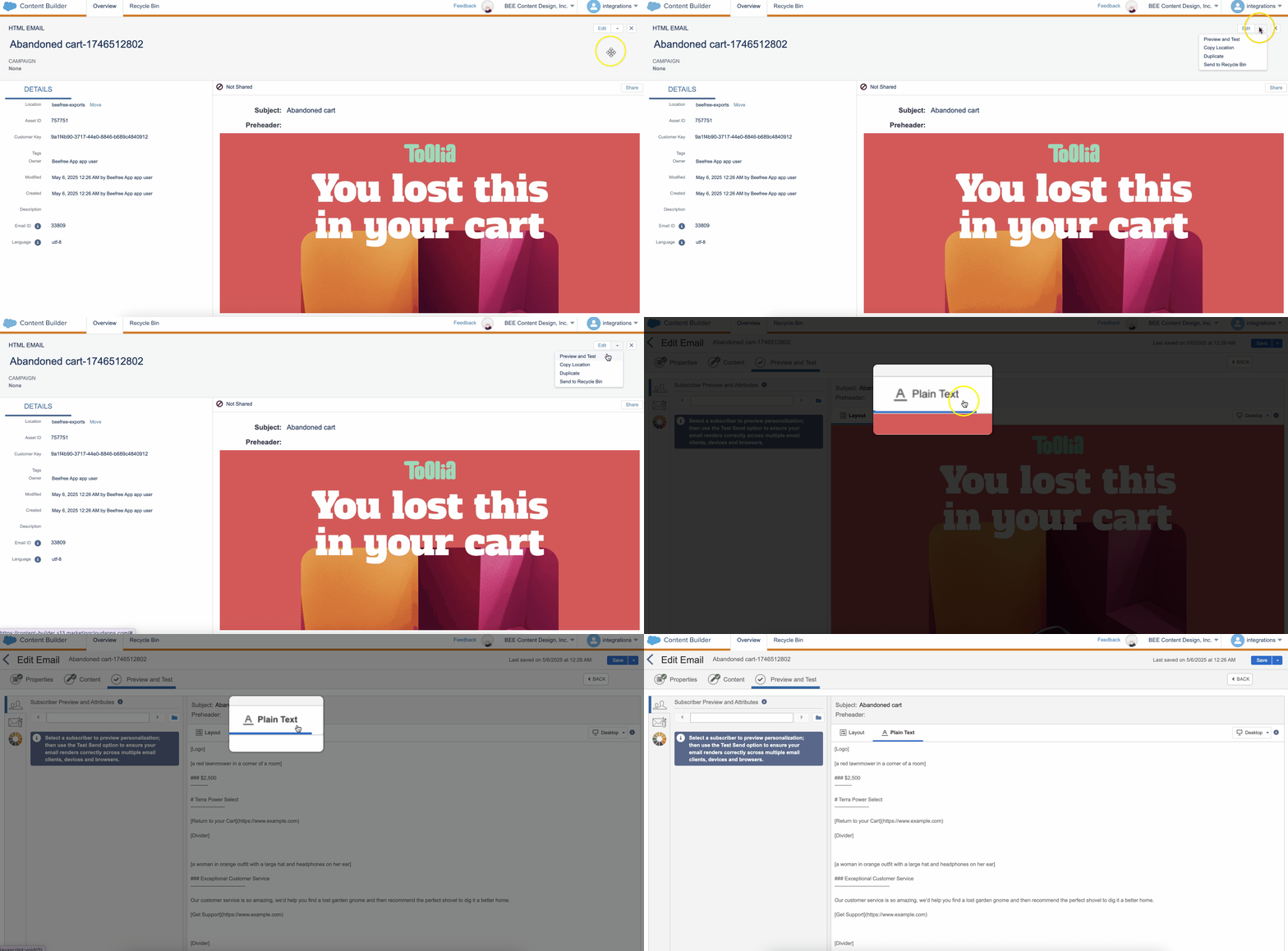
For more on plain text emails, see this article from Litmus.
Multiple Workspaces
If you work with multiple brands or clients, the Enterprise plan lets you create separate workspaces. Each workspace can have its own Salesforce Marketing Cloud connector.
For example, if you have 10 clients who all use Salesforce Marketing Cloud, you can create 10 workspaces. Each workspace connects to its own Salesforce Marketing Cloud account.
Looking for a different sending platform? You can check our complete list of connectors — or request a new one!
If you have any questions, feel free to contact us.
Comments
4 comments
This is great news! Would love to see the same functionality in Salesforce Pardot which is their native marketing tool for leads, contacts, etc.
This is exciting! Re-iterating Kyle's suggestion to activate for Pardot PLEASE!
And I echo Kyle and Kirk, please have the same for Pardot! We'd love this! :)
Pardon please for me too!
Please sign in to leave a comment.