Configuring design settings

Beefree App is now RGE Studio!
The email design suite you already know and love just leveled up. We’re working hard to update our help center, but you still may see some references to the old product name.
This article applies to the Email and Pages builder in all plans.
Overview
Use the Settings tab to apply settings to your entire design. You can find the Settings tab in the builder sidebar.
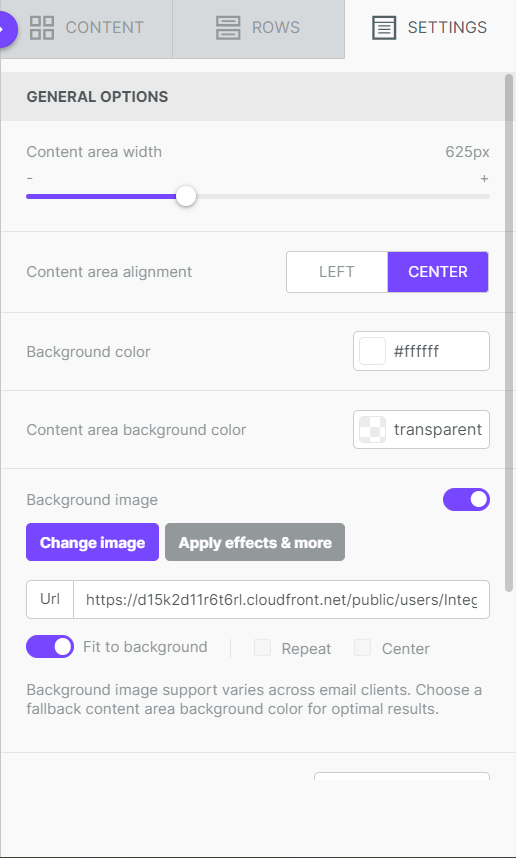
General Options
General options are required for every design. When you start a new design, these options come from your template or your brand settings. General options include:
- Content area width: The maximum width of your content area. It applies on screens wider than this value. Smaller screens ignore this setting.
-
Content area alignment: Aligns your content area to the center or the left. The default is centered. This setting affects the whole design.
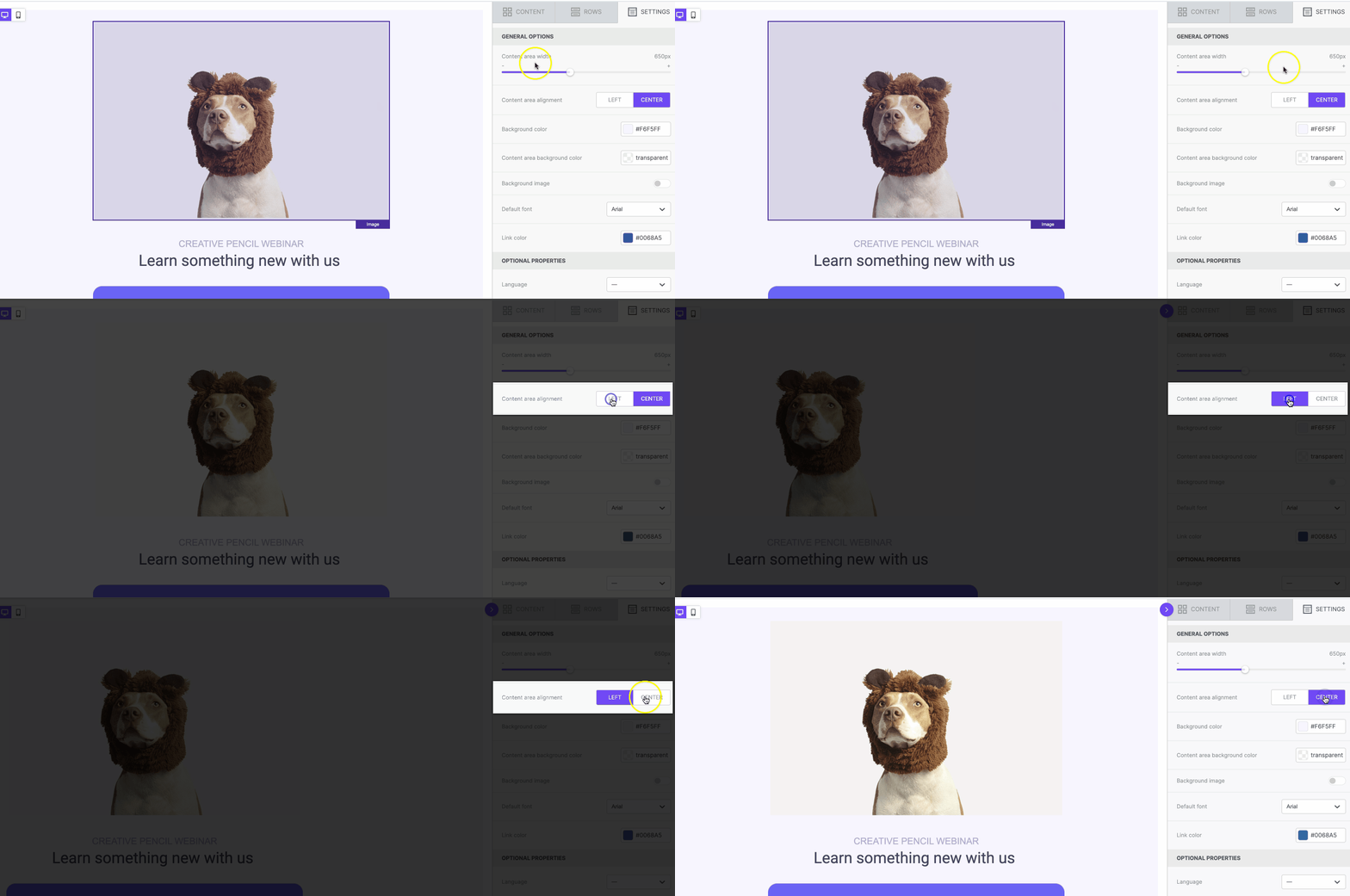
-
Background color: The default background color for the design. You can change it for individual rows, columns, and content blocks.
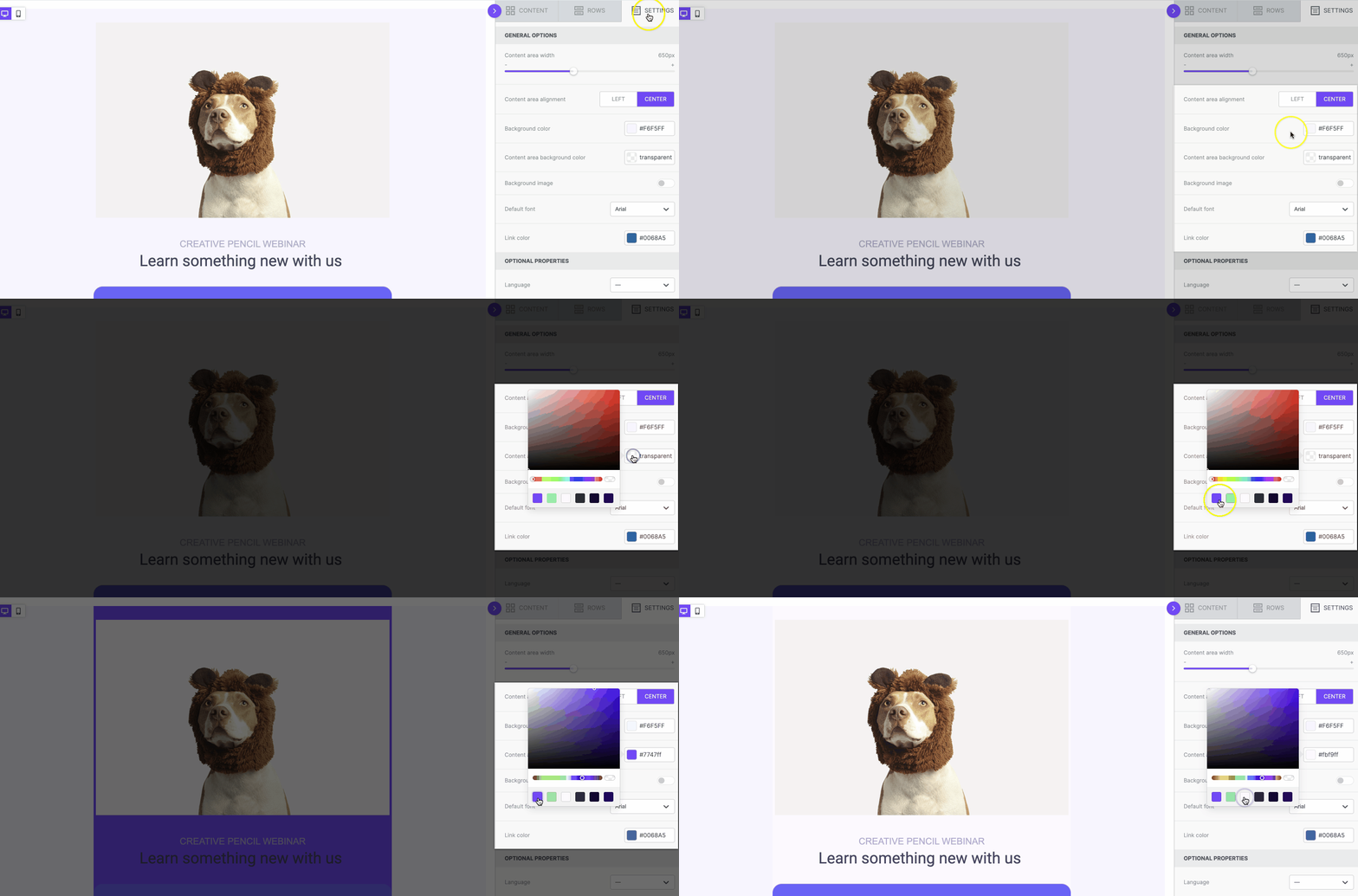
- Content area background color: The default background color for the content area only.
- Default font: The default font for all content in the design. You can change it for individual content blocks.
-
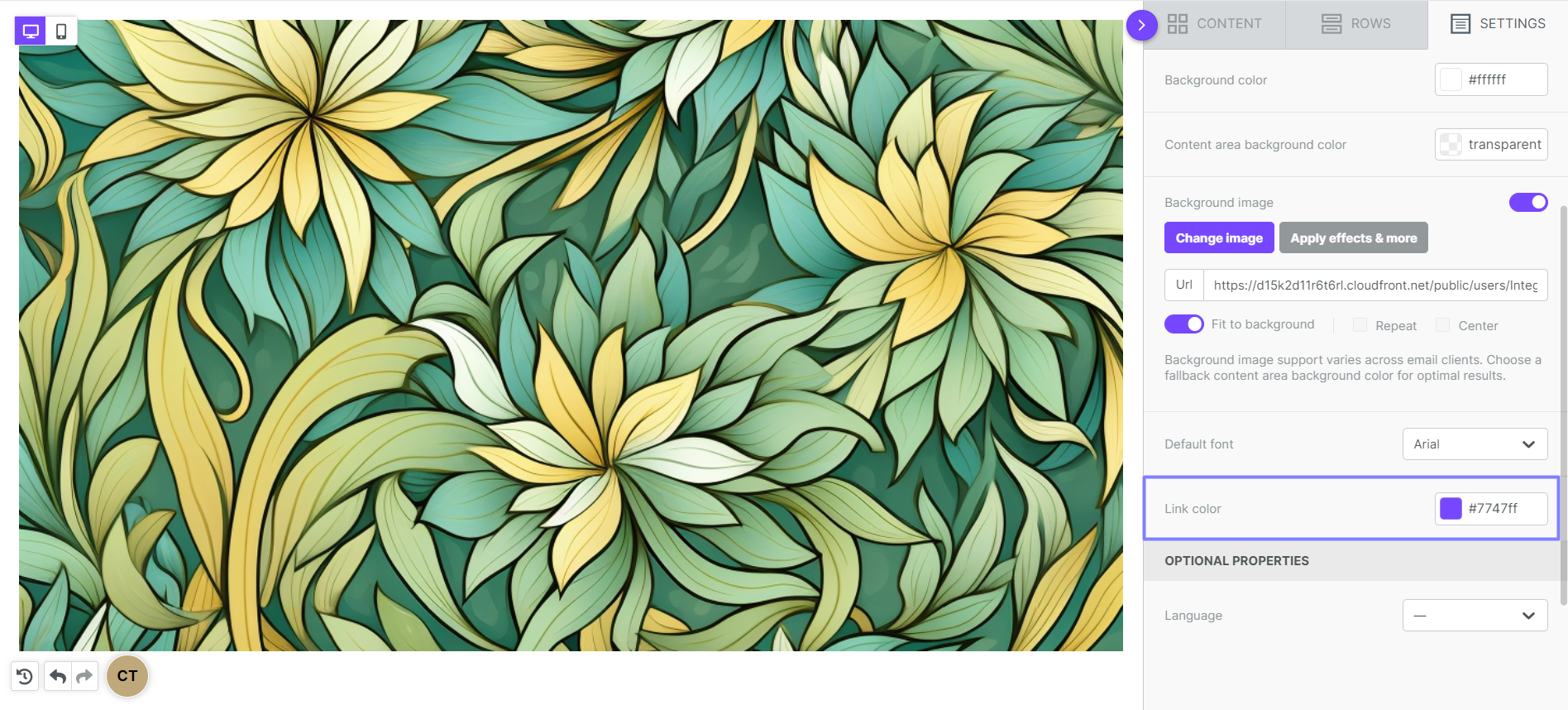
Link color: The default color for all links. You can change it for individual elements.
Metadata
The options you see depend on whether you use the Email or Pages builder. Optional properties include:
- Favicon (Pages builder): Upload the icon that appears in the browser tab for your landing page. Learn more in our Pages documentation.
- Language: Sets the language attribute in your design's HTML. Screen readers use it to pronounce your content correctly. On pages, it also helps search engines show your page in results for that language.
If you have any questions, feel free to contact us.
Comments
2 comments
Seeking how to change row color and I can't find it, thanks!
Hi Haylie, we sent you the instruction via ticket. Hope it helped. Best.
Please sign in to leave a comment.