Understanding your Subscription Details

Beefree App is now RGE Studio!
The email design suite you already know and love just leveled up. We’re working hard to update our help center, but you still may see some references to the old product name.
This article applies to all plans. However, some features may be limited or unavailable on the Starter plan.
Overview
This article covers all the information in the Subscription page. These subscription details can only be accessed by the account Owner. See User roles & permissions to learn more.
This article focuses on the Subscription page for paying accounts. Owners of Starter accounts will also see a Subscription page with limited options.
For information about updating your subscription, see Managing your RGE Studio subscription.
Navigating the Subscription page
All RGE Studio users have a drop-down menu in the top right corner of their dashboard. Account owners use this menu to go to the Subscription page.
Use this page to update your billing information, download past statements, or check your current CDN usage.

Overview tab
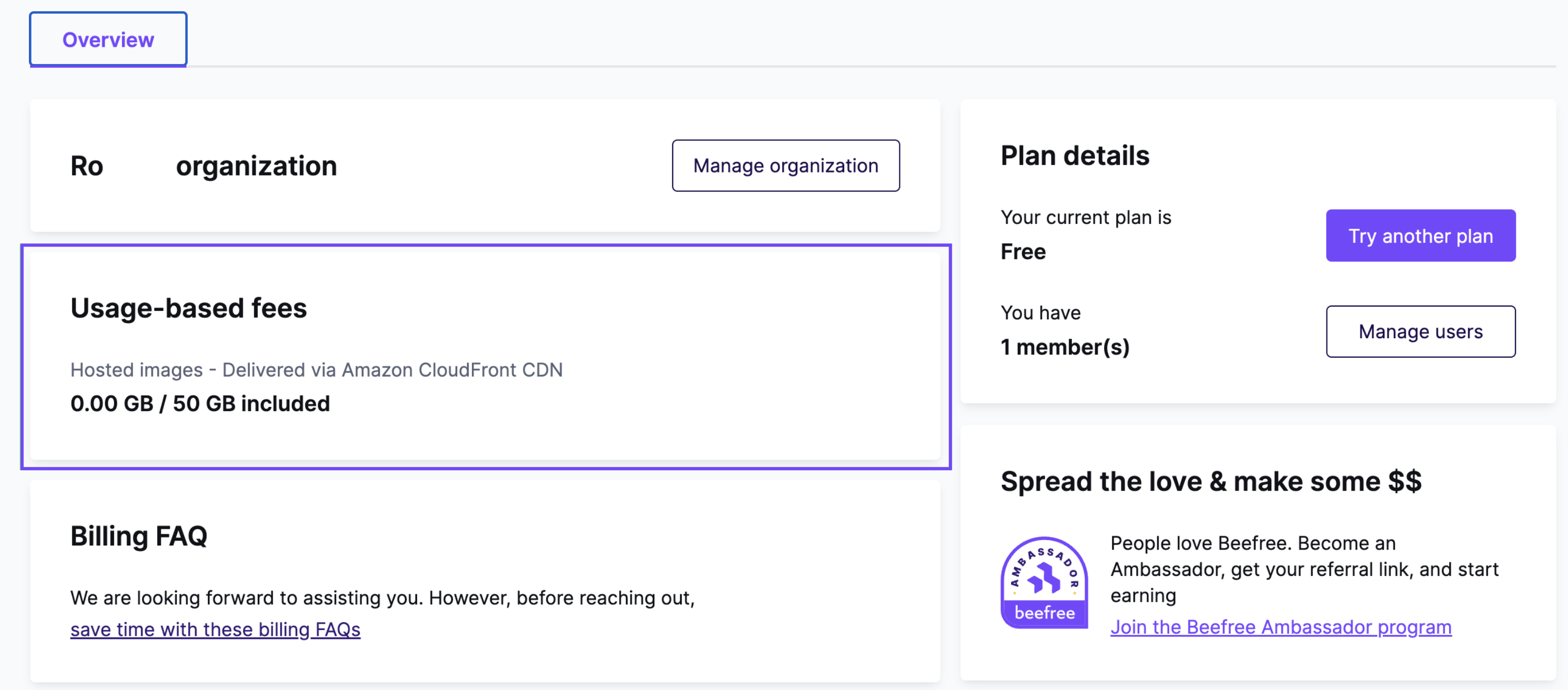
The Overview tab shows a summary of your RGE Studio subscription. From here, you can make changes to your billing information or RGE Studio plan. Use this tab to:
- Update your company name with the Manage organization button (this name appears on your billing statements)
- Edit card details
- Edit billing details (mailing address and email address)
- Change plan
- Manage users
- Cancel your subscription
This tab also shows:
- Your upcoming subscription renewal (if applicable)
- Your total recurring fees (subscription and additional user fees)
- A summary of your user count, with a link to the Manage users page
Recurring & usage-based fees tab
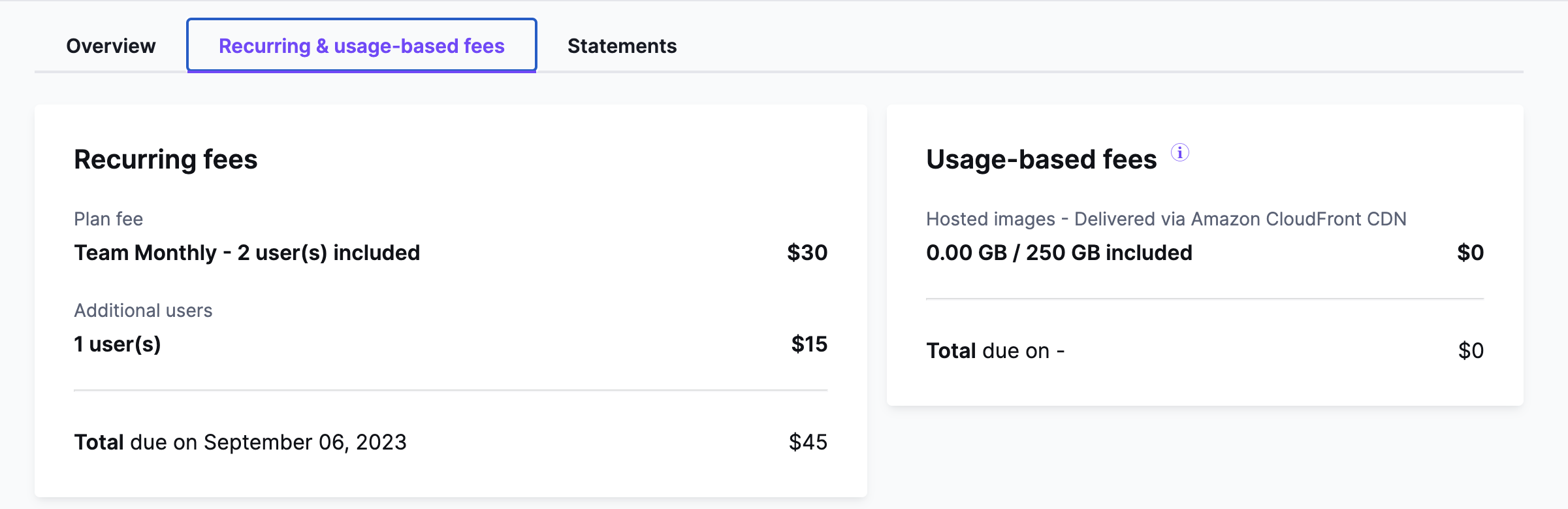
This tab shows a detailed breakdown of your subscription fees. On the left, you can see recurring fees. On the right, you can see usage-based CDN fees, if applicable. Each total is calculated separately.
For more information about how CDN charges work, see Hosted image delivery (CDN) in RGE Studio.
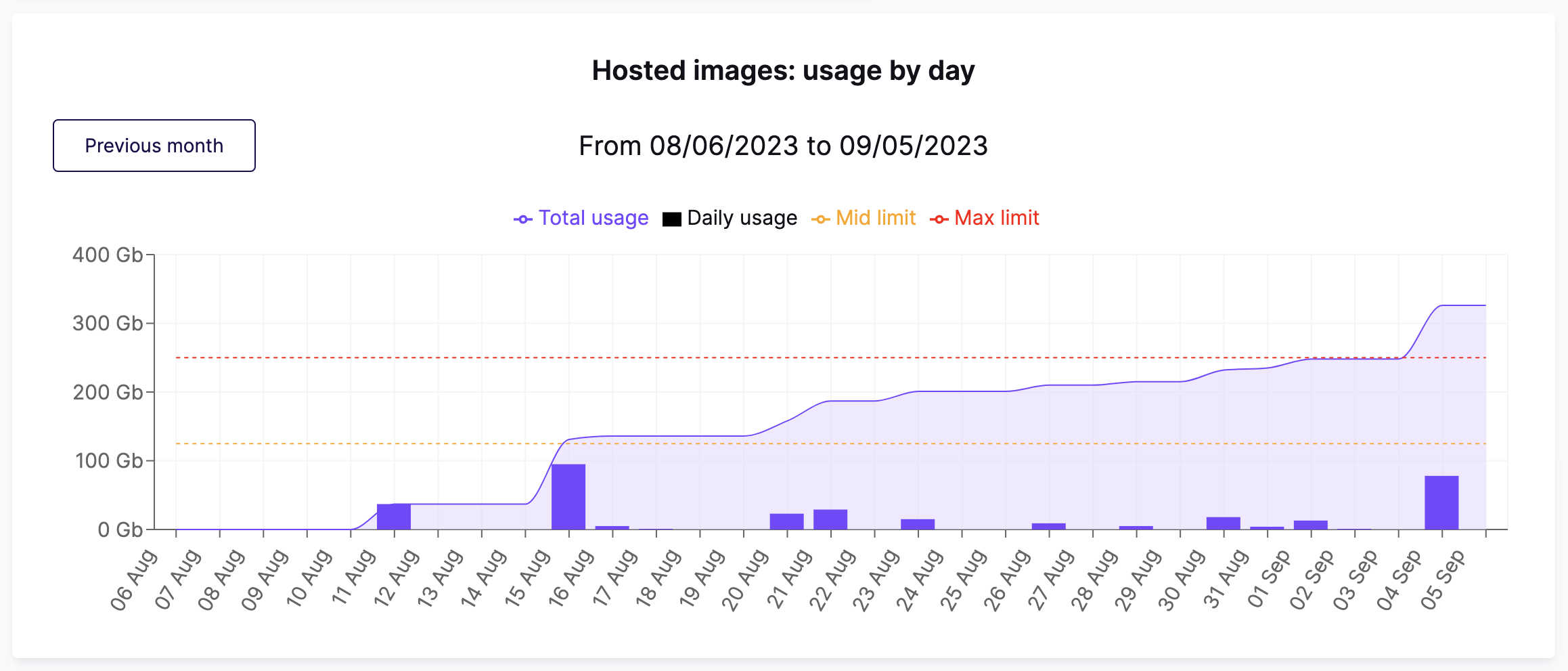
A chart below shows your data transfer. By default, it shows the current monthly billing period. Horizontal lines mark the 50% and 100% thresholds for your plan. Use the Previous month button to see other billing periods. For more information on using this graph, see In-app CDN Report.
This tab is not available for Starter accounts. Starter users can track their CDN usage in the Overview tab.
Statements tab
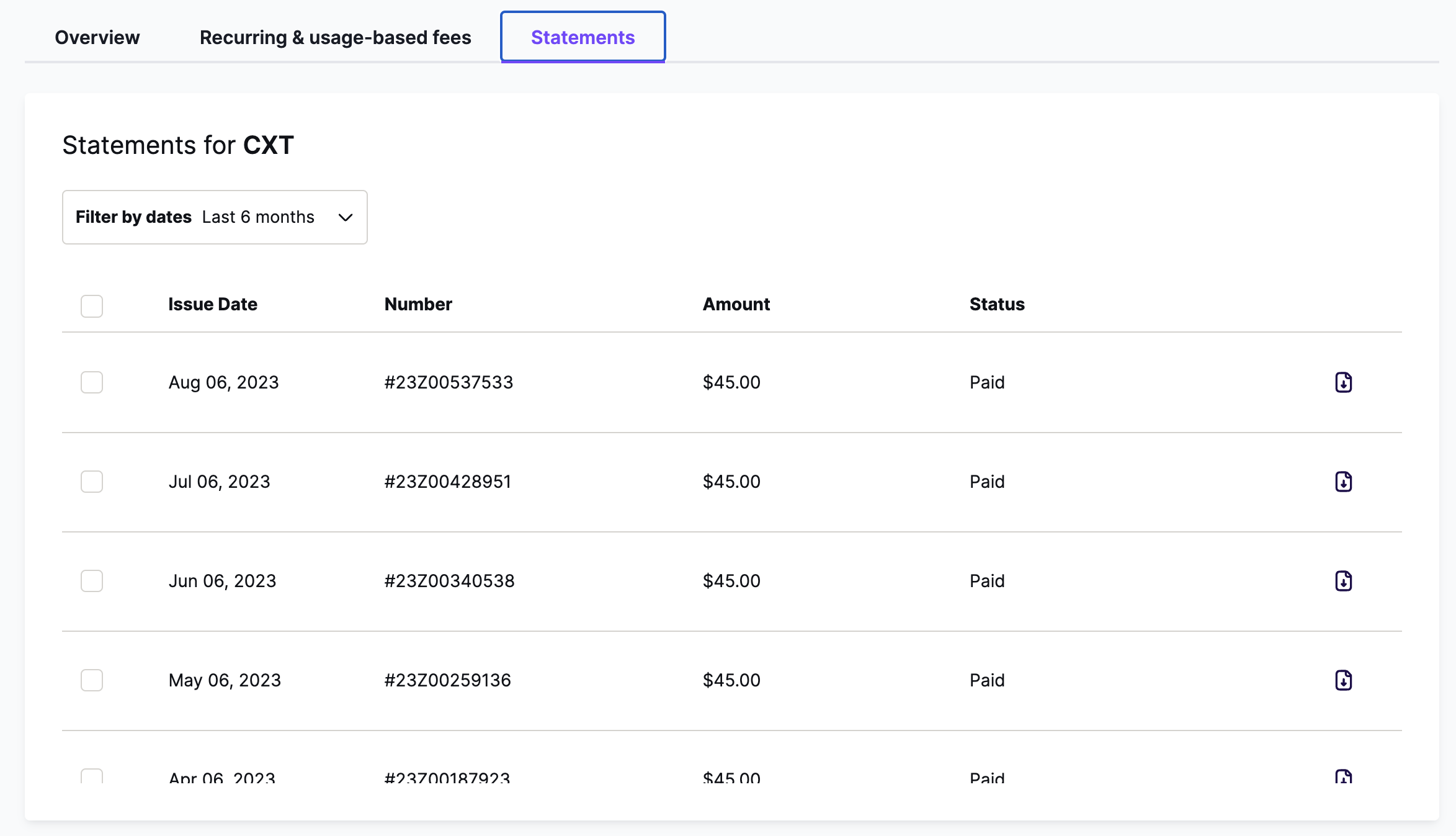
The Statements tab lets you download all your RGE Studio account statements. All statements are sent automatically to the email in the Overview tab. You can also download any statement here at any time.
Use the Statements tab to:
- Download a single invoice
- Download multiple invoices in bulk
- Pay any unpaid invoices directly from this tab
See How to read a statement to learn more.
If you have any questions, feel free to contact us.
Comments
0 comments
Please sign in to leave a comment.