Settings, Rows, and Content: How do they work?

Beefree App is now RGE Studio!
The email design suite you already know and love just leveled up. We’re working hard to update our help center, but you still may see some references to the old product name.
This article applies to the Email and Pages builder in all plans.
Overview
The RGE Studio builder organizes every design into three parts:
- Settings apply to your entire design.
- Rows define the layout. You can add, remove, copy, save, and move them.
- Content blocks hold your images, paragraphs, buttons, and more. You can add, remove, copy, and move them.
Settings
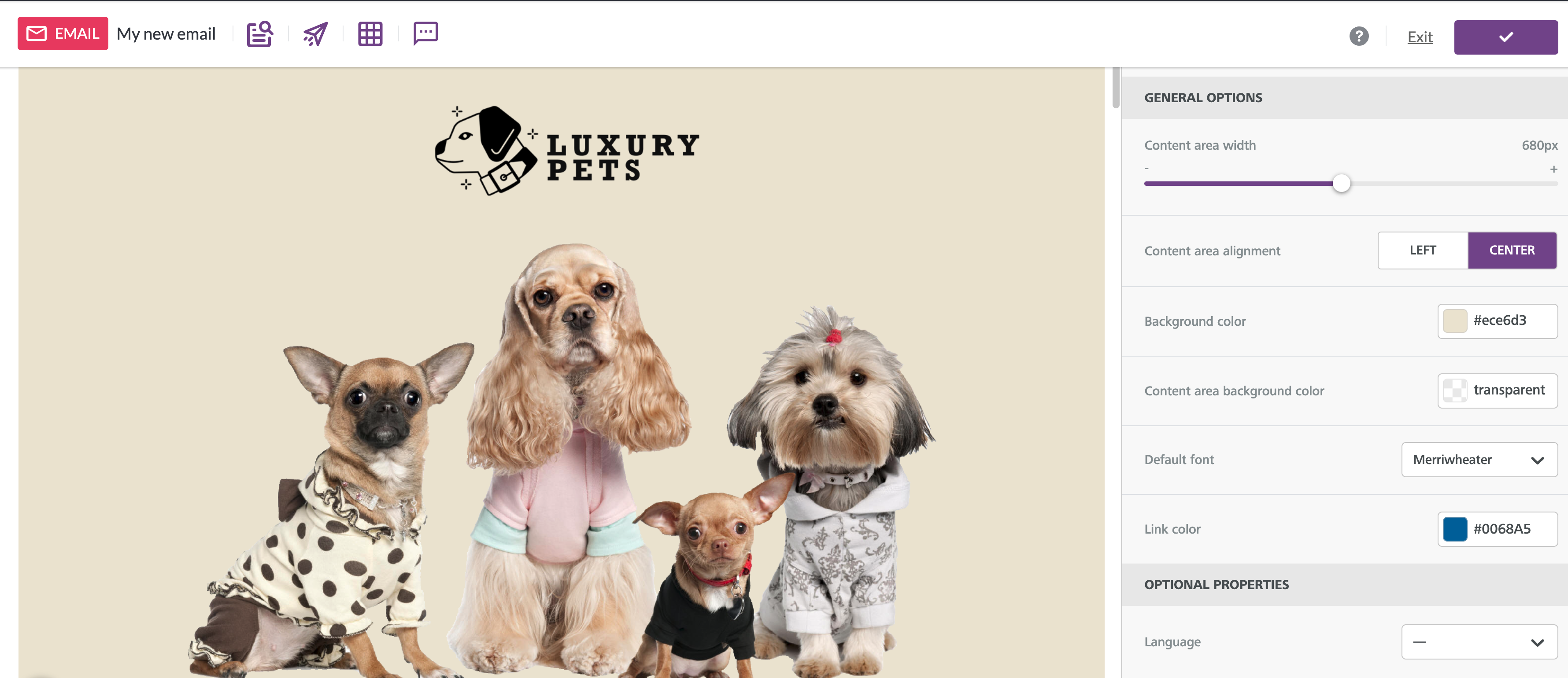
The Settings tab controls the general settings for your whole design. Rows and content blocks inherit these settings. For example, the default font applies everywhere in your design. You can change the font on any content block.
Design settings help you build a consistent design quickly. To learn about each option, see Configuring design settings.
Rows
Rows define the layout of each section in your design. Each row uses columns to place content side by side. To add, remove, or resize columns, see Column management.
The Rows tab lists the types of rows you can add to your design. You can add as many rows as you need. This works with any template you started from.
You can also save rows to reuse them in other designs. Learn more about saved rows and synced rows.
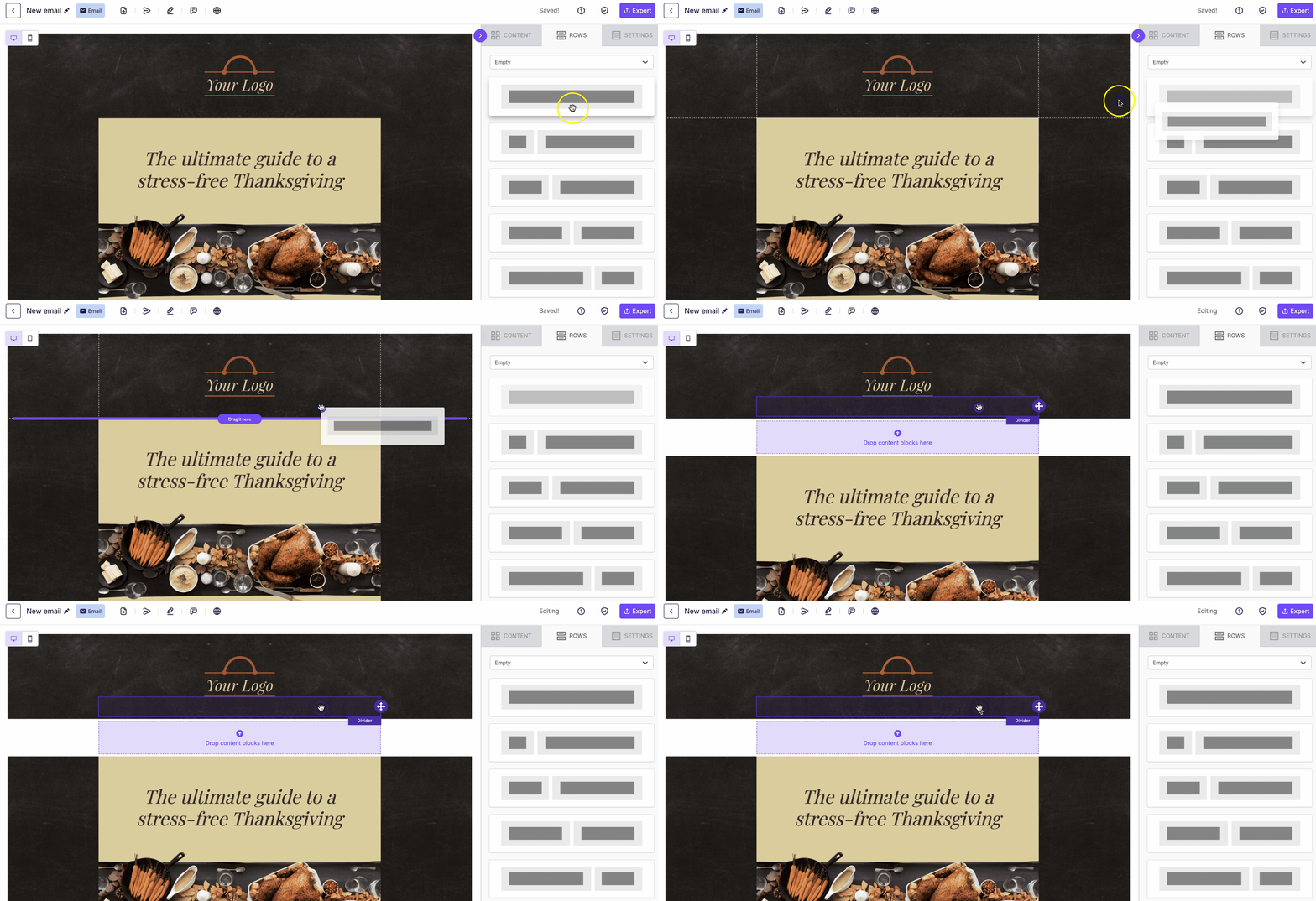
Every row has its own settings. For example, you can set a background color for the entire row, only the content area, or a single column. Learn more in Row Properties.
Content
The Content tab shows a tile for each type of content block. To add one, drag it into a column. The block adjusts to the column width automatically.
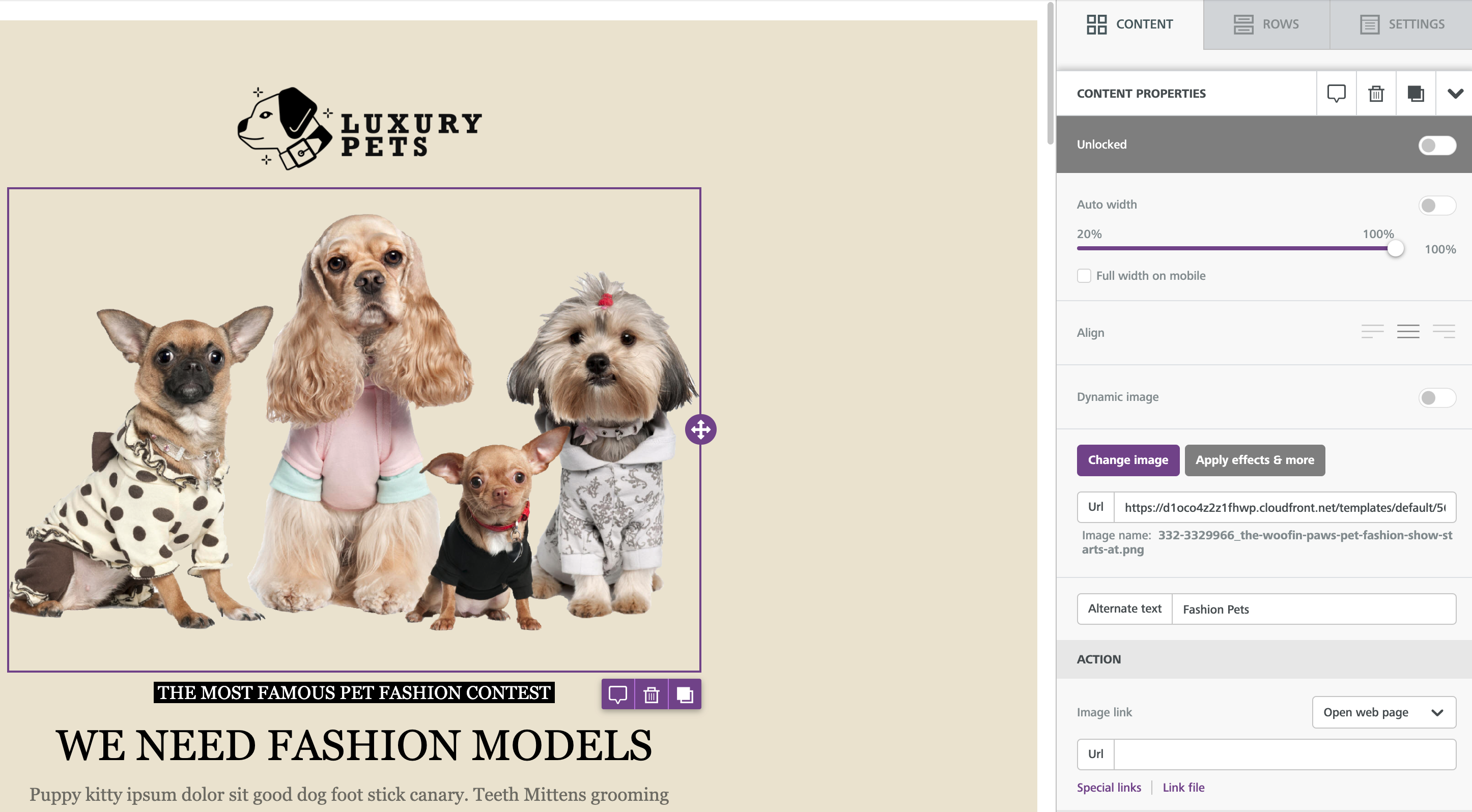
Every content block has its own settings, like padding. When you select a content block, the right-side panel shows its properties. To learn about each block type, see Working with content blocks.
Need help selecting the right element in your design? See How do I select a row vs. content?
If you have any questions, feel free to contact us.
Comments
0 comments
Please sign in to leave a comment.