Managing Designs

Beefree App is now RGE Studio!
The email design suite you already know and love just leveled up. We’re working hard to update our help center, but you still may see some references to the old product name.
Overview
This quick start guide focuses on design management options. If you want to learn about creating designs in RGE Studio, see the Building Content in RGE Studio quick start guide.
If you're looking for something else, see the following guides:
RGE Studio allows you to create three types of designs:
- Emails
- Landing Pages
- Templates (both Emails & Pages)
Templates are stored in your Library tab. Emails and landing pages are stored in your Projects tab.

Templates act as starting points for the emails and pages you design in RGE Studio. Templates offer a smaller set of options than emails and pages. Working directly with emails and pages gives you access to more options, covered below.
Details page
Each individual design created in RGE Studio includes a details page. Any time you exit the builder, you land on the details page for that design. You can also open it from the options icon in the upper-right corner of your design preview.
You'll always see the following options on this page, whether you're working on an email or a page:

- A design preview panel appears on the left side of the page. Use this panel to access the hosted version of your design. You can also copy the URL or generate a QR code to open the design on a mobile device.*
- The Email or Page Details tab lets you edit your design. Click the edit icon to change the design name*, assign tags*, write a description*, or set a status. Find more information in Using the Email details or, for pages, the View Details section of our Pages article.
- The Email Review tab lets you request a review from other users. See Using design status for more information.
- The Email or Page History tab keeps a record of historical versions of your design. This allows you to recover a previous version or see who worked on the design most recently. This feature is limited on Starter plans. Full details can be found in View & restore a previous version of an email or page.
*These options are available on template details pages as well.
Depending on which type of design you're working with, you'll see different options. Here are the available options for emails, pages, and templates.
Edit email/page/template
This option appears as a button above the details portion. This allows you to launch the design in the builder so you can continue making changes.
Generate email/page
If you're working with templates, this option creates an email or a page in your Projects tab. Which one you see depends on the type of template.
This option also shows up for existing pages and emails, so you can switch between them. If you're working with an email, you'll see Generate Page. If you're working with a page, you'll see Generate email instead. This lets you swap design types without recreating your content.
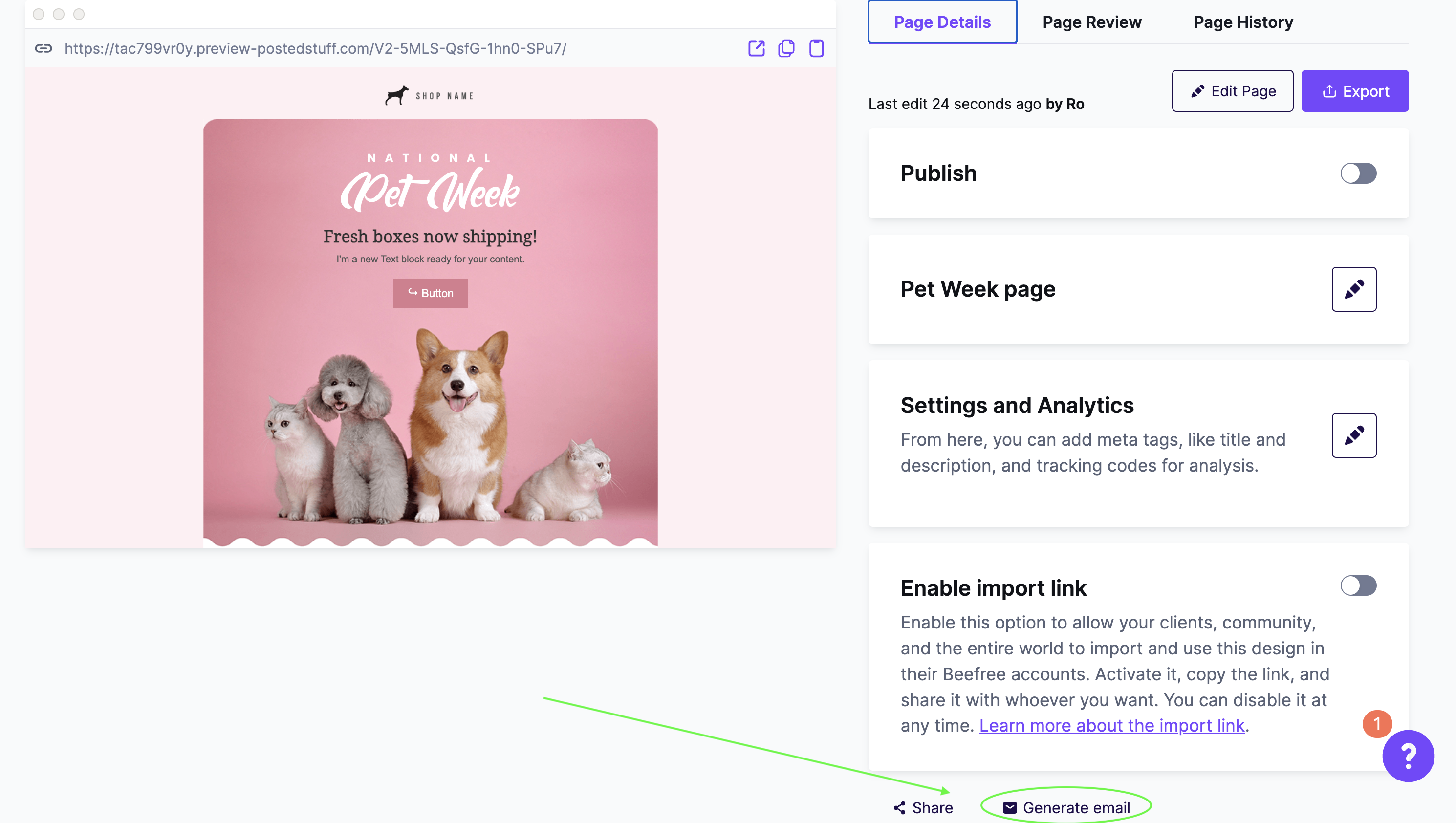
Next, here are the options available for emails and pages only.
Export
An Export option appears to the right of the Edit button. Exporting transforms your design into HTML so you can use it anywhere on the web. RGE Studio offers the following export options:
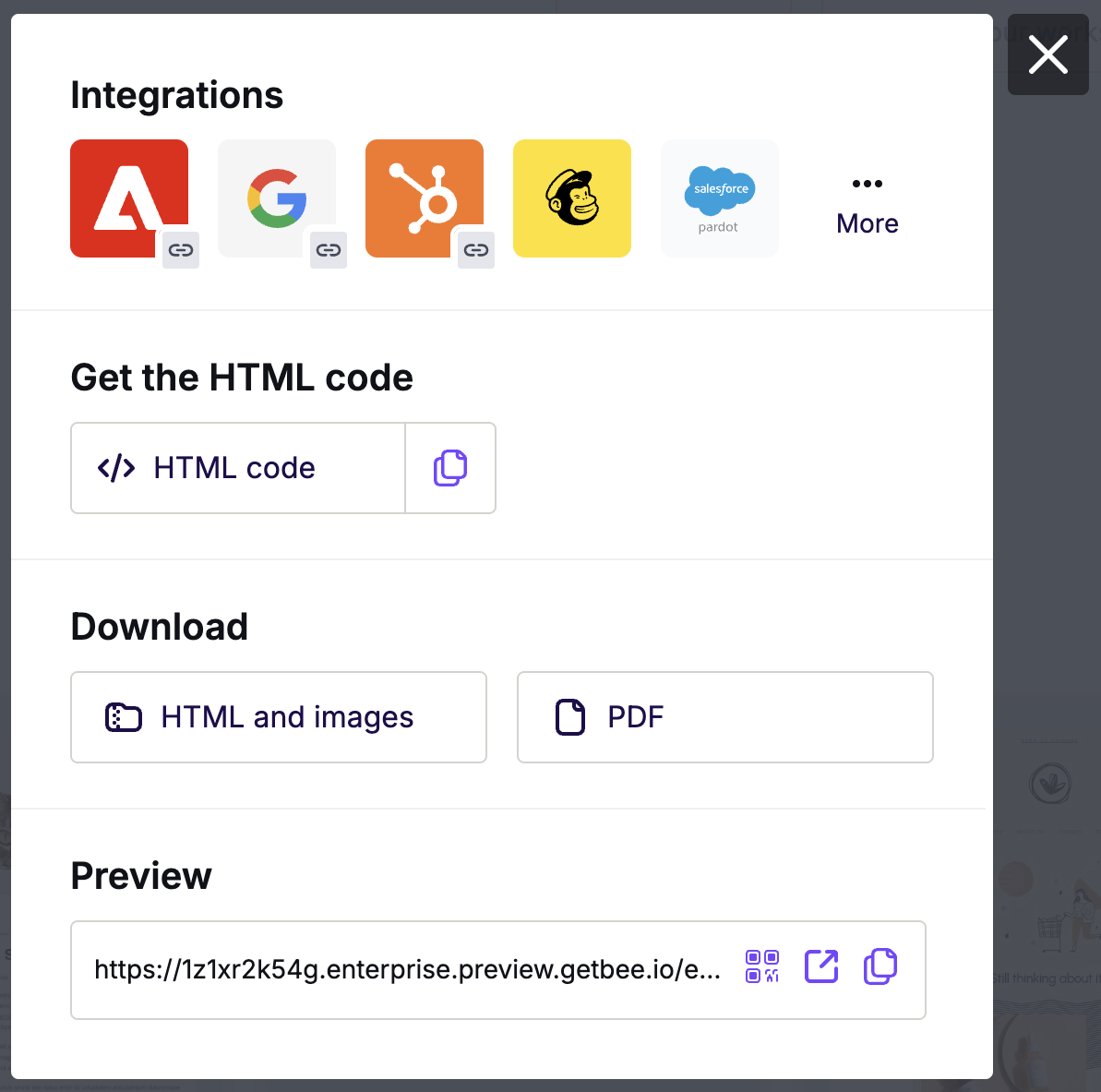
- Integrations, which is the export option you can use with our connectors. This pushes the HTML for your design directly to the connected sending platform. When exporting via a connector, your images remain hosted on RGE Studio. This can be convenient, but charges may apply.
- Get the HTML code, which allows you to copy or download an HTML file. With this export option, your images remain hosted on RGE Studio. This can be convenient, but charges may apply.
- Download HTML and Images, which generates a ZIP folder including the HTML and your images. This export option requires you to host your images elsewhere on the web.
- Download PDF, which generates a PDF version of your design. Choose from several PDF formats, including a mobile version. This export option is available on paid plans.
RGE Studio uses different coding methods for emails and pages, so export output depends on the type of design you create. See Testing and exporting your emails with RGE Studio for more on export options, or Using connectors in RGE Studio for more on connectors.
Emails and pages each offer unique options on the details page. Here's a quick look at these features.
Emails
Send test email

If you're working with an email, you can send a test message to any email address. Use this to check how your email appears in different email clients.
Preheader & UTM
You can use RGE Studio to apply preheader text to your email. This is useful if your email sending platform doesn't include a preheader feature.
You can also use RGE Studio to apply UTM parameters to the links in your email for tracking. We built our UTM feature with Google Analytics in mind.
You can find full details on these features in Using Preheaders and UTMs.
Create a Template
If you often reuse the same email as a starting point, use the Create a Template option to save a copy of your design in your Library.
Pages
Publishing
You can host your landing pages directly on RGE Studio. Use the Publish toggle on the details page to remove "preview" from your page's hosted URL. For more information, see the Publish option section of our Pages documentation.
This feature is compatible with custom domains in Enterprise accounts. We talk about this more in the Professional, Business & Enterprise Quick Start Guide.
Settings and Analytics
Use this feature to apply metadata to your design without modifying the source code. We use your metadata in the hosted version of your design. It's also included in the export output if you are self-hosting your landing page. For more information, see the Title & Meta description section of our Pages documentation.
Share
This option allows you to easily share your landing page on a social media platform. You must publish your page to use this option. For more information, see the Share section of our Pages documentation.
Design list
Your design list includes all emails and pages stored within the current view. You'll find design lists in the following places:
- The projects tab (under "Designs")
- Project folders
- Library
Each design shows a preview thumbnail and a label telling you whether it's an email or a page. Below the thumbnail, you'll find:
- The design title
- The most recent person who worked on it
- The date of the last edit
Templates don't store design history, so you won't see the most recent editor on template thumbnails.

When you hover over the design thumbnail, you'll see more options. Look for the icon with three vertical dots in the upper-right corner. Click it to see many of the same options available on the details page. This menu also includes a few options unique to the design list:
- For emails and pages, you'll see the option to copy the design in question.
- For templates, you'll see the option to duplicate your template.
- You can delete your design.
When working in the project tabs, you'll also see an empty checkbox in the upper-left corner. Use it to bulk-select your emails and pages. The bulk selection also allows you to delete multiple designs simultaneously.

If you're using a paid account, you'll also see the options to Move your designs. We talk more about this in our Professional, Business & Enterprise Quick Start Guide.
Next: Building Content in RGE Studio
If you have any questions, feel free to contact us.
Comments
0 comments
Please sign in to leave a comment.