Building Content in RGE Studio

Beefree App is now RGE Studio!
The email design suite you already know and love just leveled up. We’re working hard to update our help center, but you still may see some references to the old product name.
Overview
This quick start guide covers the features of the RGE Studio builder.
If you're looking for something else, check out our other guides:
Builder Layout
When you open the builder, there are two primary sections:
- Stage: This is where you drop rows and content blocks. It's on the left side of the screen.
- Sidebar: This is where you customize many design elements. It's on the right side of the screen.
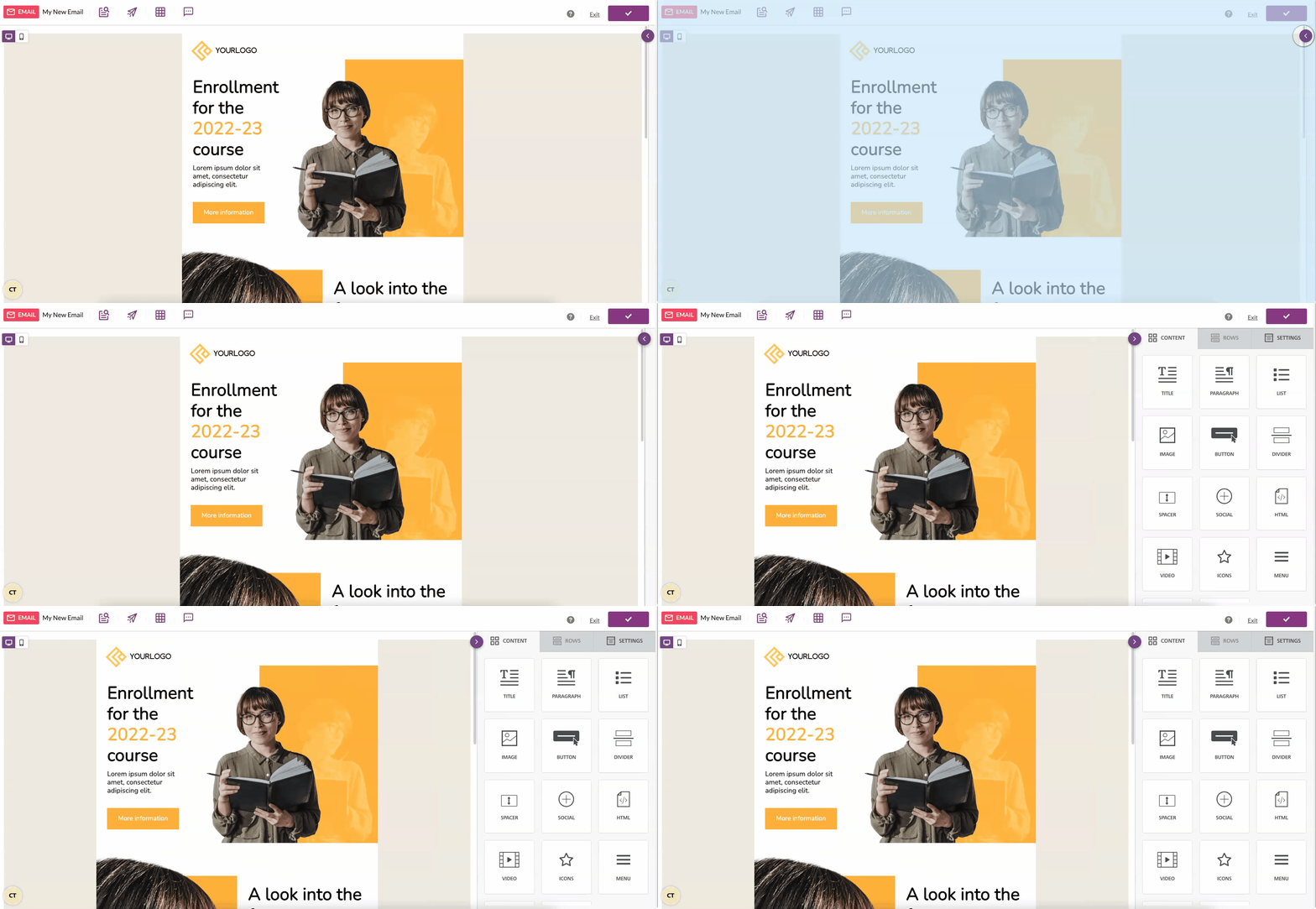
An icon separates the stage and the sidebar. You can use this icon to minimize the sidebar at any time.
To start designing on the stage, select a design element from the sidebar. The sidebar has three tabs to help you create content.
Settings
Use the Settings tab to set defaults for your entire design. Your rows and content blocks inherit these settings.
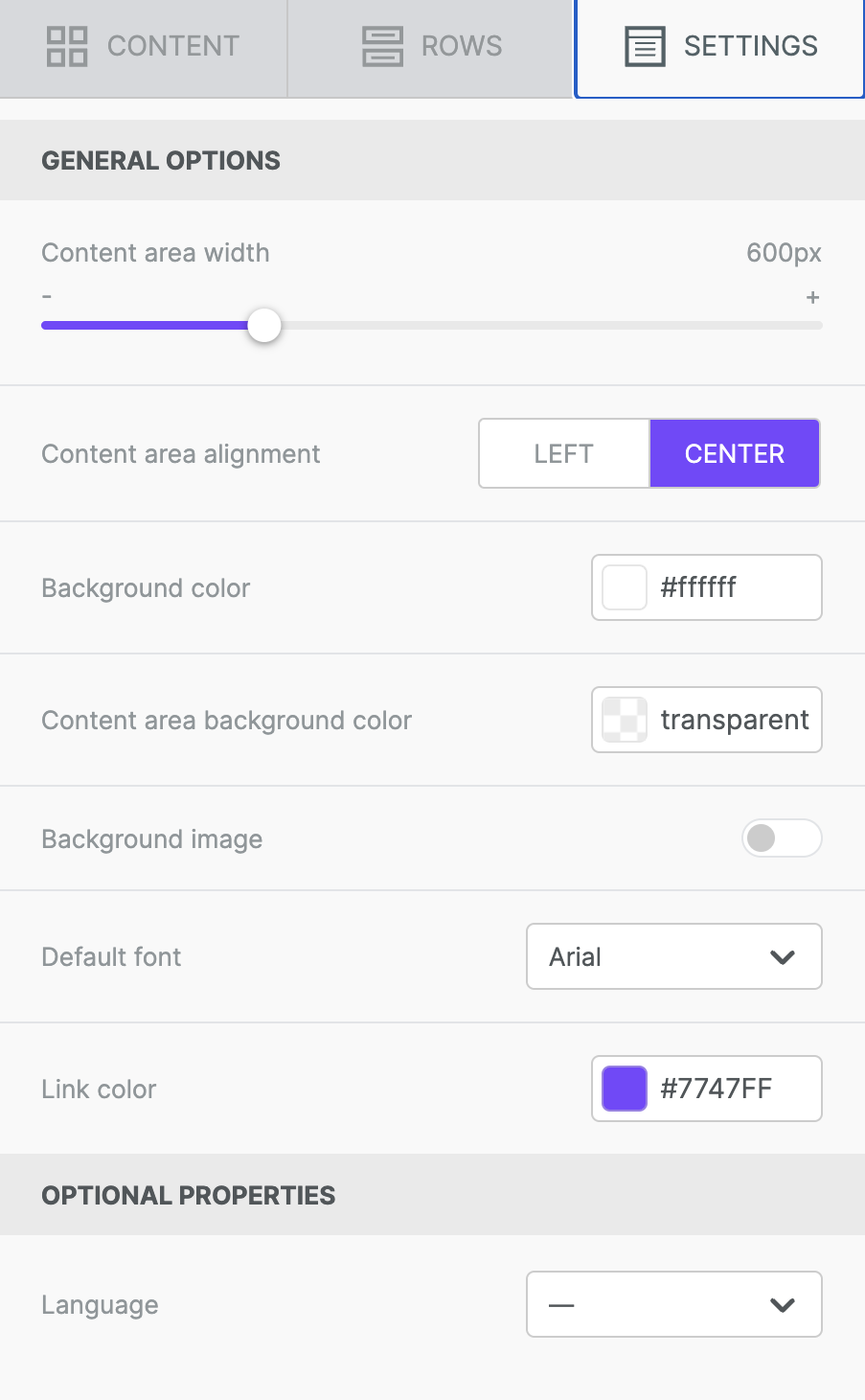
The Settings tab includes these options:
- Content area width
- Content area alignment
- Background color
- Content area background color
- Background image
- Default font
- Link color
- Language (optional)
- Configure Favicon (optional, Pages only)
Rows
Rows are the primary structural element for designs created in the RGE Studio builder. Within your rows, you can customize the column structure. With a multi-column row, you can place content side-by-side in your design. Most importantly, rows act as a container for all of your content blocks.
 |
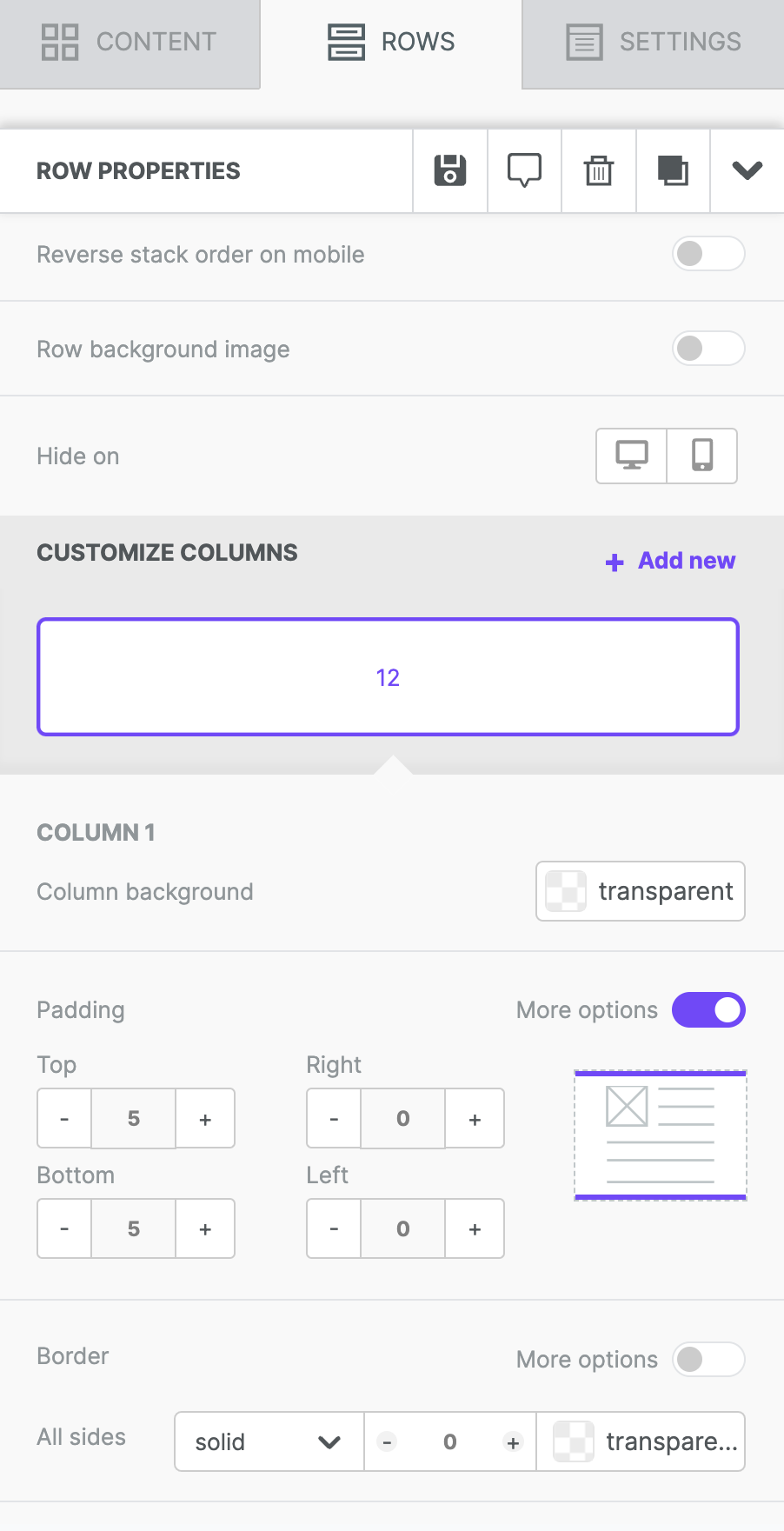 |
The sidebar shows these options when you select a row:
- Row background color
- Content area background color
- Content area rounded corners
- Content area border
- Do not stack on mobile
- Reverse stack order on mobile
- Row background image
- Row background video (Pages only)
- Hide on
Rows can also include columns. Use the Customize columns section to change the column structure.
Click +Add new to insert a column. A separator icon appears between each column. Click and drag the icon to change the column structure.
Each column has these options:
To switch between columns, click the column you want to edit in the sidebar. The selected column is highlighted in purple.
To learn more, see these articles:
- Settings, Rows, and Content: How do they work?
- How do I select a row vs. content?
- How do I change the properties of a row?
- Column management
Content
You can use many content blocks in the RGE Studio builder. Every content block has padding and Hide on settings in the sidebar.
Here are the available content blocks. Click a block name to learn more about it.
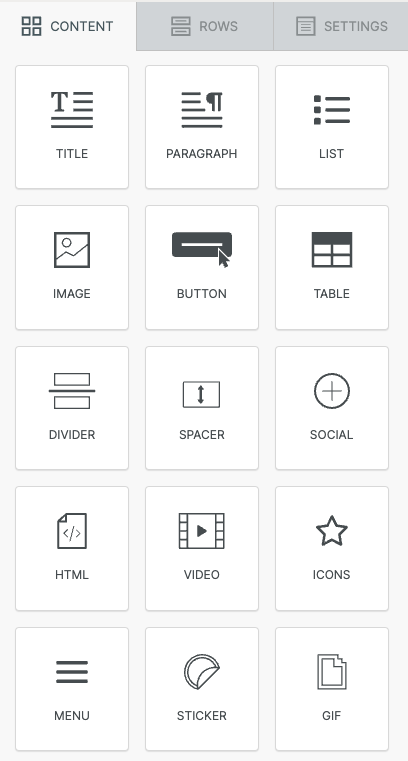
- Title
- Paragraph
- List
- Image
- Button
- Table
- Divider
- Spacer
- Social
- HTML
- Video (learn about videos in emails and pages)
- Icons
- Menu
- Sticker
- GIF
- Forms (Pages only)
Mobile Design Mode
By default, the stage shows how your design looks on a desktop device. You can also build your content in mobile design mode. This mode shows how your design looks on a mobile device.
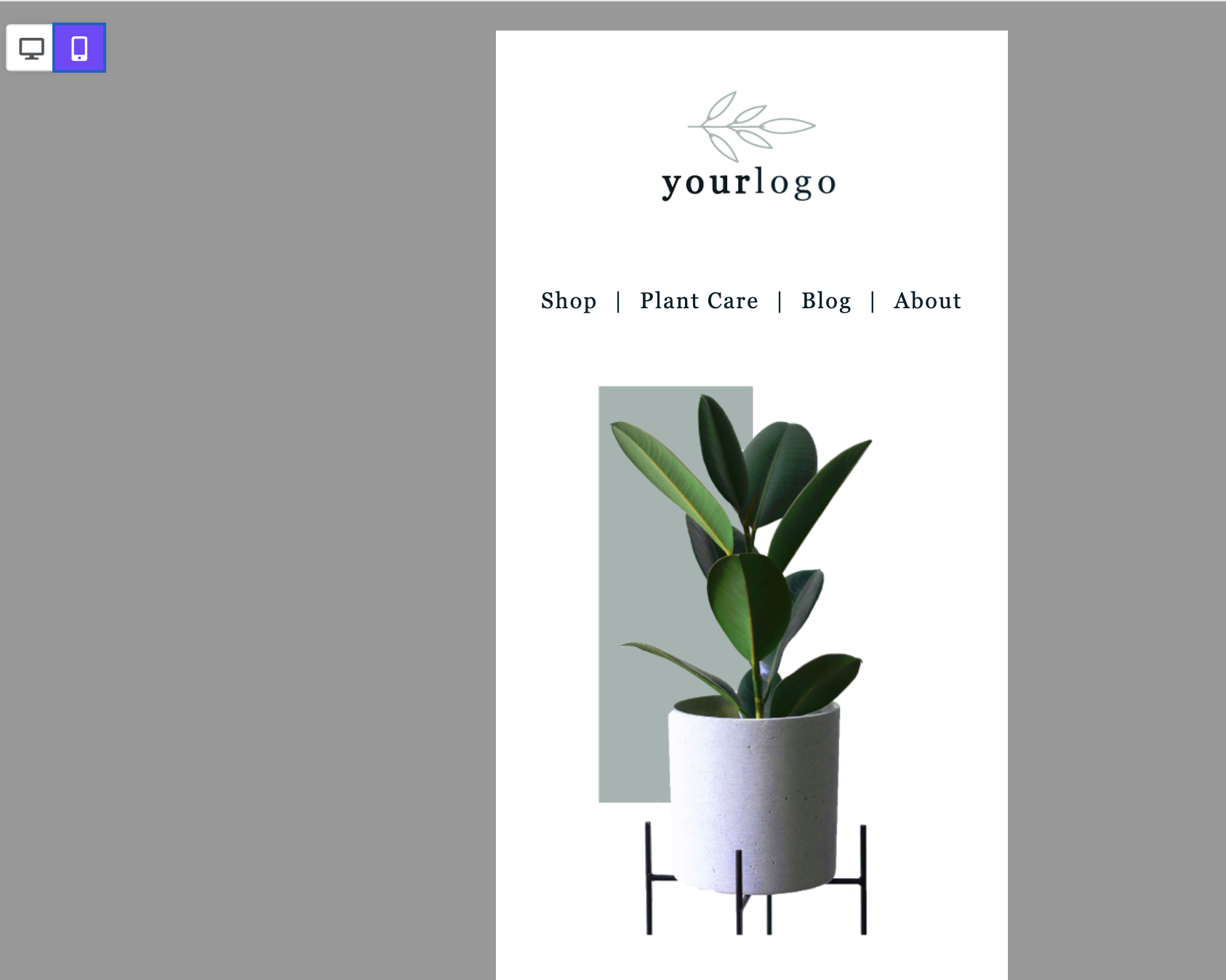
Most edits you make in mobile design mode apply to both the desktop and mobile versions. Some settings in the sidebar have a mobile icon. These settings only apply to the mobile version of your design.
To learn more, see Mobile design mode.
Preview
Use Preview to see your design on a desktop, tablet, or mobile device. In the preview, you can also:
- Use the dark mode toggle to see how dark mode settings affect your design.
- See how display conditions affect your design.
- View each language version of a multilingual design. Select a version from the drop-down menu.
- Change the preview size. Type a size, or use the arrow keys. Each press changes the size by 1 pixel.
- Share your design.
Here is the preview inside the builder:
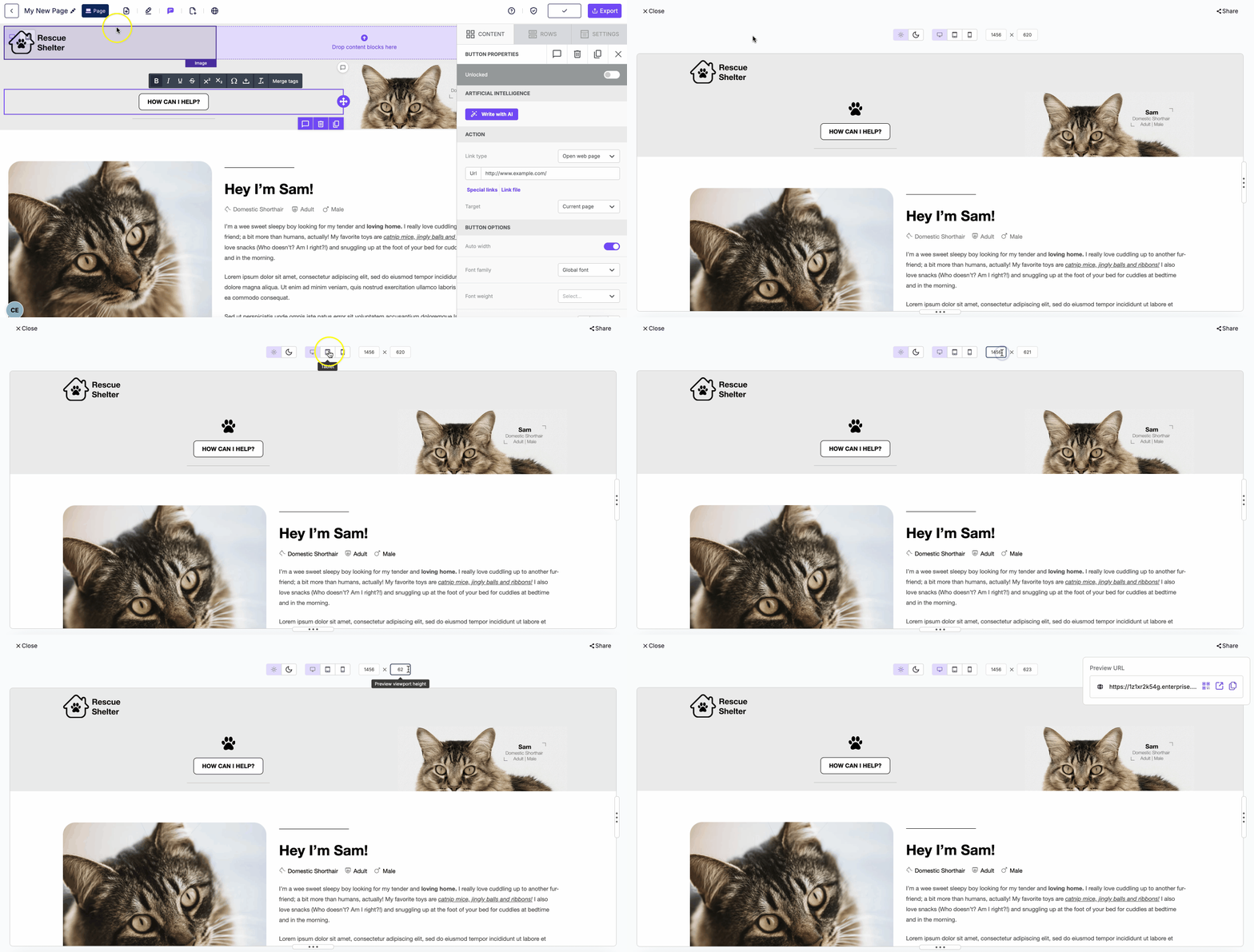
The preview is an estimate based on the most popular devices and programs. Keep this in mind for emails and for dark mode preview. Devices and email clients have different settings. These settings can make your design render differently.
The preview URL is only on the Details page. To find it, save your changes first. Then exit the builder.
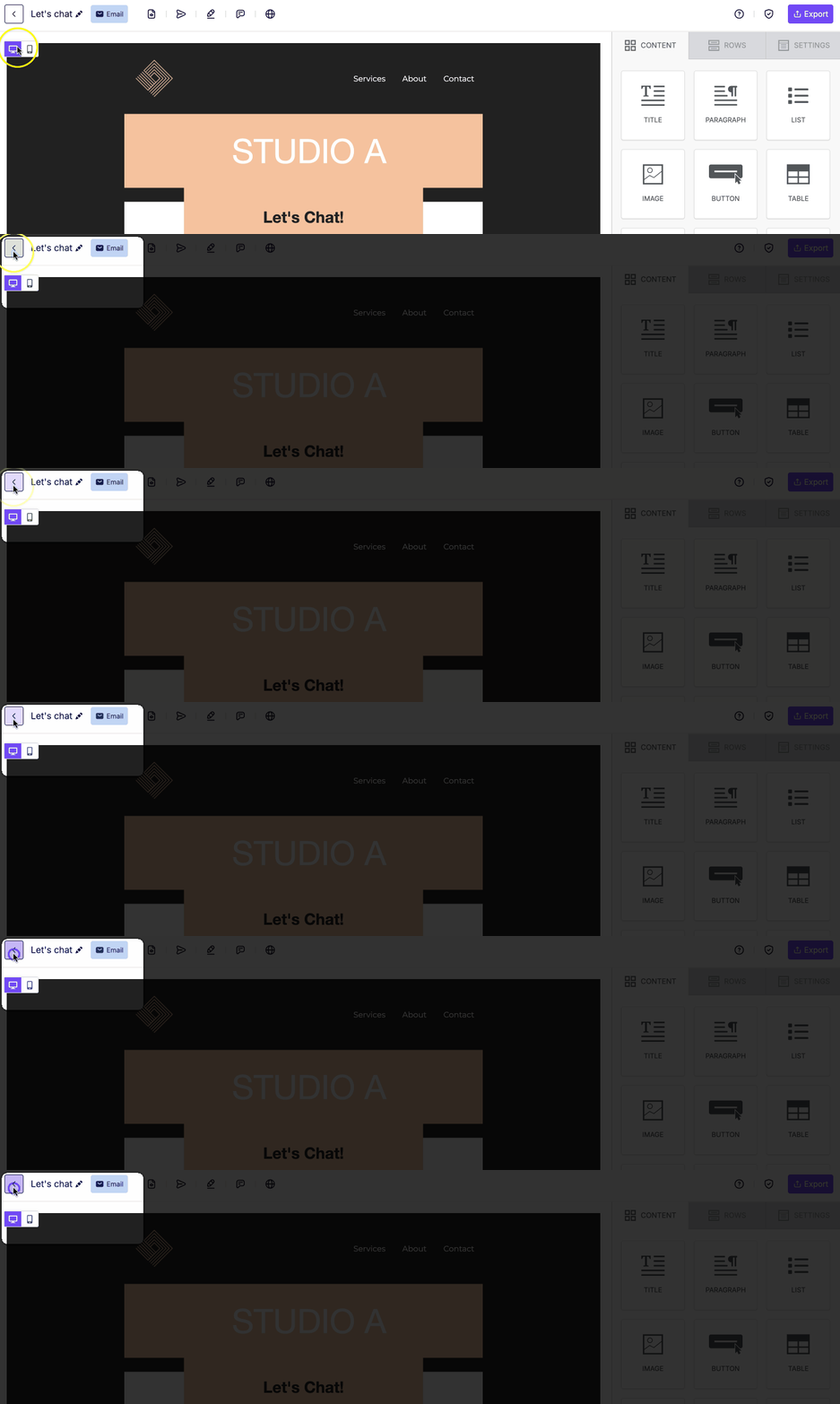
To learn more, see these articles:
If you have any questions, feel free to contact us.
Comments
2 comments
no funciona bien la pagina, se me carga todo el rato y no puedo hacer nada...
Hello Carol, I'm sorry you are having issues accessing your design.
Please try closing your account and clearing all your browser's cache and then try to reaccess. Usually, this is caused by some internet or browser issues.
Please sign in to leave a comment.