Using connectors in RGE Studio

Beefree App is now RGE Studio!
The email design suite you already know and love just leveled up. We’re working hard to update our help center, but you still may see some references to the old product name.
This article applies to all plans.
Overview
Connectors let you export your emails from RGE Studio directly to a sending platform. You can connect your account to the following platforms:
- Account Engagement (Pardot)
- ActiveCampaign
- Acumbamail
- Amazon SES
- Braze
- Brevo (former Sendinblue)
- Campaign Monitor
- Constant Contact
- Gmail
- HubSpot
- Iterable
- Klaviyo
- Mailchimp
- MailUp
- Marketo
- Outlook App
- Outlook Web
- Salesforce Marketing Cloud
- SendGrid
- Veeva Vault (Beta)
- ZeptoMail
- Zoho Campaigns
- Zoho Mail
Is your favorite application missing? Vote for it or set up a custom connector.
You can also export pages to HubSpot or Salesforce Account Engagement (Pardot).
Activating and Using Connectors
You can activate a connector from several places in the platform:
- From the Workspace Settings
- From an Export button, which is available:
- Inside the builder
- On the Email Details page
- In the actions menu for your email
You can set up connectors before or after you create your design.
1. From Workspace Settings
Go to Settings > Connectors.
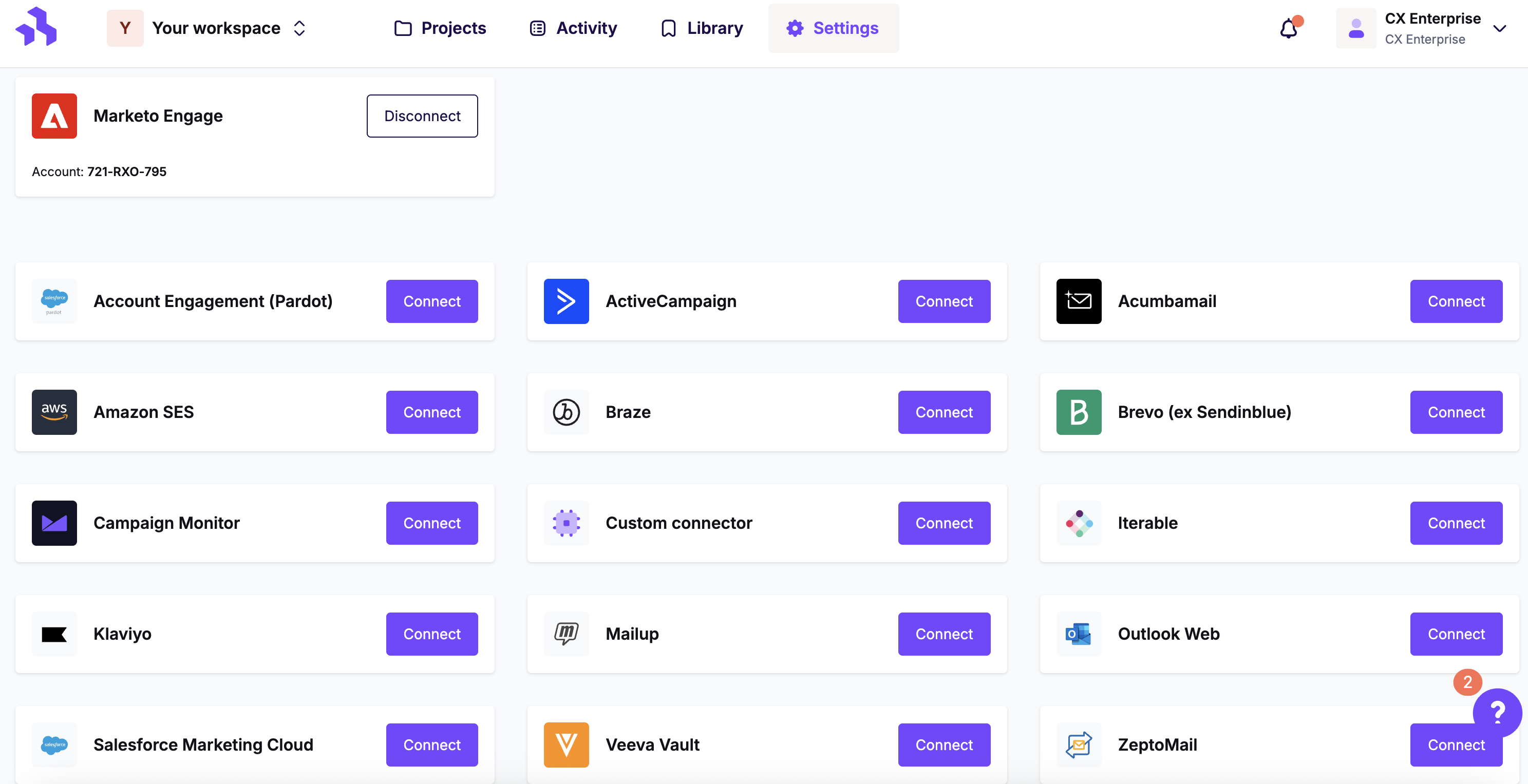
Click the Connect button for the application you want to use.
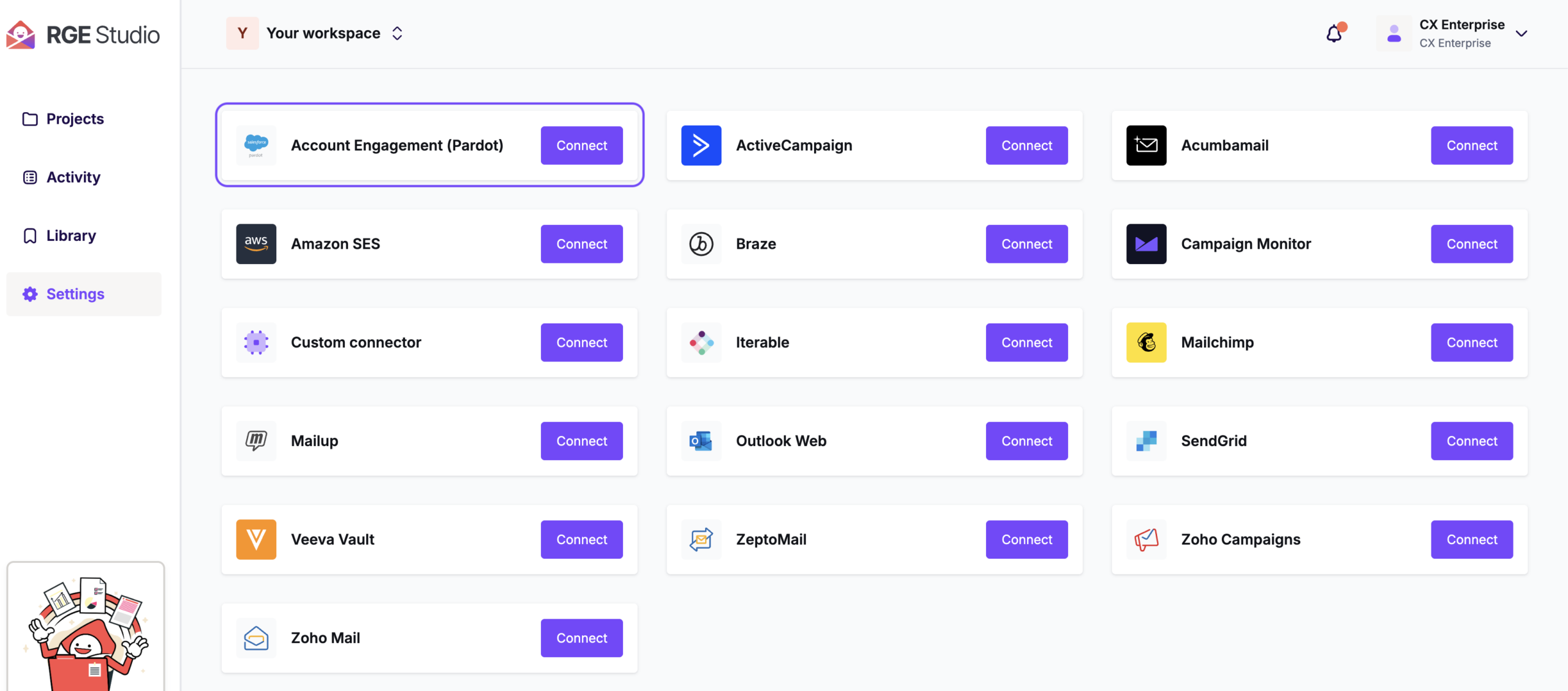
Follow the instructions on the screen to log into your account. Then authorize RGE Studio to connect to it. RGE Studio does not store your application credentials. It uses them only temporarily to retrieve an anonymous key. That key then connects the two accounts.
2. From an Export button
You can also activate a connector when you are ready to export a design.
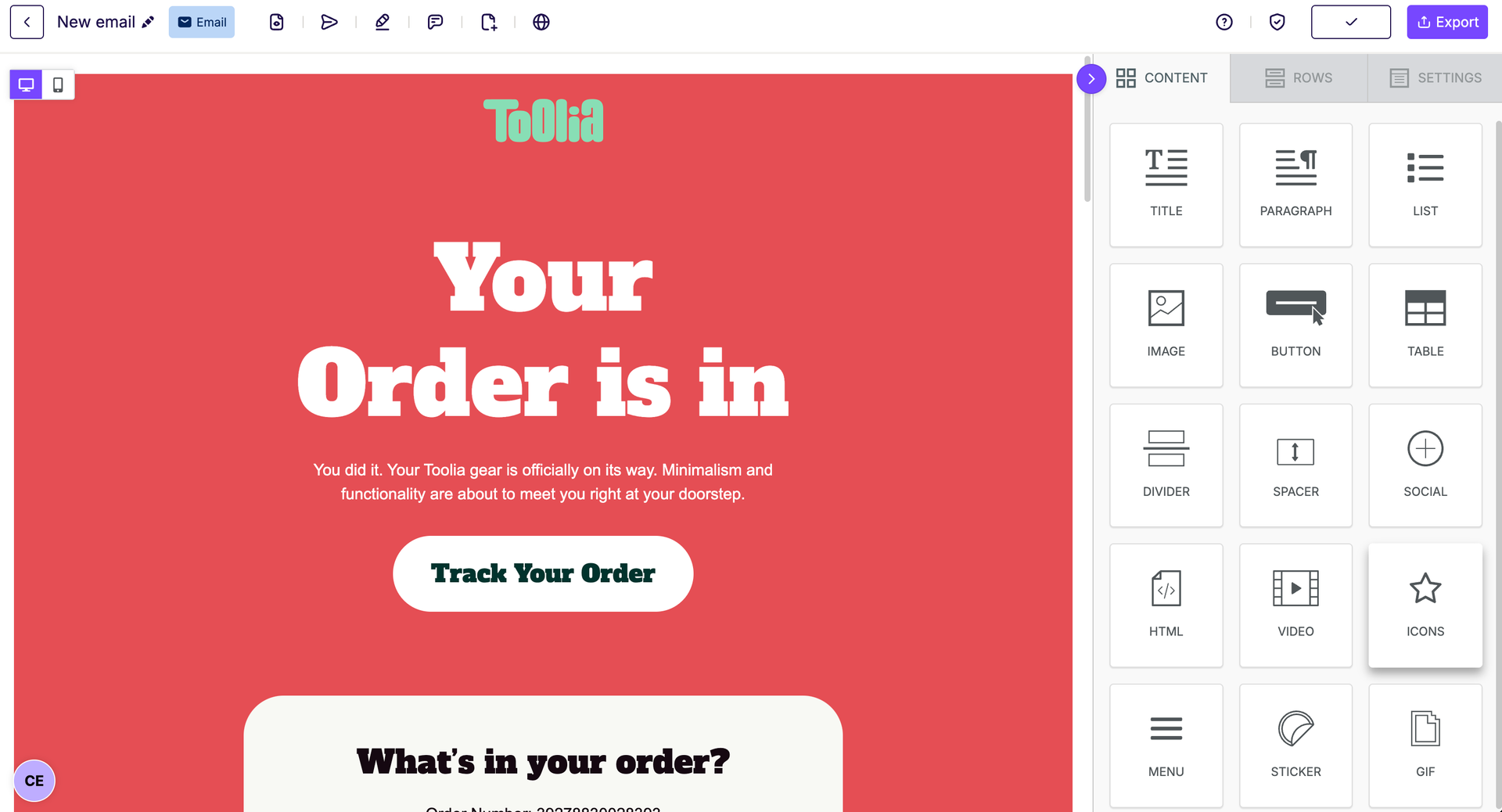
You can begin an export from several places inside RGE Studio. First, an Export button is available in the builder navigation bar at the top right.
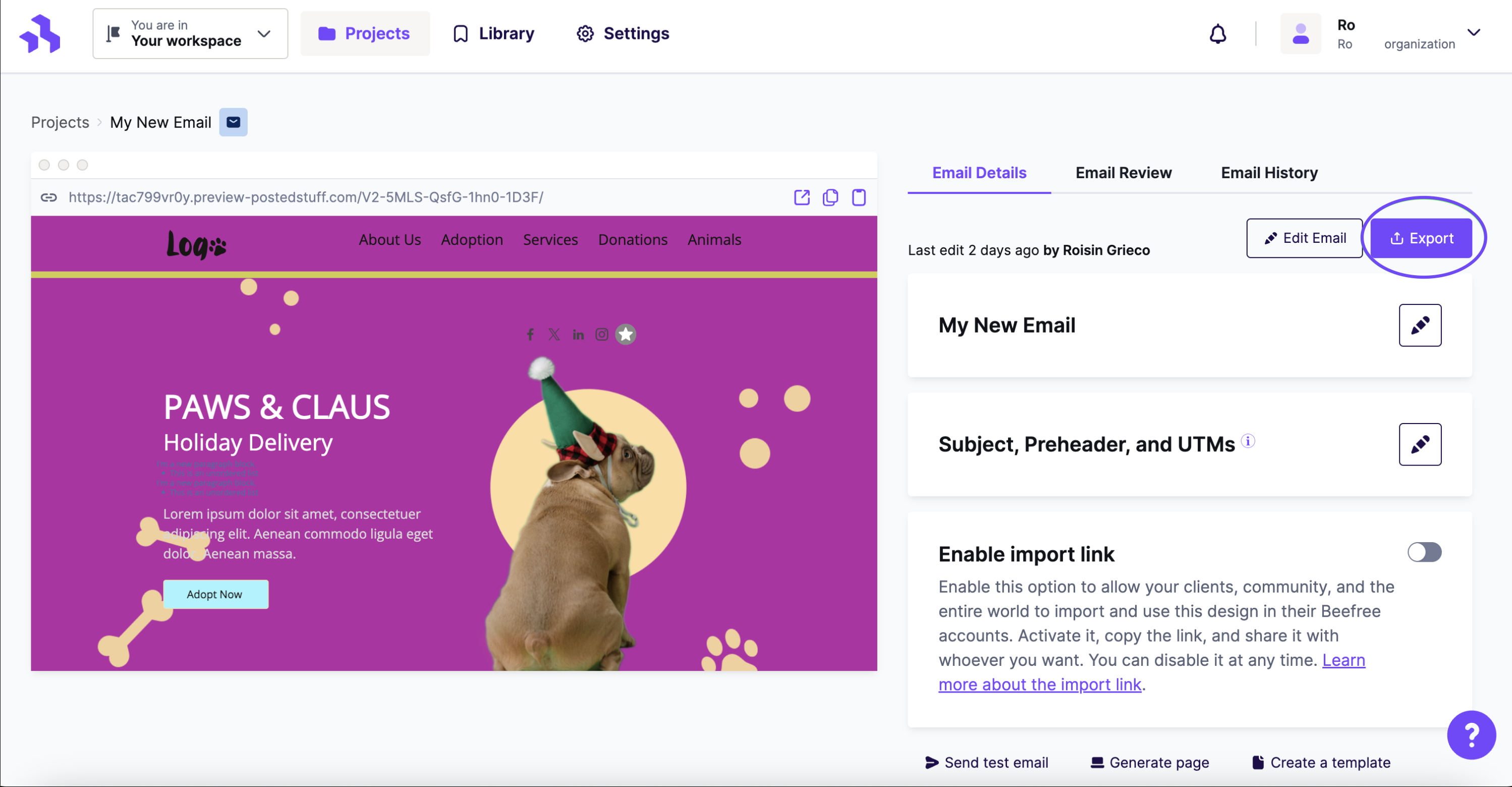
You can also export immediately after exiting the builder. The same Export button is available on the Email Details page.
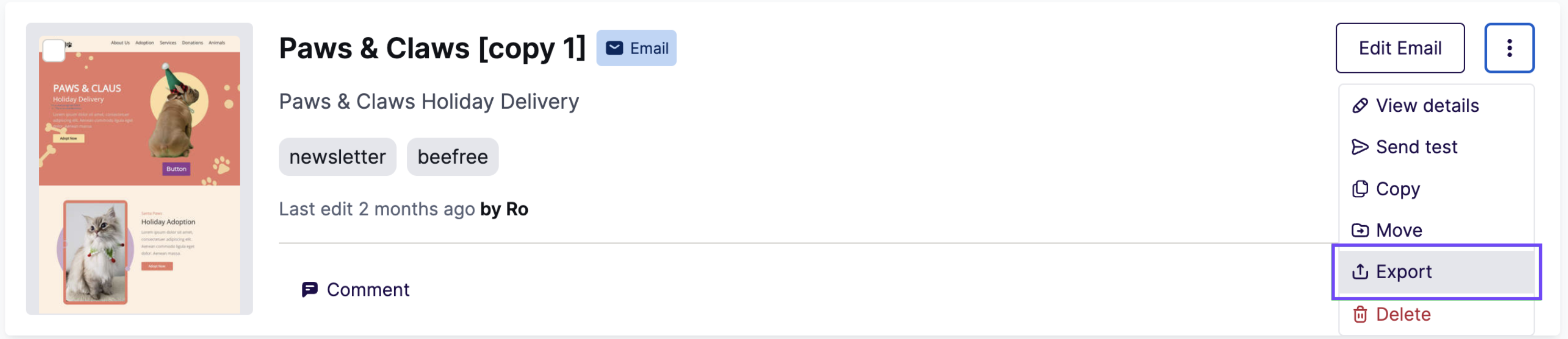
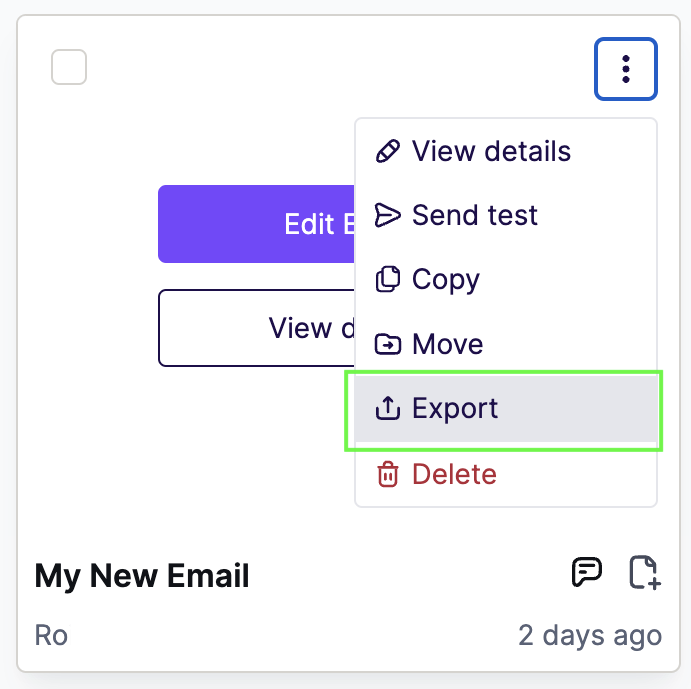
Alternatively, you can access the same feature by selecting Export in the actions menu for your email.
List view:
Grid view:
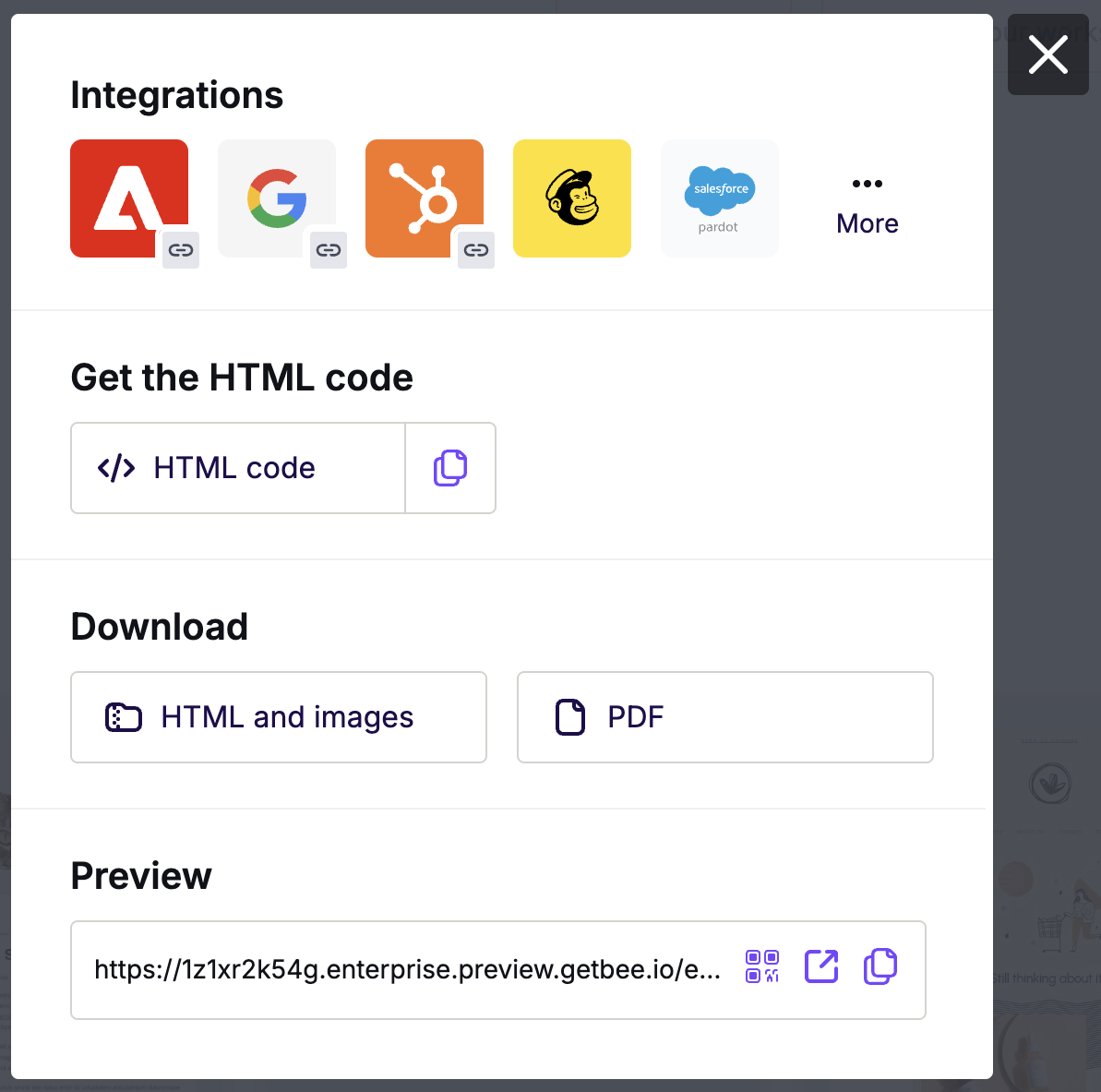
The Export button opens a modal with various export options, depending on your plan.
To use a connector, click one of the Integrations icons. If you don't see the platform you need, click More to see all connectors.
In the Integrations screen, you can use the search bar or scroll to see the full list. Select your preferred application and follow the instructions to set up the connector. RGE Studio does not store your application credentials.
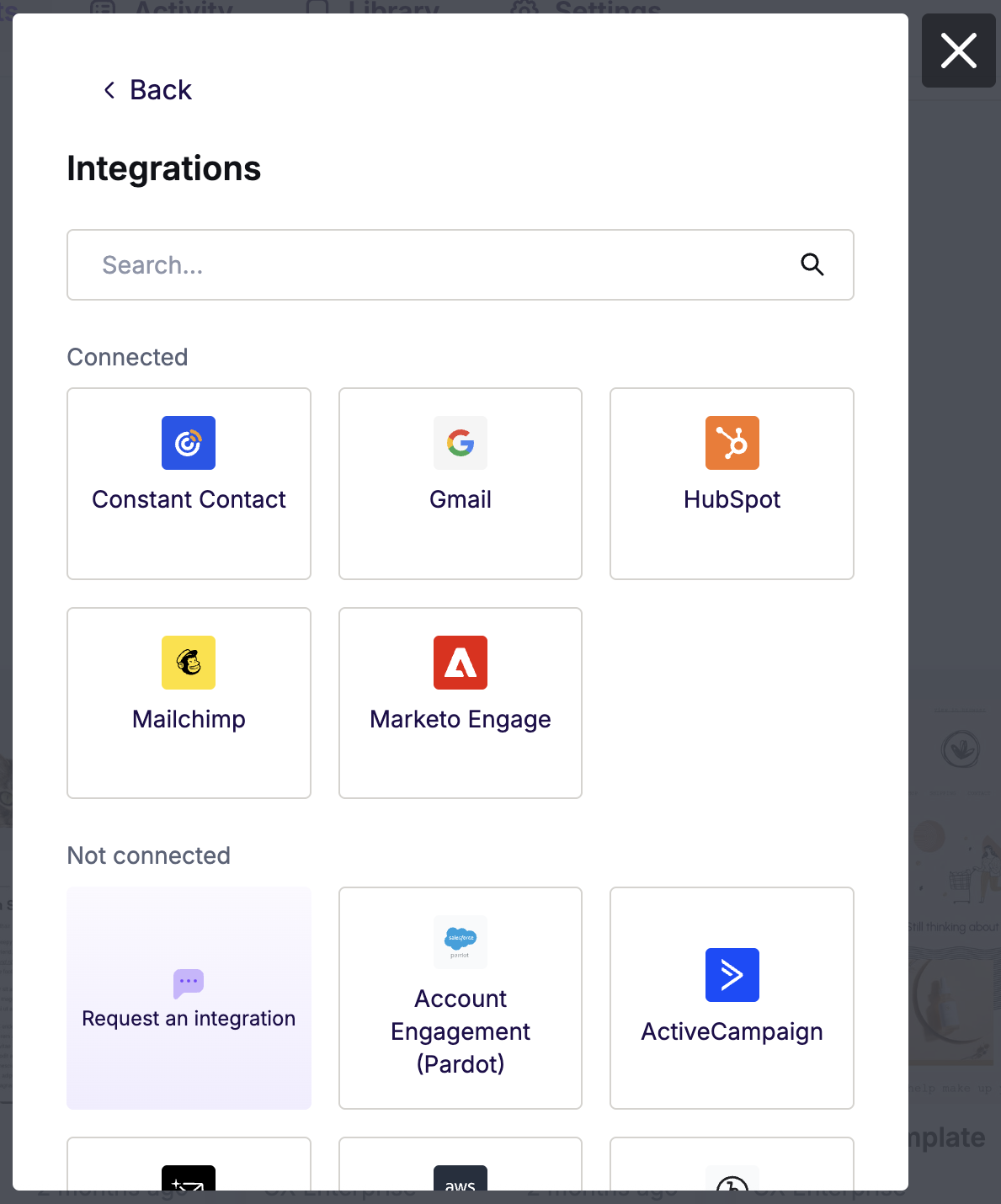
If you don't see the platform you're looking for, you can use the Custom connector to set up your own. To request a connector, select Request an integration to notify our Product team.
The next time you export with the same connector, the connection is already active. You can then push your email to your sending platform in one click.
Storing Connections for Multiple Workspaces
Business and Enterprise plans let you create multiple workspaces. Each workspace can have its own connectors. Use separate workspaces for different customers or business units. You can then export without switching accounts.
For example, say you are an agency with 10 clients that all use HubSpot. You can create 10 workspaces in RGE Studio. Connect each workspace to a client's HubSpot account with the HubSpot connector.
If you have any questions, feel free to contact us.
Comments
2 comments
I want to vote for MailerLite for integration and it´s not included....
Hi Gabriela!
Thanks for reaching out to our community at Beefree; regarding your question, if you don't see your Email Sending Platform in our Connector suggestion form listed at the top, feel free to use the 'Other...' option and manually input the Email Sending Platform there. I hope that this helps!
Please sign in to leave a comment.